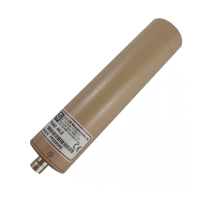
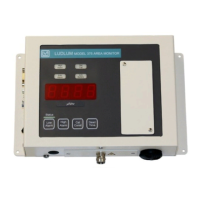
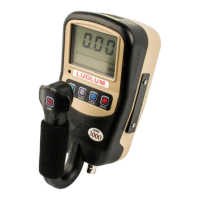
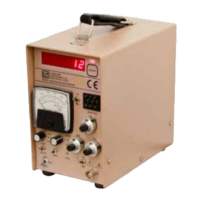
Model 2200 Scaler Ratemeter
Ludlum Measurements, Inc. Page 15 March 2016
3. Prior to running the program, ensure that the Model 2200 is in the PC
mode, and the count time push-wheels are set to 000.
Button Functions
Start/Stop Count: Click on this button to start a count. Clicking on it again will
hold the count. The Model 2200 automatically sends the final count to the
computer when the count time expires.
Read Count: Click on this button to read the current count as displayed on the
Model 2200 display.
Set Count Time: Click on this button to set the count time. The count tiem
push-wheels must be set to 000 for this to work.
Read Count Time Left: Click on this button to read the remaining count time
left during a timed count. If a count is not in progress, this returns “0.”
Start Logging/Stop Logging: Click on this button to start taking a series of
time counts. The number of counts taken can be adjusted to continuous, 10
counts, 100 counts, 200 counts or a user-defined value. After the logging has
been stopped, the data may be saved to a comma-delimited file or printed to a
printer. A temporary file called “grid.dat” is created when logging is started. The
format for the file is a comma-delimited text file.
If the program is closed before the Save of Print button is used, the data can be
retrieved from this file.
Log 1 Count: logs only one count.
Save: Click on this button to save the logged data to a comma delimited file for
import into a spreadsheet or database program.
Print: Click on this button to print the logged data to printer.
Append Data: When checked, data is appended to the table, and when
unchecked, the table is cleared when the “Start Logging” or “Log 1 Count”
buttons are pressed.
Comment 1/Comment 2: two user-defined fields that can be used to store
comments. These fields are 20 characters in length.

 To Next Page
 Loading...