English - 15
4.3.2 Controlling VCs with the computer
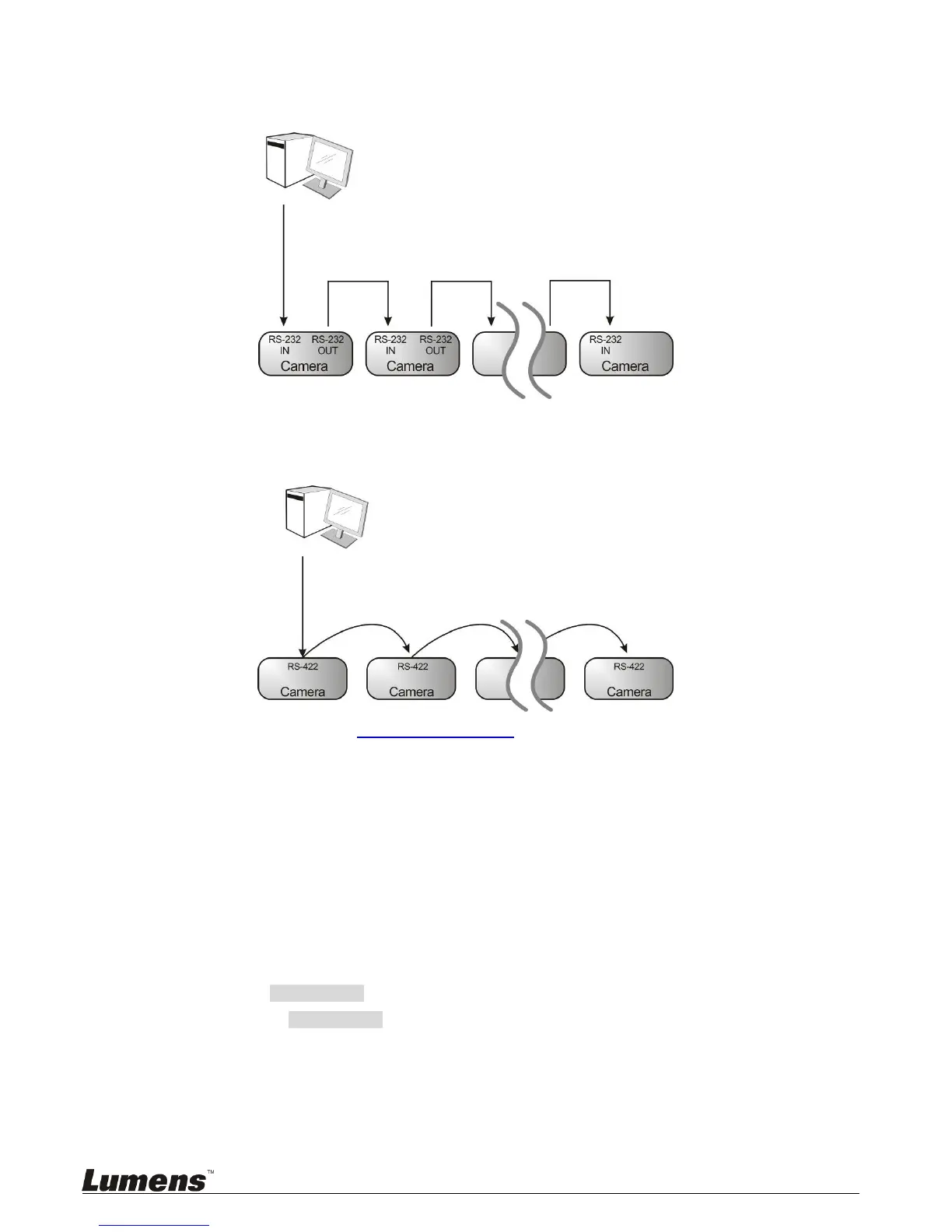
4.3.2.1 Connecting to one computer for connection between VCs (RS-232 in/out)
<Remark> With RS-232 in/out, at most 7 VCs can be connected.
4.3.2.2
Connecting to one computer for connection between VCs (RS-422)
<Remark> Please refer to 8.2 RS-422 connection for the RS-422 connection instructions.
<Remark> With RS-422, at most 7 VCs can be connected.
4.3.3 Use of VC-A20P with Internet Connection
4.3.3.1 Setup before use
Connect DVI output to the screen.
Press [MENU] on the Remote Control to display the OSD menu.
Shift down to [Ethernet] to modify and confirm the IP address.
DHCP: Enable/disable the dynamic host configuration protocol
IP Address: Confirm or modify the IP address of VC-A20P
Subnet mask: 255.255.255.0
Gateway: Preset 192.168.100.1
[Remark] Please modify the above settings based on the LAN setting of the operating environment. To use
DHCP, please connect the VC-A20P to LAN and then confirm IP address.
After completing settings, press [MENU] to exit the OSD menu.
After completing setting and confirming IP address, DVI cable can be disconnected.



 To Next Page
 Loading...