2120200506Installation Instructions DualGig-2.5
adapter.
You also have an advantage if, for example, you only have 1 LAN port left on
your cable modem to connect the 1st MoCA® adapter. Then connect that 1st
MoCA® adapter to it and a LAN port will become available again on the 2nd
LAN port of the MoCA® adapter.
It also works that way with your 2nd MoCA® adapter; for example, you con-
nect your media box to a LAN port and an access point to the other LAN port.
How do I check if the MoCA® adapters can communicate with each other?
Are you unsure whether the MoCA® adapters communicate with each other?
Then run this simple test:
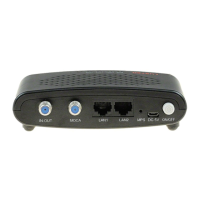
- Connect both MoCA® adapters with an Fmale-Fmale coaxial cable
and connect it for both MoCA® adapters to the “MOCA” connector.
- Connect one of the MoCA® adapters to an Ethernet connection via a
network cable.
- Connect the other MoCA® adapter to your laptop via a network cable
- Connect both MoCA® adapters to the power supply
- Does the PWR LED lit on both MoCA® adapters?
- Does the MOCA LED lit on both MoCA® adapters?
- Does the LAN1 or LAN2 LED ash on both MoCA® adapters?
- Do you have an internet connection on your laptop?
- Do a speed test, do you get the approximate internet speed that you
can expect with the internet subscription?
- If this is successful, both MoCA® adapters work properly.
How can I check the MoCA® adapter settings?
For this you need the IP address of the adapter menu of the MoCA® adapter
(which you can nd in the IP list in your cable modem or try 192.168.144.200).
Connect your laptop to the network and type the IP address of the MoCA®
adapter in your browser. You will then see the login screen. To access the
MoCA® adapter menu you need the password and login details (factory set as
admin / admin).
Hints and tips


 To Next Page