7
KIT PERFORMANCE DISPLAY
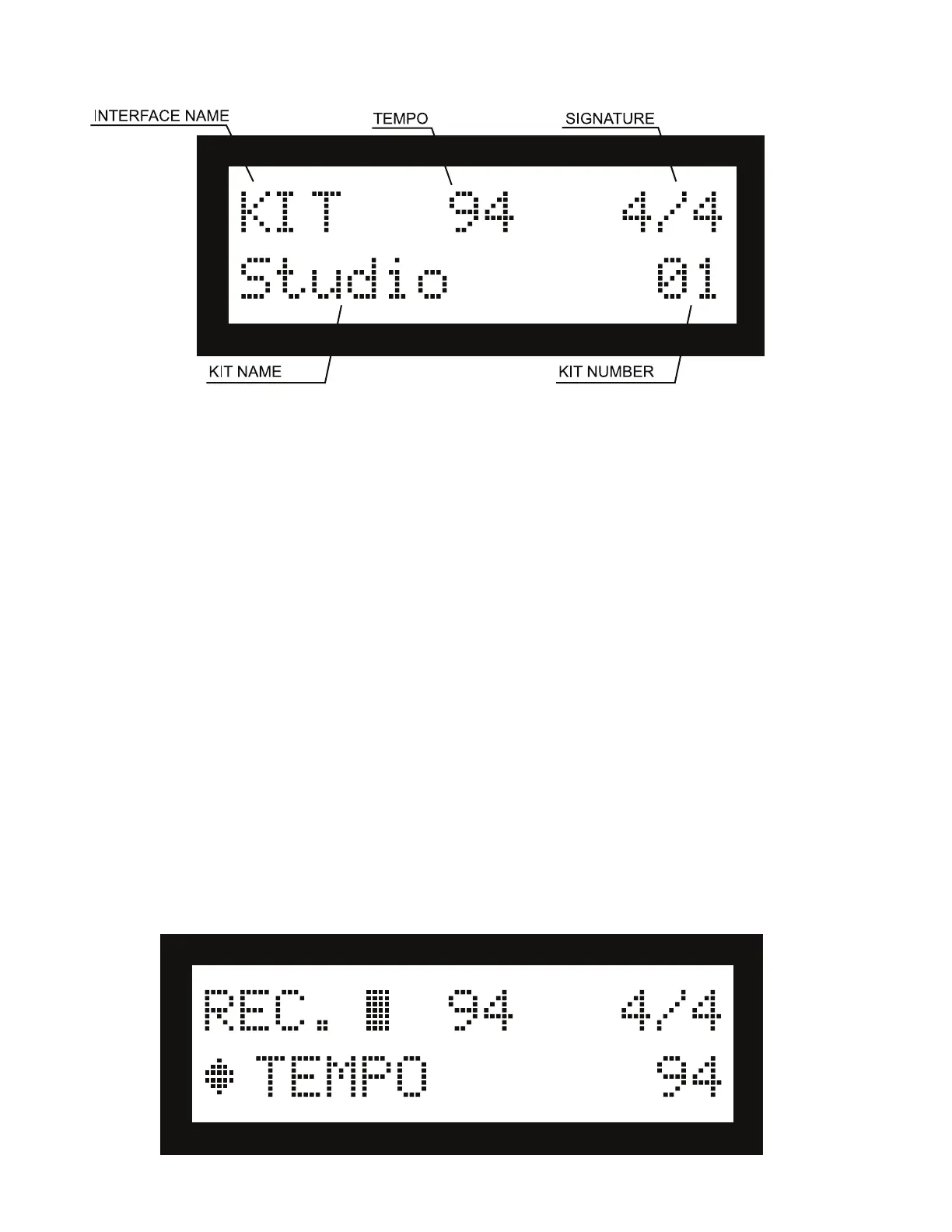
When you power on the sound module, the irst interface that appears is the Kit Performance display. From this
screen, you can perform the following operations:
Select a Kit
• From the Kit Performance screen, use the Value Rotary dial or +/- buttons to select a kit. The display will show the
current kit number and name.
• USER KITs are copies of preset kits by default, and used for storing your edited drum kits without overwriting the
factory presets.
Change the Tempo
• Press the TEMPO button, and the tempo value on the display screen will start to blink.
• You can change the tempo once you press the TEMPO button in one of two ways:
- Use the Value Rotary dial or the +/- buttons to adjust the current tempo.
- Tap the TEMPO button in time with the tempo you want, and the unit will calculate and set the tempo accordingly.
• To exit, wait several seconds without changing the tempo, or press the EXIT button.
Turn Metronome On/Off
• Press the CLICK button to activate or deactivate the metronome.
• The metronome will play a steady beat at the currently set tempo, allowing you to practice or perform with the beat.
• When the tempo is changed or you play a song, the metronome will adjust its tempo accordingly. In the SETUP >
METRONOME menu, you can set the metronome volume, tone, time signature, and other related parameters. Please
refer to the section of this manual entitled SYSTEM SETUP (Page 10).
Record
• Select the kit and the song (if any) that you wish to use for the recording, then press the •ENTER button to enter
the recording standby mode. The display will switch to the recording standby interface, as shown below:


 To Next Page