EasyManua.ls Logo

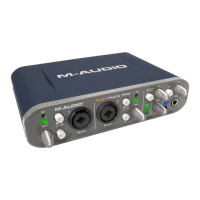
M-Audio Fast Track Pro - User Manual

M-Audio Fast Track Pro
17 pages
Print Icon
To Next Page IconTo Next Page
Loading...
Fast Track Pro
User Guide

Other manuals for M-Audio Fast Track Pro

Questions and Answers

  • T
    Tina DominguezJul 26, 2025
    How to troubleshoot no sound on M-Audio Recording Equipment?
    • S
      stephanie92Jul 26, 2025
      If you are experiencing a lack of sound with your M-Audio Recording Equipment, there are several things you can check: * Ensure the Fast Track Pro drivers are properly installed. * Verify your audio software is set up to use the Fast Track Pro. * Check your signal path to confirm your application is receiving an audio signal. * Inspect your audio connections and cables to ensure everything is correctly plugged in. * Confirm the power button is enabled. * Check the mic/line selector switch to ensure you've selected the proper input.
  • M
    Matthew ForbesAug 5, 2025
    What to do if there is no sound when recording a digital input on M-Audio Fast Track Pro Recording Equipment?
    • V
      Victoria RodgersAug 5, 2025
      If you're not getting any sound when recording a digital input on your M-Audio Recording Equipment, ensure that your audio software is configured to receive digital input. Additionally, verify that the input source is set as the clock master.
  • K
    Keith KennedyAug 15, 2025
    Why am I getting clicks and pops in recordings with M-Audio Recording Equipment?
    • J
      Jessica BergAug 15, 2025
      If you're hearing clicks and pops in your recordings with M-Audio Recording Equipment, consider the following: 1. Ensure your input levels aren't too high, as this can cause distortion and clipping. 2. Check the input level meters in your audio application. 3. If recording a digital input source, verify the sync source in your audio software is set to external. 4. Try using a larger buffer size (higher latency setting). 5. If using a USB hub, connect the Fast Track Pro directly to your computer.
  • A
    anatolyApr 25, 2026
    The manual says: "When button 4 is pressed, the inputs accept an instrument-level signal (guitar or bass); when released, they accept a line-level signal (keyboard or drum machine)." In reality, the front panel says "Line" next to the pressed button symbol, and "Inst" next to the released button symbol. Which should I believe?
    • А
      анатолийApr 25, 2026
      В мануале сказано : "Когда кнопка 4 находится в нажатом положении, входы принимают сигнал инструментального уровня (гитара или бас), в отжатом положении – сигнал линейного уровня (клавиши или драм-машина)". В реальности же на лицевой панели напротив символа нажатой кнопки написано Line , а напротив отжатой - Inst. Чему верить?

      Summary

      Introduction

      Fast Track Pro Features Overview

      Minimum System Requirements

      Operating Systems Requirements

      Details system requirements for Windows and Mac operating systems.

      Hardware Requirements

      Lists minimum hardware specifications for Windows and Mac systems.

      Front Panel Controls and Connectors

      Front Panel Interface Description

      Describes the physical controls and connectors on the front of the device.

      Rear Panel Connectors Overview

      Hardware Connection Instructions

      Software Control Panel Features

      Bandwidth Tab Settings

      Explains settings for sample rate, sample depth, and channel selection.

      Latency Tab Configuration

      About Tab Information

      Using the Fast Track Pro Features

      Setting Input Recording Levels

      Guides on adjusting input gain for microphones and instruments.

      Coaxial S;PDIF Input Setup

      Instructions for connecting and setting up digital S/PDIF inputs.

      Sample Rate Configuration

      How to set the audio sample rate within your software.

      Monitoring Inputs During Recording

      Explains how to use the Input/Playback Mix Control for monitoring.

      Selecting and Routing Audio Outputs

      How to choose and route audio signals to different outputs.

      Headphone Monitoring Options

      Adjusting headphone output source and level.

      Stand-alone Mode Functionality

      Using the device as a standalone converter without a computer.

      Warranty Information and Registration

      Warranty Terms and Limitations

      Details M-Audio's warranty policy and limitations.

      Product Registration Process

      Instructions and benefits of registering your product online.

      Troubleshooting Common Problems

      Technical Product Specifications

      M-Audio Fast Track Pro Specifications

      General IconGeneral
      Audio Interface TypeUSB Audio Interface
      Number of Inputs4
      Number of Outputs4
      Phantom PowerYes
      MIDI I/OYes
      Headphone OutputYes
      Mic Preamps2
      USBUSB 1.1
      Software IncludedAbleton Live Lite
      Sample Rate96 kHz
      Analog Inputs2 x XLR/TRS Combo, 2 x TRS
      Analog Outputs4
      Digital InputsS/PDIF
      Digital OutputsS/PDIF

      Related product manuals