2928
F1 [SKIP] Excludes the selected song
from the playlist being executed. Select
Song by turning [ALPHA DIAL] or [Up down]
press F1 [SKIP]. An icon will appear, indi-
cating that the Song will not be played in
the current Playlist.
F2 [NEXT] Inserts the selected song in
the Next location. Then the song will be
played after the one currently playing. Se-
lect Song by turning [ALPHA DIAL] or [Up
down] press F2 [NEXT]. The letter 'N' ap-
pears next to it and the song is placed in
Next.
F3 [LOAD] Loads the selected song into
memory, ready to be played. Select Song
by turning [ALPHA DIAL] or [Up down]
press F3 [LOAD]. The song will be loaded
into the Player and ready to be played.
UP and DOWN buttons: when the playlist
is in STOP mode, the Up and Down buttons
move quickly within the Playlist. Having
found the relative song, press Play to play.
If the player is playing another audio
or video a confirmation screen will appear
before loading the memory and interrupt-
ing the current playback.
PLAY: to play any of the Songs in a play-
list. Select Song by turning [ALPHA DIAL]
or [Up down] press PLAY. The song will
start immediately, interrupting the Song
that is playing.
SHOWSSHOWS
The Show is a tool for organising a show
from its preamble until the moment the
lights go out on stage. With the use of
Show you can organise all the moments of
our evening, both when you are active on
stage playing and singing but also in the
breaks, e.g. with videos and background
images. To create and edit the Show, we
refer you to the B.Beat Manager Software
guide.
Structurally, the B.Beat PRO16 Show is
divided into Scenes, which in turn contain
Slots.
The SlotThe Slot is an event that can contain:
1. Backing Tracks, with or without
background images
2.I images
3. Video
4. Audio tracks (uploaded on B.Beat
PRO16 as projects)
5. Metronome [without
Backing Tracks] with or without
background images
6. Silence (moments when the show
goes on but, for example, there is
a musical break)
The SceneThe Scene can contain a video/back-
ground image that can be an alternative to
the video/image contained in the Slot. The
video in the Slot takes precedence over
the Scene Video. The scene can be placed
in LOOP so at the end it starts again from
the beginning. This can be useful in paus-
es if you have a playlist of recorded audio
tracks: the playlist will be repeated from
the beginning until you stop the Scene to
move on to the next one. The video part
accompanying the music will also be re-
peated, if present in the form of images or
a video sequence.
The show and scenes can easily be built
on B.Beat Manager, please refer to the
guide on B.Beat Manager for more on this
topic. Once programming of the Show is
complete, it must be transferred to B.Beat
PRO16 for Live performance.
By pressing the
SHOWS buttonSHOWS button, you enter
the list that collects them within B.Beat
PRO16.
The screen has the usual three Function
keys assigned: F1 [SHOWS] shows the list
of archived Shows. F2 [SCENES] Shows the
list of archived Scenes. F3 [LOAD] pressing
this button loads the show or a selected
scene into memory, at which point it will be
ready to be played with the PLAY button. To
select a Show you can scroll through the list
with the Alpha Dial or the Up and Down keys.
Pressing PLAY executes the selected Show
or Scene.
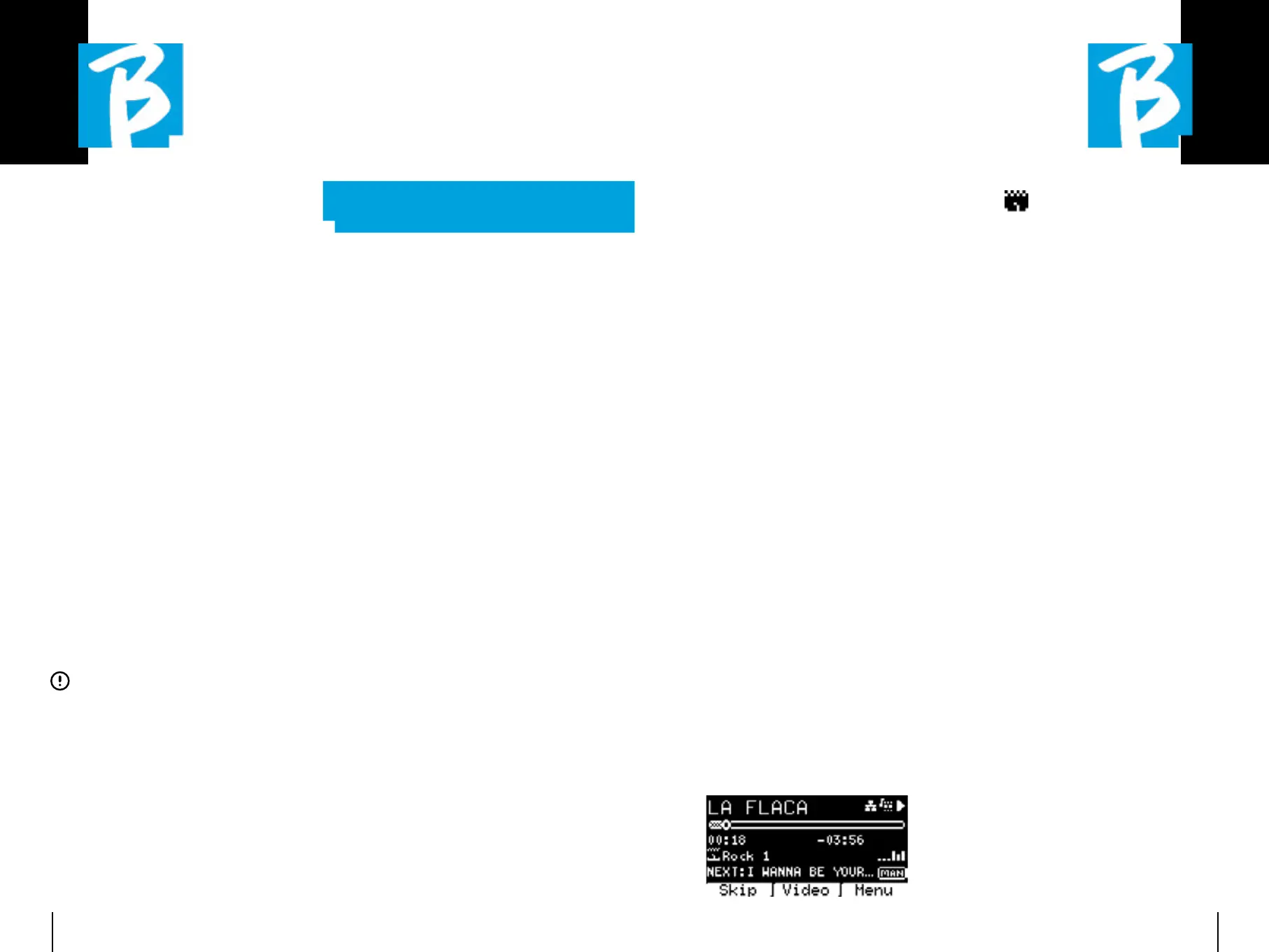
Here is the screenshot of the Player when
loading a Show:
The icon represents the Show, to the
right is the title of the loaded Show (or scene).
When you load a SHOW the B.Beat PRO16 is
ready to play the list of all the events con-
tained in the SHOW which, we remind you, is
a highly evolved Playlist. Here are the differ-
ences that characterise a SHOW:
1. The SHOW contains a series of
SCENEs, SCENEs are composed
by one or more contents (named
SLOT) Audio and/or Video.
2. Within a show you can
put the Scenes in the lineup. A
Scene may consist of
several SLOTs.
3. Each event (Slot or Scene) is
connected by a transition that can
be automatic (the
next slot starts automatically
after a delay of 'n' seconds) or
manually (awaits consent
from the Play button).
During the execution of a Show the op-
tions you have are similar to those of the
Playlist, in fact by pressing the ENTER
button you access the list of SCENEs and
the events contained in the scenes.
ENTER (IN SHOW ENVIRONMENT)ENTER (IN SHOW ENVIRONMENT)
When loading a Show into memory, the En-
ter key allows you to enter the SHOW and
view its constituent Scenes and Slots.


 To Next Page
 Loading...