1312
Let's take a look at
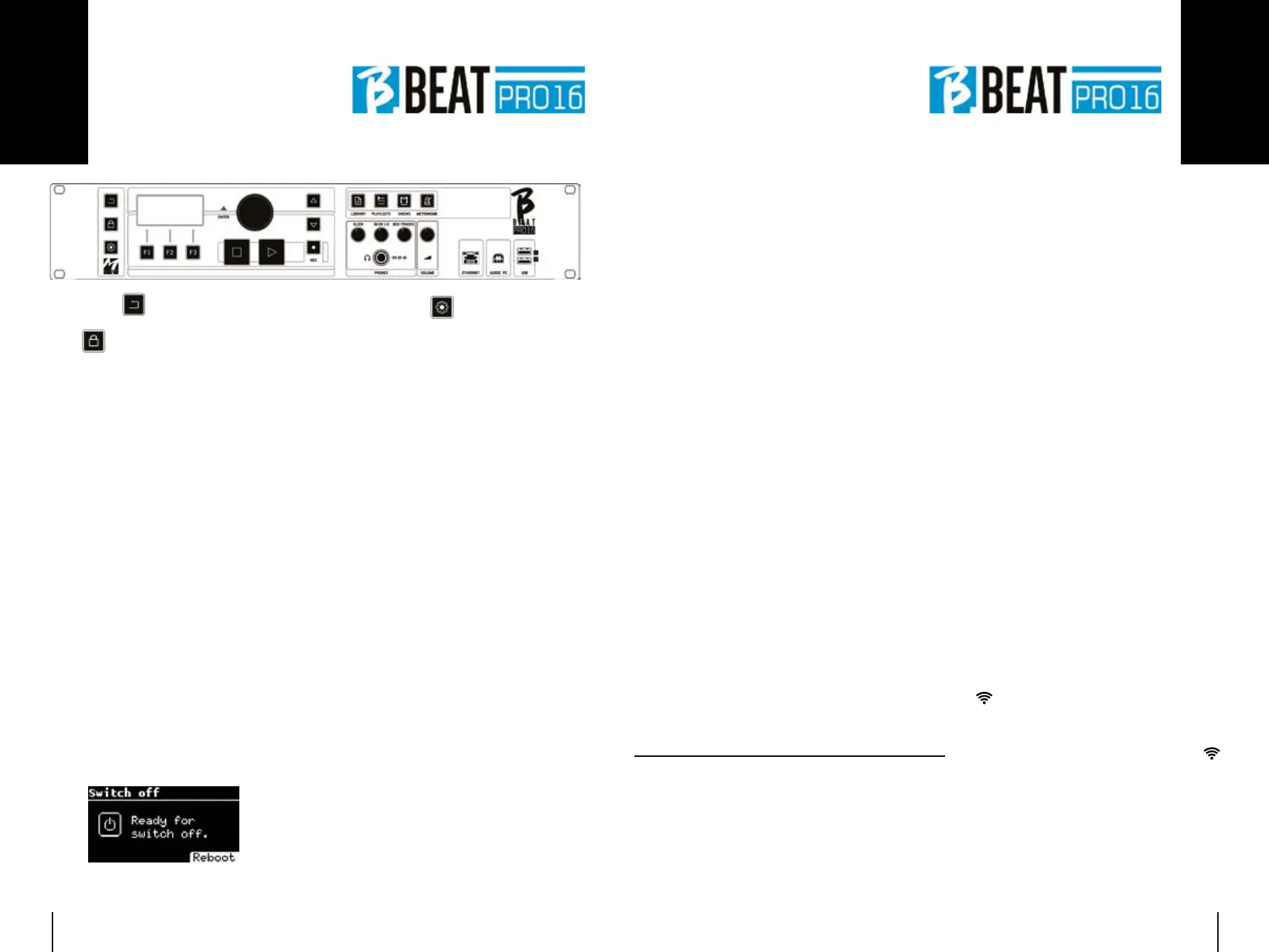
BACK button:BACK button: goes back one level.
LIVE:LIVE: puts B.Beat PRO16 in live mode, to
avoid blockages and accidental actions,
such as unintentional button presses.
To activate: press Live and confirm your
choice with F3, to deactivate press LIVE
again and F3 to confirm. If you are in Live
mode when pressing any button, you will
be asked whether you want to deactivate
Live mode.
Long press: SWITCHING OFF: Long press: SWITCHING OFF: switch off
B.beat by pressing and holding the LIVE
button for 1 second. Only then will it be
possible to switch off the power supply
to the B.Beat via the On/Off button on the
rear. ATTENTION: failure to switch off via
the LIVE button may lead to the need for
a RESET. The reset procedure is possible
from B.Beat MANAGER or via USB stick.
For more information, read the B.Beat
Manager guide.
To switch off B.Beat press and hold the
LIVE button for one second until the
switch off screen appears.
Switch off B.beat from the switch on the
back, or press ReBoot F3 to restart B.beat.
SYSTEM button:SYSTEM button: to access the System
menu.
Function keys:Function keys: F1 - F2 - F3 they are as-
signed to different functions each time,
depending on the screens. The description
of the functions is in the lower boxes of
the display.
STOP:STOP: pressed once stops playback of
the current Song/Video, in pause position.
Pressed a second time starts the current
song/video. Pressed the third time emp-
ties the Ram memory of B.Beat PRO16.
B.Beat PRO16 can load video-synchro-
nised Audio Backing Tracks, or unsynchro-
nised and independent audio and video. In
this case, the Play and Stop buttons will
relate to music and images independently.
You can select Video or Audio with the F2
key from the Player screen.
PLAY:PLAY: the Play button starts the Backing
Tracks Audio (if you are positioned on AU-
DIO or the Video if you are positioned on
Video). When the player is paused, to re-
start it you have to press Play again.
REC:REC: the button enables Recording mode.
With B.Beat PRO16 plus you can record
while a base is playing.
Alpha Dial - Enter:Alpha Dial - Enter: the Alpha dial is used to
scroll through a list on the Display, to mod-
ify a value (e.g. the volume of a track). Pressed
in the middle gives ENTER consent.
UP - DOWN: UP - DOWN: generally used to scroll through
lists on the display, to change the position
of the active cursor or to increase/decrease
a selected value.
LIBRARY:LIBRARY: gives access to individual items
contained in internal memory, Backing
Tracks and Videos. If inserted it gives ac-
cess to the USB Stick. When a USB Stick
is inserted, you can position on the stick
and browse its contents. Individual tracks
(stereo Mp3 or Wav) can be played as de-
sired.
PLAYLIST:PLAYLIST: gives access to the list of Play-
lists in B.Beat PRO16. Playlists can be
played or edited.
SHOWS:SHOWS: gives access to the list of Shows
and Scenes in the internal memory of
B.Beat PRO16.
METRONOME:METRONOME: gives access to metronome
management.
POTENTIOMETERS: POTENTIOMETERS:
The CLICK, IN CH 1-2 and BCK-TRACKS
potentiometers are active if B.Beat is
set to PHONE ON mode. In this case, the
headphone is active and from the B.Beat
manager you can assign the tracks com-
ing out of the headphone. If B.Beat PRO16
is set in PHONE OFF mode the headphone
Front panel
output will not be active and channels 15-
16 can go to the mixer. To check how to
activate the PHONE ON/OFF mode, please
refer to the B.Beat MANAGER guide.
BCK-TRACKS: BCK-TRACKS: adjusts the level of the
Backing Tracks going into the head-
phones. This data can be managed with
both B.Beat Manager and B.Beat PRO16.
CLICK:CLICK: adjusts the headphone level of the
Click or Metronome track
LINE IN: LINE IN: adjusts the headphone level of
the signal entering from the Line In inputs.
VOLUME:VOLUME: adjusts the general output volume.
ATTENTION:ATTENTION: the signal in headphones uses
channels 15 and 16. This means that all
the tracks that were routed to the head-
phones will be output on those channels.
ETHERNET:ETHERNET: to connect via network to the
PC.
USB:USB: USB sticks or M-Pen M-Live Wireless
connection sticks can be inserted.
When inserting a USB stick B.Beat PRO16
displays its contents in the Library win-
dow. Connecting the M-Pen Wireless
stick to the USB slot will open the con-
nection for Smartphones and Tablets in
order to use the Prompter App and view
scores and backing track lyrics.
PC AUDIO:PC AUDIO: connection to the computer to
use the internal sound card.


 To Next Page
 Loading...