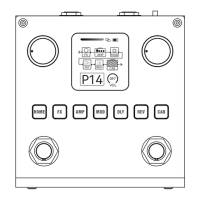
⑩FX Module illuminated Button,Click to enter the Edit Settings
Menu of Module, then click again to turn on/o Module.Hold for the
button can quickly turn on/o Module. If this Button is lighting on, it
means the Module is turned on. If the light goes o, the Module is
turned o.
When the Edit Settings Menu is displayed on the screen, you can
use the PARA encoder to adjust any of the eects and parameters
on the screen. At this time, you can also use the Left Footswitch to
turn the current Module on/o.
⑪ AMP Module illuminated Button.
⑫Modulation Module illuminated Button, When the Screen displays
the MOD's Edit Settings Menu, you use the Right Foot switch, you can also
Tap to obtain the Speed parameter of the eect. At this time, if the
Module has been turned on, the button light will also blink based on the
Speed parameter.
⑬
Delay Module illuminated Button, When the Screen displays the
DLY's Edit Settings Menu, you use the Right Foot switch, you can also Tap
to obtain the Time parameter of the eect. At this time, if the Module has
been turned on, the button light will also blink based on the Time
parameter.
⑭REV
Module illuminated Button.
⑮IR CAB Module illuminated Button.
⑯Left Footswitch, it use to turn down the Presets when in Main Display
Screen. In some other inteaces, it can be used for on/o Modules.
You can press the left and right Footswitches at the same time to enter
Tuning Mode, and then click either Footswitch to exit tuning.
⑰Right Footswitch
, it use to turn up the Presets when in Main Display
Screen. When in the Module Operation Screens, it can be used to select
Modules. When in the MOD/DLY Module screen, you can tap the
Right-Footswitch to adjust the eect speed of the MOD/DLY Module.
Front panel
EN
6


 To Next Page
 Loading...