15
Method of shifting from RUN Mode to Main Menu Mode
Method to make setting screen of XTOP Module. As described earlier, It is the way of making
Main Menu Mode of All TOP Series.
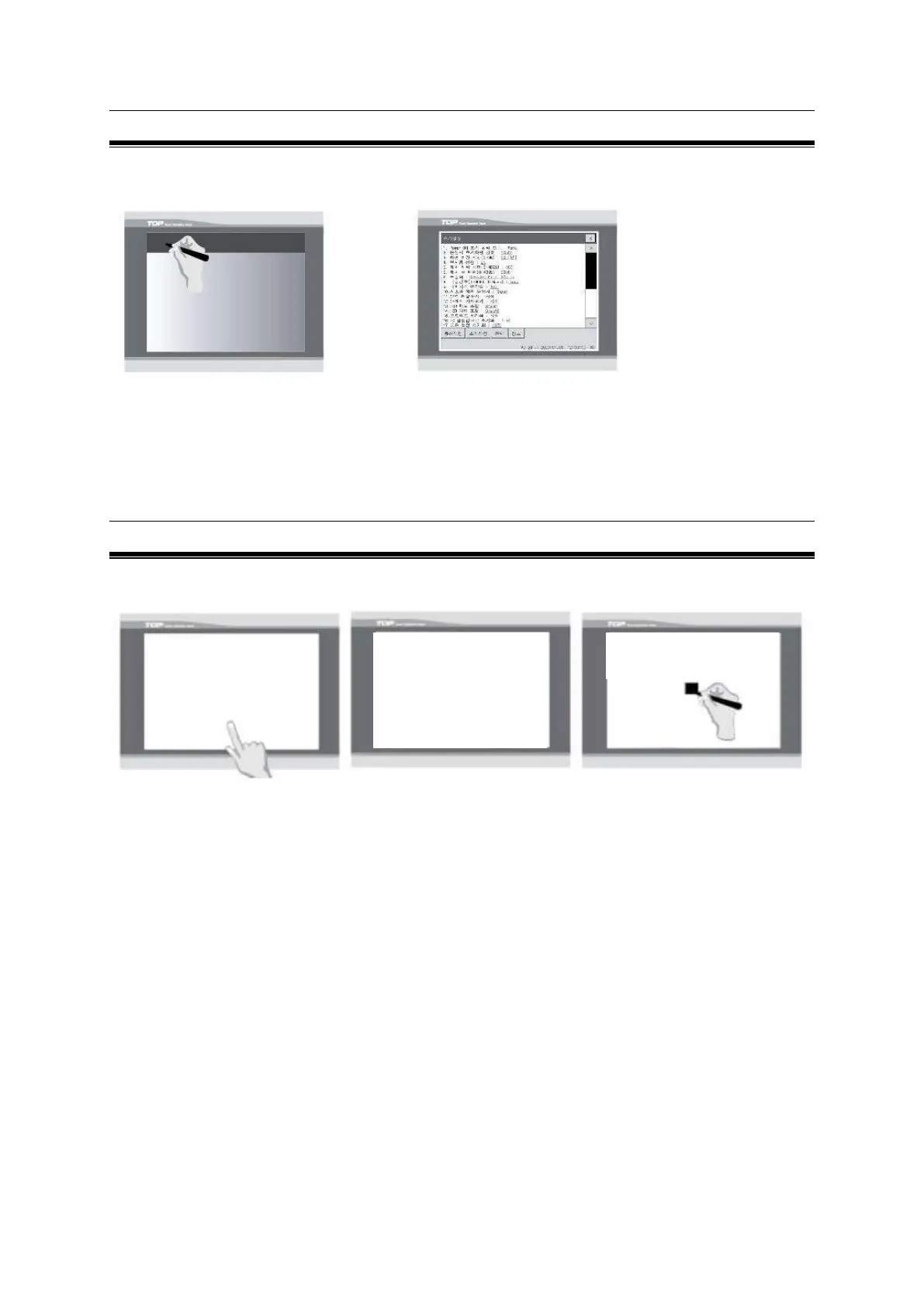
[Pic. 1. Turn it on and Touch] [Pic.2. Main Menu Screen]
1. Turn the power of XTOP Module off.
2. While the power was on and the buzzer was beeped, Touch the screen’s upper part under the TOP logo
on the front sheet.
Note: When turn on the power while pressing the touch, it does not convert into the Menu mode.
When the buzzer sound is unable to confirm because of the noise surroundings, the power of touch
shall be allowed while continuously press and off on the lower part of the logo.
Screen Calibration steps of XTOP Series
When the Analog touch glass don’t work properly, for correcting the touch command, you have the
touch pad be calibrated.
[Pic1. Touch Lower Part] [Pic2. Message Display Before Calibration][Pic3.Point Indicates]
1. Turn the power of XTOP Module off
2. When the power of TOP Module is on, Keep the lower part of the screen is touched
3. When the screen is turned white color, remove your hand from the screen.
4. Then the screen display “ Touch any point for Calibration” and the number is counted down.
5. Touch anywhere on the screen before changing this number to “0”.
6. Along with the message of Calibration Mode, Touch the black square is indicated in the middle
of the screen.
Continuously touch the upper left, upper right, lower left and lower right part’s black square..
When completed, the calibration is completed together with the message of Data Saving.
- Touch any point
for calibration.
- 터치를 보정하려면
아무 곳이나 누르시오.
- Touch the center point.
- 화면의 가운데를 누르시오.



 To Previous Page