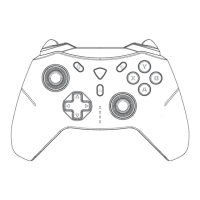
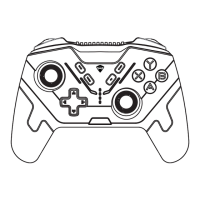
Switch Mode⸺NINTENDO SWITCH
When in Switch mode, it is recommended to press and hold the
Fn + A button combination for three seconds to switch to the Sw
-itch layout. The controller will vibrate once to indicate the switch.
This product can connect to both Switch console and PC in Switch
mode.
It supports Home button wake-up of the controller and remote co
-nsole wake-up function.
It also supports gyroscope function, which needs to be enabled in
the game settings that support this feature.
The trigger does not support linear travel function, which is not a p
-roduct problem but due to the limitations of the Switch platform.
Some games may not support the use of this controller even when
the Switch pro controller is not supported, which is a game restricti
-on, not a product problem.
1. Turn off the controller and switch the back mode switch to the Switch
position.
2. Press and hold the Home button on the front for about 3 seconds until
the #3 indicator light flashes quickly, indicating that the controller has
entered pairing mode.
3. On the Switch main page, open the controller settings and wait for the
controller to appear.
1. Enable the wired controller function in the Switch settings and insert
the Switch console into the official multifunctional dock.
2. Connect the controller to the dock with the data cable while the contro
-ller is turned off.
Connection Steps - Wireless connection
Connection Steps - Wired connection


 To Next Page