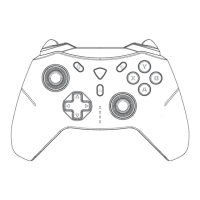
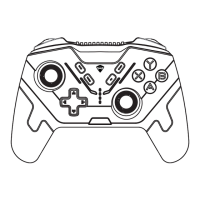
The MACHENIKE G5PRO is a versatile M-GAME gamepad designed for multi-platform compatibility, offering a rich gaming experience across various devices. This controller is engineered to provide precise control and a range of customizable features, making it suitable for both casual and serious gamers.
Function Description
The G5PRO gamepad features a comprehensive button layout, including a HOME button, BACK button, MENU button, ABXY buttons, a Directional Pad (D-pad), and Hall Linear Joysticks (L3 and R3). It also incorporates Hall Linear Triggers (LT and RT) and Bumper buttons (LB and RB). For enhanced customization, the controller includes M1, M2, M3, and M4 programmable buttons, with M3 and M4 specifically designed as Trigger Marco buttons. A Connection Mode (Platform) Toggle Switch on the back allows for easy switching between different device modes. The controller supports multi-key wake-up and offers both wireless and wired connection options.
Wireless Connection:
The G5PRO supports 2.4G, PC/iOS, Switch, and Android modes.
- 2.4G Mode: Compatible with PC, Switch, and Android TV. It uses an independent private protocol for lower latency and supports gyroscope axis sensing on the Switch console. To connect, switch the rear toggle to 2.4G, insert the dongle into the USB port of your device (computer/Switch dock/Android TV), and then press and hold the Home button for about 3 seconds until the #1 indicator light flashes. The controller and dongle will automatically pair, with specific indicator lights confirming successful pairing for each platform (PC: #1 and #2; Switch: #1 and #3; Android TV: #1 and #4). The controller will automatically turn off after 5 minutes of inactivity or can be manually turned off by long-pressing the Home button. It can be reconnected by pressing Home/LB/RB.
- PC Mode (Wireless): Recommended for Windows operating systems, also compatible with Switch mode. PC mode is ideal for AAA games, while Switch mode (Pro Controller) allows gyroscope functionality via Steam on Windows. To connect, turn off the controller, switch the back mode switch to PC, press and hold the front Home button for about 3 seconds until the #2 indicator light flashes, then add "Xbox Wireless Controller" in Windows Bluetooth settings. The #2 indicator light will stay on for 2 seconds after pairing and then show battery level. The controller can be turned off by long-pressing the Home button or will auto-off after 5 minutes of inactivity. It has a Bluetooth memory function for quick reconnection.
- iOS Mode: Compatible with iOS 16 and iPad OS. It supports linear travel for triggers (requires game matching) and Home button wake-up/quick reconnection. To connect, turn off the controller, switch the back gear switch to iOS, press and hold the Home button for about 3 seconds until the #2 indicator light flashes, then search for and connect to "Xbox Wireless Controller" in your phone's Bluetooth settings. The #2 indicator light will stay on for 2 seconds after pairing. This mode requires native game support for controller operation.
- Switch Mode: Recommended to switch to Switch layout by pressing Fn + A for three seconds. It connects to both Switch console and PC in Switch mode, supports Home button wake-up and remote console wake-up, and gyroscope function (if enabled in game settings). Note that the trigger does not support linear travel due to Switch platform limitations, and some games may not support this controller even if they don't support the Switch Pro controller. To connect wirelessly, turn off the controller, switch the back mode switch to Switch, press and hold the Home button for about 3 seconds until the #3 indicator light flashes, then open controller settings on the Switch main page.
- Android Mode: For Android (HarmonyOS phones, Android phones, tablets, smart TVs, TV boxes, etc.). Triggers support linear travel (requires game matching), and it supports Home button wake-up/rapid reconnection. To connect wirelessly, turn off the controller, switch the toggle switch on the back to Android, press and hold the Home button for about 3 seconds until the #4 LED indicator flashes, then search for and connect to "MACHENIKE G5Pro" in Bluetooth settings. The #4 LED indicator will stay on for 2 seconds after pairing. This mode requires native game support for controller operation.
Wired Connection:
For all modes, simply connect the controller to the device using the included USB data cable while the controller is in the power-off state. The device will automatically match the mode for connection. For Switch, enable wired controller function in Switch settings and insert the console into the official multifunctional dock before connecting the controller.
Usage Features
The G5PRO offers several advanced features to enhance gameplay:
- Hall System Calibration: To calibrate the Hall linear joysticks and triggers, press and hold the + Home + B buttons for 3 seconds in the power-off state. Fully move the joysticks left and right slowly, rotating them more than three times. Press the [LT] and [RT] buttons to the bottom more than once. Finally, press the [Home button] to complete calibration.
- Lighting Brightness Adjustment: Press Fn + D-pad ← to cycle through overall brightness levels of the controller's lighting. Press Fn + D-pad → to change lighting effects, cycling through constant on/breathing/streaming/off. It is recommended to turn off or reduce brightness during nighttime use to avoid interference.
- Vibration Intensity Adjustment: Press Fn + D-pad ↑ / ↓ to increase or decrease the controller's vibration intensity.
- Controller Battery Level Display: Four indicator lights display the battery level in real-time. During pairing or function adjustments, they temporarily act as function indicators before returning to battery level display after approximately 2 seconds. The controller has a built-in 600mAh battery, offering 5-8 hours of battery life.
- Motion Sensing Analog Function: Press Fn + R3 to enable/disable the motion sensing function of the controller's right analog stick.
- Programming Button Macro Definition: To program macro buttons, connect the controller, then press Fn+M1/M2/M3 (or M4 for left trigger). The decorative light strip will flash continuously, indicating recording mode. Record desired function buttons (A/B/X/Y/Up/Down/Left/Right/L1/L2/R1/R2, left/right joysticks are supported). Short press the M1 button to complete the setting. To clear a macro, press FN+M1 while the controller is in operation, the light strip will flash continuously, then press M1 again to clear the function.
- TURBO Function: Supports TURBO on A/B/X/Y/Up/Down/Left/Right/L1/L2/R1/R2 buttons. Manual TURBO requires manual pressing of the button. To enable automatic continuous firing, press and hold FN+A, then release. Press FN+A again to enable automatic continuous firing, and again to turn it off. TURBO for other buttons can be set in the PC driver.
- Customisable Profile: The G5 PRO can store up to 4 personalized profiles, customizable via the exclusive PC driver or the controller itself. Press FN+HOME to cycle through profiles, accompanied by indicator light and color changes.
- Reset Function: If the controller is unresponsive or unable to identify the working mode, disconnect and reconnect the USB cable, or manually select the working mode. If the issue persists, long-press the HOME button for 10 seconds, or check compatibility with your operating system and equipment. If still unresolved, contact customer service.
Maintenance Features
To ensure the longevity and optimal performance of your MACHENIKE G5PRO gamepad, follow these maintenance guidelines:
- Cleaning: Clean the handle with a soft, dry cloth or a specialized cleaning cloth.
- Avoid Solvents: Do not use solvents such as gasoline, diluents, alcohol, kitchen detergents, or chemical cleaning cloths, as these can cause external deformation or layer peeling.
- Avoid Moisture: Do not use a wet cloth to wipe the handle, as liquid entering the device can cause malfunctions.
- Storage: When not in use, the controller will automatically enter sleep mode after about 5 minutes of inactivity, and its lights will turn off, conserving battery.
- Environmental Precautions:
- Do not spray flammable insecticides or sprays near the handle.
- Prevent liquids (water, juice) from contacting the device to avoid key malfunction or damage.
- Do not unplug the USB cable with wet hands.
- Avoid using the device in damp or hot places (e.g., bathrooms).
- Do not use it in places prone to dropping, dusty environments (e.g., beaches), or areas with magnetic fields.
- Do not place it on top of heat-generating devices, such as heat dissipation vents or computer cases.
- Ergonomic Use:
- Do not exert excessive force when using the device, as this can lead to hand fatigue and accelerated key wear.
- If you experience wrist or finger soreness, adjust your posture and force, or take a break.
- If the wrist rest or any other component in direct contact with your skin causes discomfort, discontinue use to prevent rashes or allergic reactions.
For further customized functions or support, users are encouraged to contact customer service or visit the MACHENIKE official website to download the PC driver. Firmware updates may be released without prior notice, so checking the brand's website is recommended.

 Need help?
 General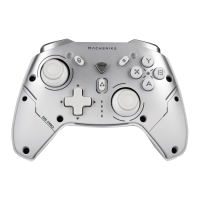

 To Next Page