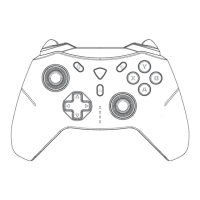
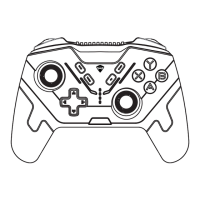
1. In the off state, switch the rear toggle mode switch to the 2.4G position.
2. Insert the dongle into the USB port of the computer/Switch dock/Andro
-idTV. If the indicator light at the tail of the receiver flashes, it means the
controller enters pairing mode.
3. Press and hold the Home button for about 3 seconds until the #1 indicat
or light flashes, and the controller enters pairing mode.
4. The controller and dongle will automatically pair. The controller's indica
-tor light will stay on, and the receiver's tail indicator light will stay on, in
dicating a successful pairing. (Note: For successful pairing with PC, the
#1 and #2 indicator lights will stay on; for successful pairing with Switch,
the #1 and #3 indicator lights will stay on; for successful pairing with And
-roid TV, the #1 and #4 indicator lights will stay on.)
5. When not in use, press and hold the Home button to turn off the controll
-er, or the controller will automatically turn off after 5 minutes of inactivity.
6. After the controller is turned off, the dongle indicator light will flash slow
-ly,indicating that it is waiting for the controller to reconnect. Next time
you use it, you can wake up the controller by pressing the Home/LB/RB
button and it will automatically reconnect.
Connection Step - 2.4G Connection:
2.4G Mode - Compatible with PC, Switch, and Android TV.
2.4G mode uses an independent private protocol with lower la
-tency.
The 2.4G receiver can automatically recognize PC mode/Switch
mode/Android mode.
2.4G mode supports using the gyroscope axis sensing function
on the Switch console.
COMPATIBILITY


 To Next Page
 Loading...