3 - How to Connect to MTNET Demo
DYNAMAG, DYNAMAX, EDYNAMO, UDYNAMO, ADYNAMO, MDYNAMO, TDYNAMO, DYNAWAVE| SCRA Devices | MTNET Demo Guide
Page 11
3 How to Connect to MTNET Demo
To connect via an interface listed in the Type box follow these steps:
3.1 Connect via USB Interface
1) Connect the device to the USB port of the Windows PC.
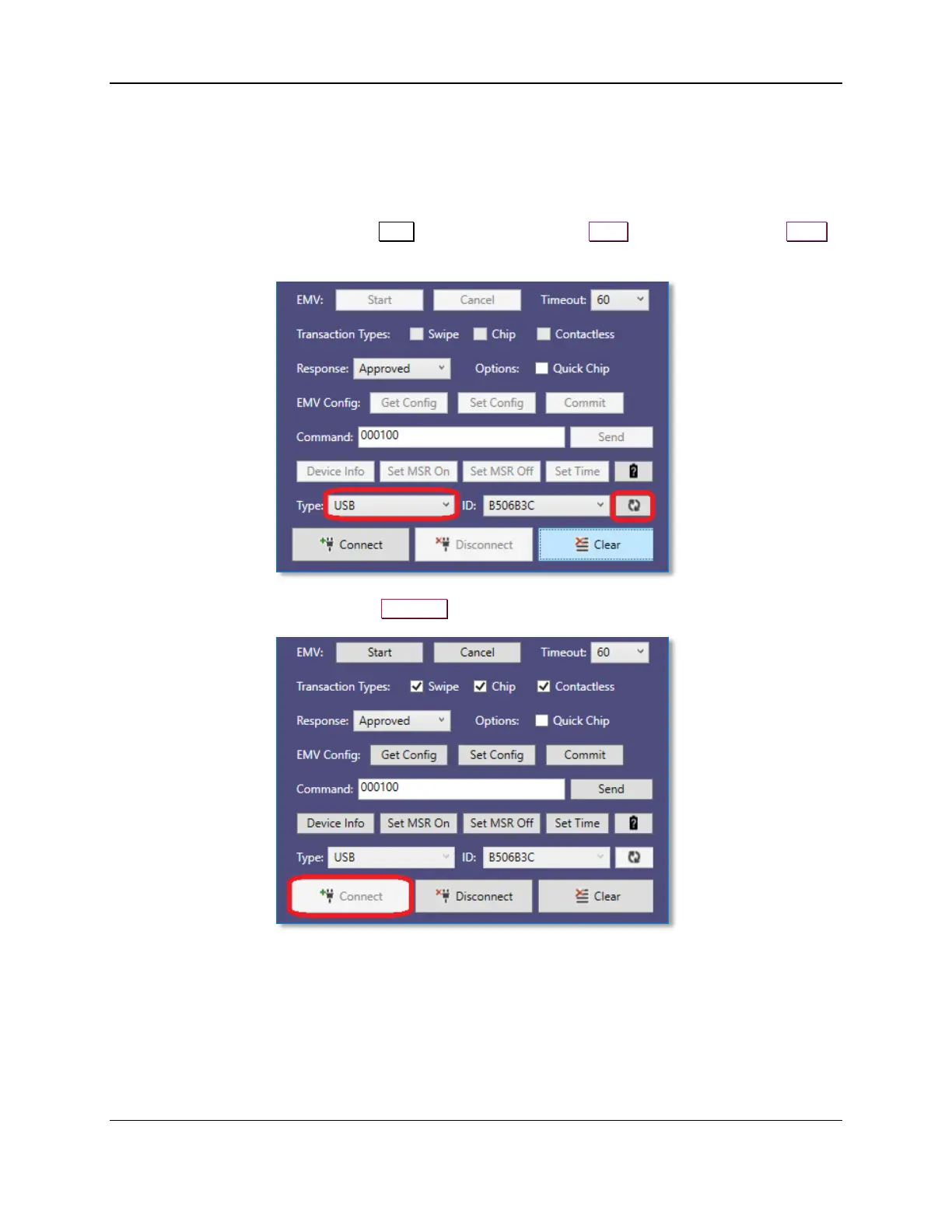
2) Launch the MTNET Demo, select USB as the device type in the Type list box, and press the Scan
button to display a list of available devices.
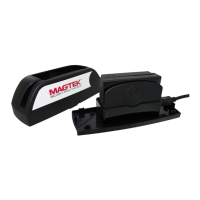
3) Select the Device ID and press the Connect button to open the device.


 To Next Page