2 - How to Connect Bluetooth LE devices to a Windows Host
DYNAMAG, DYNAMAX, EDYNAMO, UDYNAMO, ADYNAMO, MDYNAMO, TDYNAMO, DYNAWAVE| SCRA Devices | MTNET Demo Guide
Page 7
2 How to Connect Bluetooth LE devices to a Windows Host
To connect DynaMAX or eDynamo to a host with Windows 8.1 or higher and Bluetooth 4.0 hardware
that supports Bluetooth LE, follow these steps:
1) If you are using an external Bluetooth adapter, install any required drivers and connect it to the host.
2) On the host, install and configure the software you intend to use with DynaMAX or eDynamo:
a) Make sure the host software is configured to look for the device on the proper connection.
b) Make sure the host software knows which device(s) it should interface with.
c) Make sure the host software is configured to properly interpret incoming data from the device.
This depends on whether the device is configured to transmit data in GATT format or streaming
format emulating a keyboard.
3) Make sure the DynaMAX’s batteries are installed and have adequate charge. If using eDynamo,
make sure the device has an adequate charge.
4) Test the batteries by powering on the DynaMAX or eDynamo device. Provided the device is not
already paired, the Bluetooth Status LED will flash blue every two seconds for up to 60 seconds until
pairing is complete. If the Bluetooth Status LED is solid blue, the device is already paired with a
host. Unpair from the host it is already paired with before continuing.
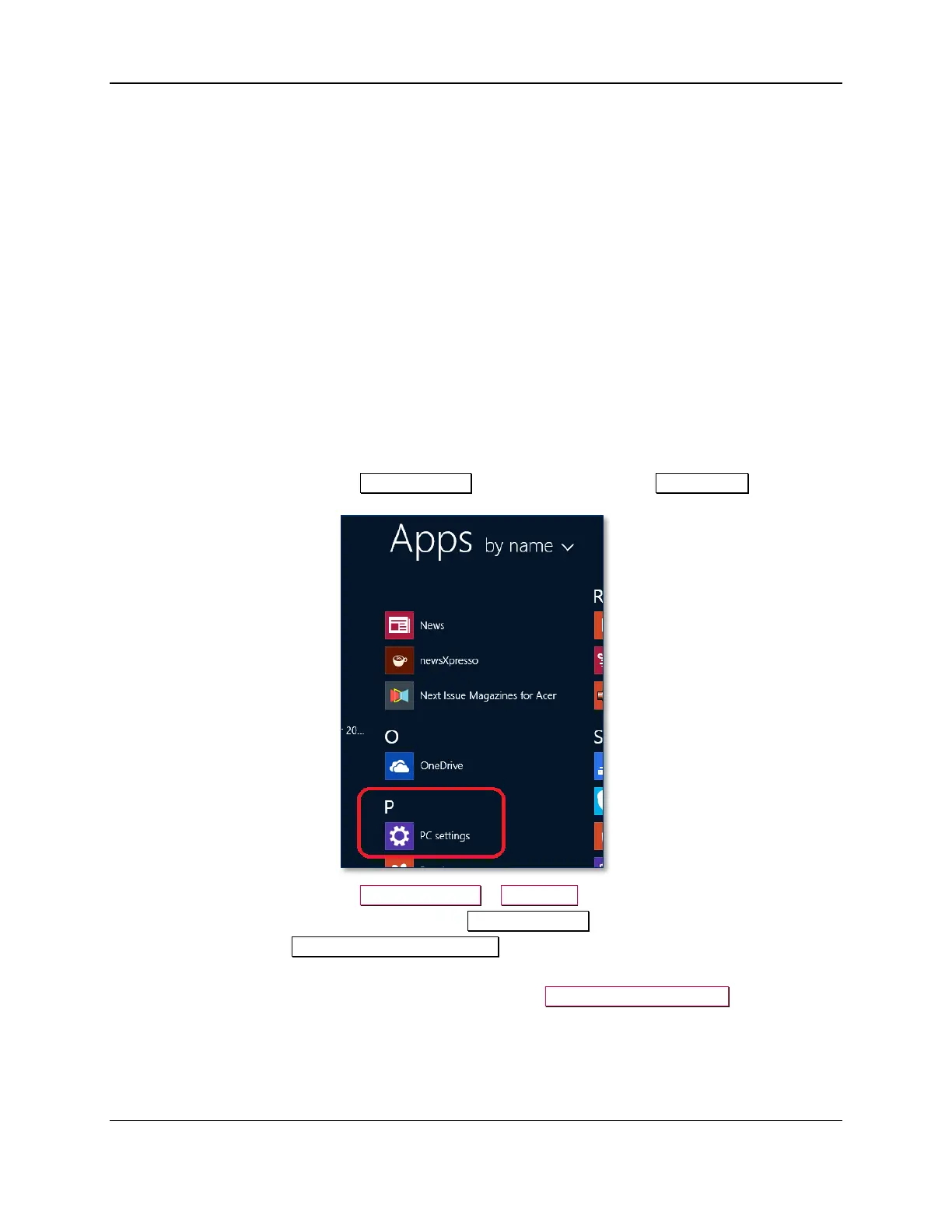
5) Enter app mode, scroll down to Apps by name, and launch the Windows PC Settings app.
6) In the left side navigator, select PC and devices > Bluetooth.
7) Make sure Bluetooth is turned on and close the PC and devices app.
8) Launch the Windows Manage Bluetooth Devices app by following these steps:
a) Enter desktop mode by swiping in from the left side of the touchscreen.
b) Touch the Bluetooth icon in the system tray and select Add a Bluetooth Device (see Error!
eference source not found.).


 To Next Page