2 - How to Connect Bluetooth LE devices to a Windows Host
DYNAMAG, DYNAMAX, EDYNAMO, UDYNAMO, ADYNAMO, MDYNAMO, TDYNAMO, DYNAWAVE| SCRA Devices | MTNET Demo Guide
Page 8
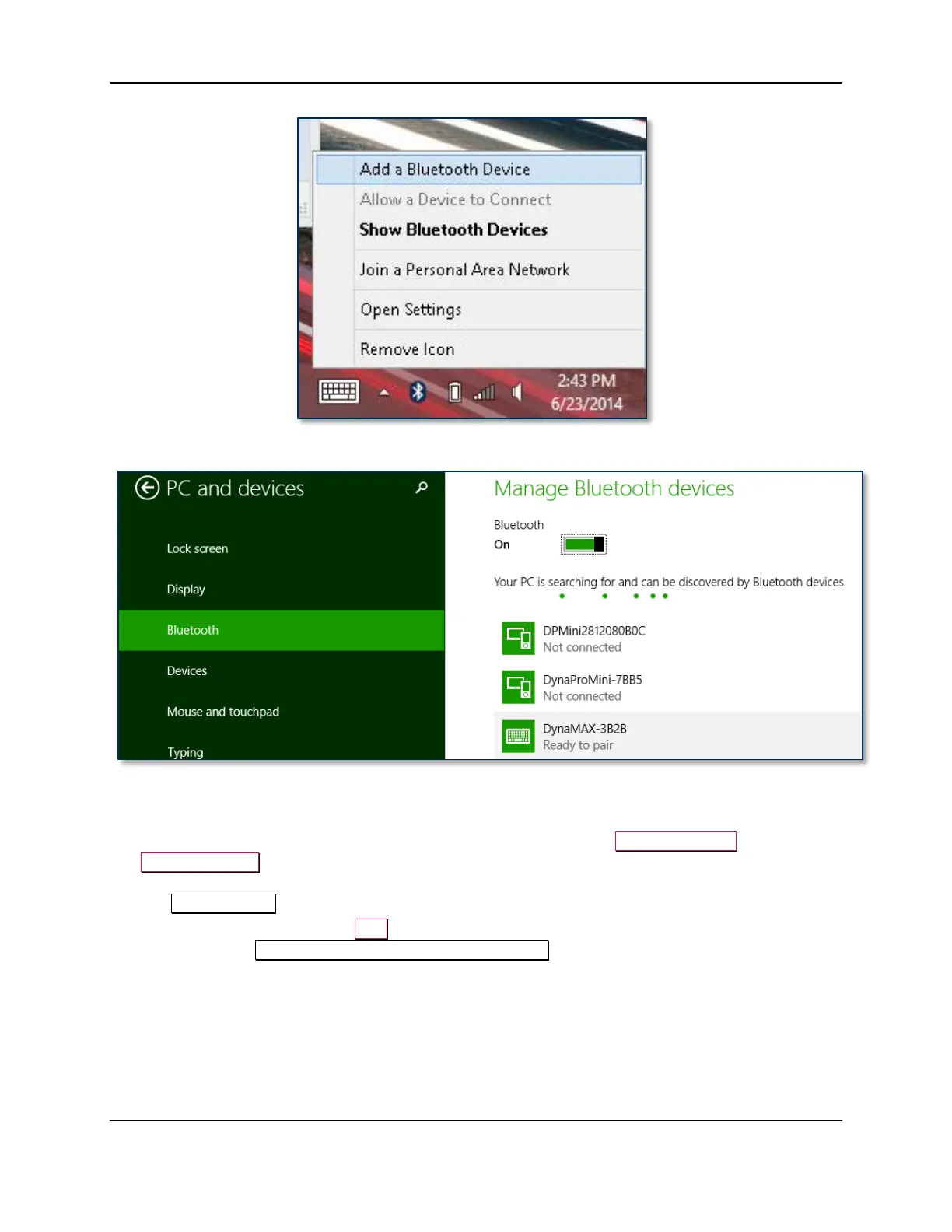
Launch Manage Bluetooth Devices App from Desktop Mode
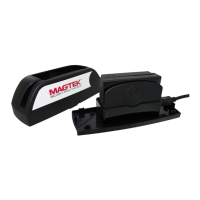
Windows 8 Manage Bluetooth Devices App
9) Locate the serial number on the label on the bottom of the device. Note the final four digits.
10) Read through the list of pairable devices and locate the device called DynaMAX-nnnn or
eDynamo-nnnn, where nnnn is the last four digits of the device’s serial number (if the device does
not show in the list, power it off then power it back on). Below the device name you should see the
text Ready to pair.
11) Select the device and press the Pair button. If the device is configured to run in KB mode, Windows
will prompt you Enter the passcode for your keyboard.


 To Next Page