2 - How to Set Up the Swipe Reader Control Panel
Dynamag, DynaMAX, eDynamo, mDynamo, tDynamo, DynaWave, and iDynamo 6| Secure Card Reader Authenticators | Programmer’s
Reference (Java and Java Applet)
Page 20
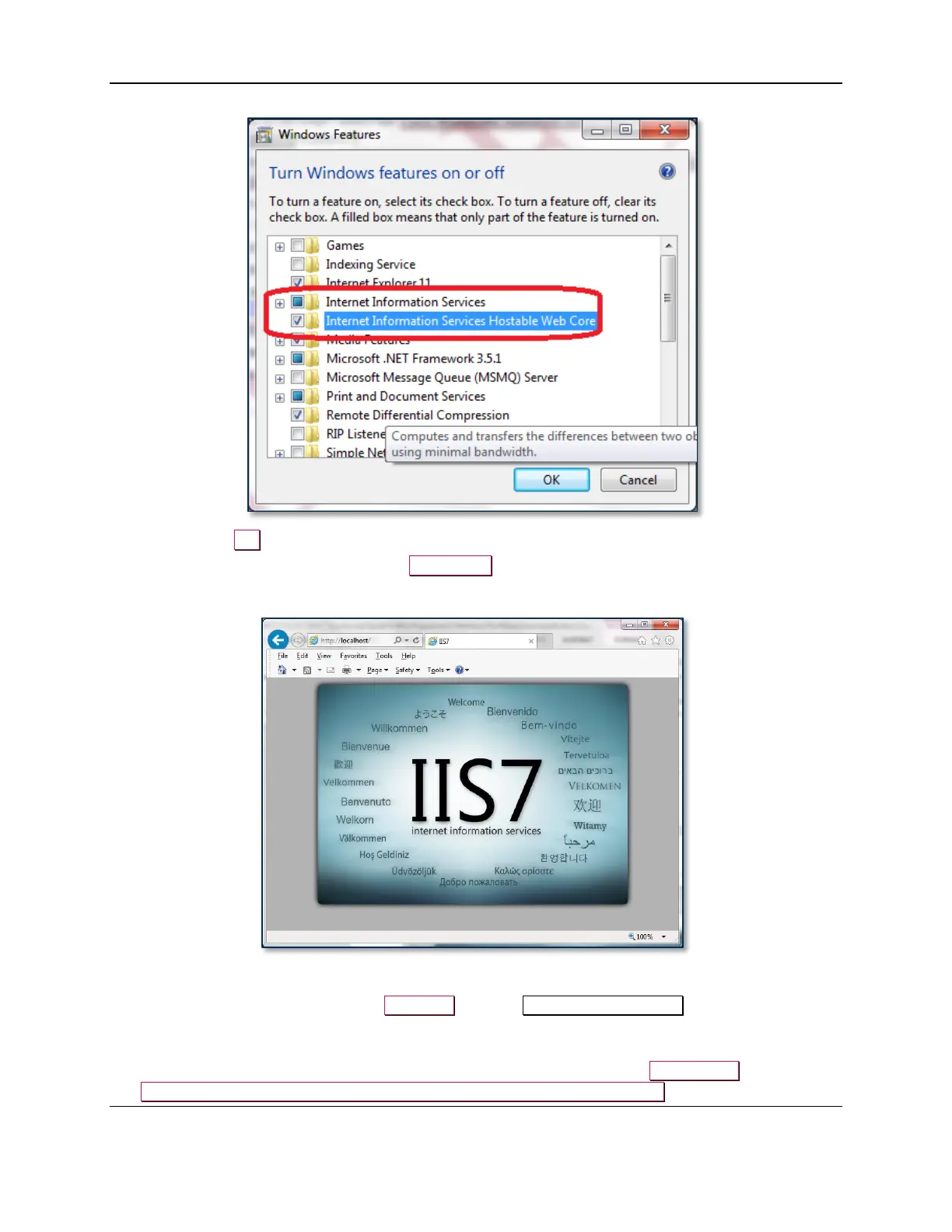
f) Press the OK button to launch a progress window. Wait for Windows to install IIS.
4) Launch a web browser and navigate to //localhost. Verify the IIS default page appears as shown in
Figure 2-3.
Figure 2-3 - IIS Default Page
5) If it does not already exist, create a MTSCRA folder in C:\inetpub\wwwroot\. If it does exist,
delete its contents.
6) On the workstation where the Dynamag/DynaMAX/eDynamo/mDynamo SCRA Windows SDK is
installed, navigate to the folder where it is installed. By default, it will be C:\Program
Files\MagTek\SCRA Windows SDK\Sample Code\Java Applet\Object for 32-bit operating



 To Next Page