2 - How to Set Up the Swipe Reader Control Panel
Dynamag, DynaMAX, eDynamo, mDynamo, tDynamo, DynaWave, and iDynamo 6| Secure Card Reader Authenticators | Programmer’s
Reference (Java and Java Applet)
Page 21
systems, or C:\Program Files (x86)\MagTek\SCRA Windows SDK\Sample Code\Java
Applet\Object for 64-bit operating systems.
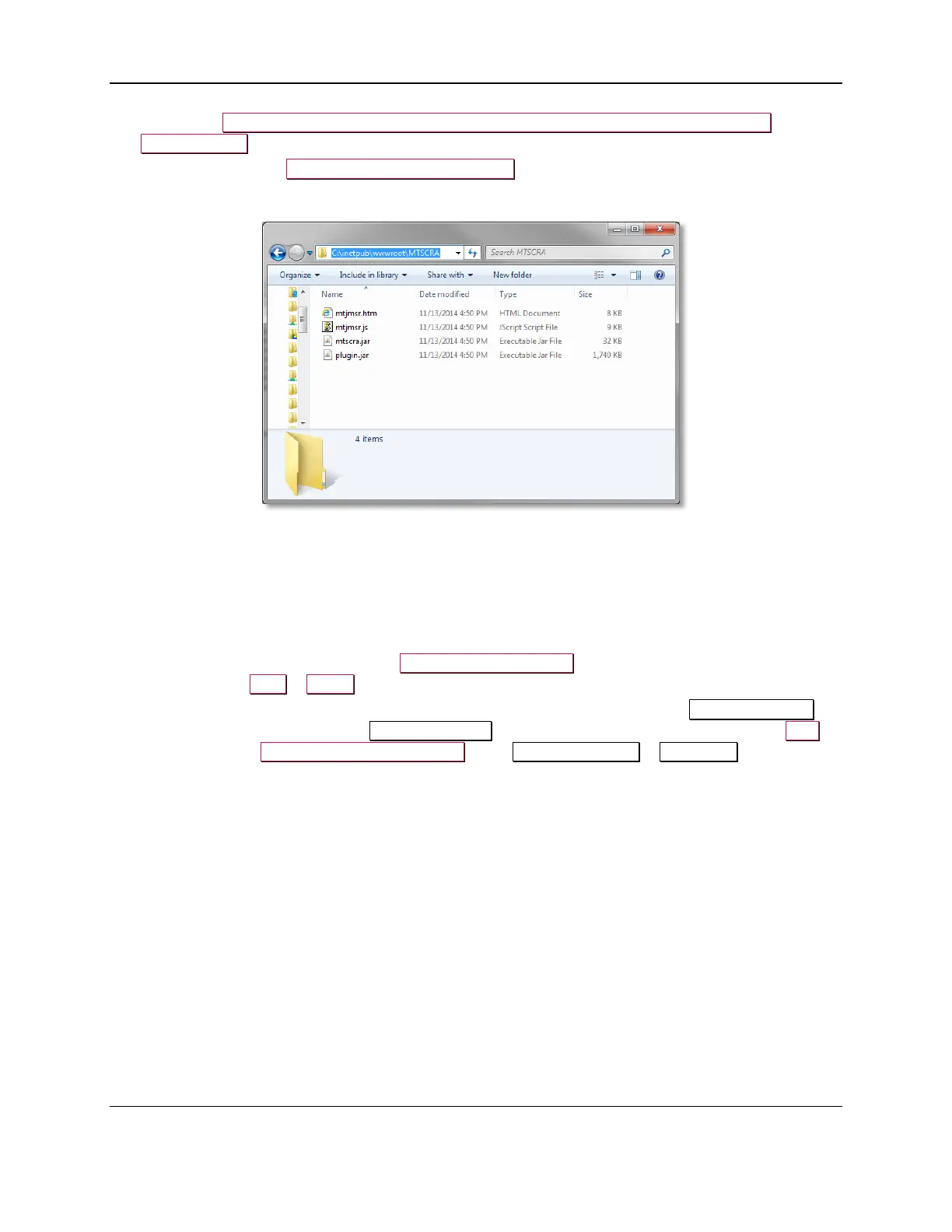
7) Copy the contents to C:\inetpub\wwwroot\MTSCRA.
Figure 2-4 - inetpub Structure
8) Connect the Dynamag, DynaMAX, eDynamo, mDynamo, tDynamo, or DynaWave to the
workstation. Windows will install the device drivers automatically. Wait for Windows to report the
driver installation is complete.
9) Open Internet Explorer as an administrator.
10) If you are using a 64-bit version of Windows with IE8 or IE9, make sure to launch directly in 32-bit
mode using the iexplore.exe found in C:\Program Files (x86). Verify you are running in 32-bit
mode using the Help > About menu.
11) If you are running a 64-bit version of Windows with IE10 or higher, choose the Internet options
that enable 32-bit mode / disable Protected Mode for the zone you are accessing. Also turn OFF
the checkbox for Enhanced Protected Mode in the Internet Options > Advanced tab.


 To Next Page