3 - Installation
eDynamo| Secure Card Reader Authenticator | Installation and Operation Manual
Page 19 of 34 (D998200110-23)
3.3.4 How to Connect eDynamo to a Windows 8.1 or Windows 10 Host [Version 1607 or
Below] via Bluetooth LE (Windows Drivers)
To connect eDynamo to a host with Windows 8.1 or Windows 10 version 1607 or below, with Bluetooth
4.0 or higher hardware that supports Bluetooth LE, follow these steps:
1) If you are using an external Bluetooth adapter, install any required drivers and connect it to the host.
2) If any Bluetooth LE host software has an active data connection to the device, close the connection.
3) On the host, install and configure the software you intend to use with eDynamo (if you do not yet
have that software, you can use MTNETDemo.exe included in 99510132 Dynamag / DynaMAX /
eDynamo / uDynamo / aDynamo / mDynamo .NET SDK for Windows, available from
MagTek.com, to perform simple tests):
a) Make sure the host software is configured to look for the device on the proper connection type.
b) Make sure the host software knows which device(s) it should interface with.
c) Make sure the host software is configured to properly interpret incoming data from the device.
When using Bluetooth LE, the device transmits data in GATT format.
4) Make sure eDynamo’s battery is adequately charged (see section 3.2 About Power for instructions).
5) Make sure the eDynamo output connection is configured to transmit card data over Bluetooth LE.
This is the factory default.
6) Press the pushbutton for 2 seconds until the Bluetooth Status LED starts flashing. The Bluetooth
Status LED flashes blue once per second for up to 60 seconds, or until a host pairs or connects.
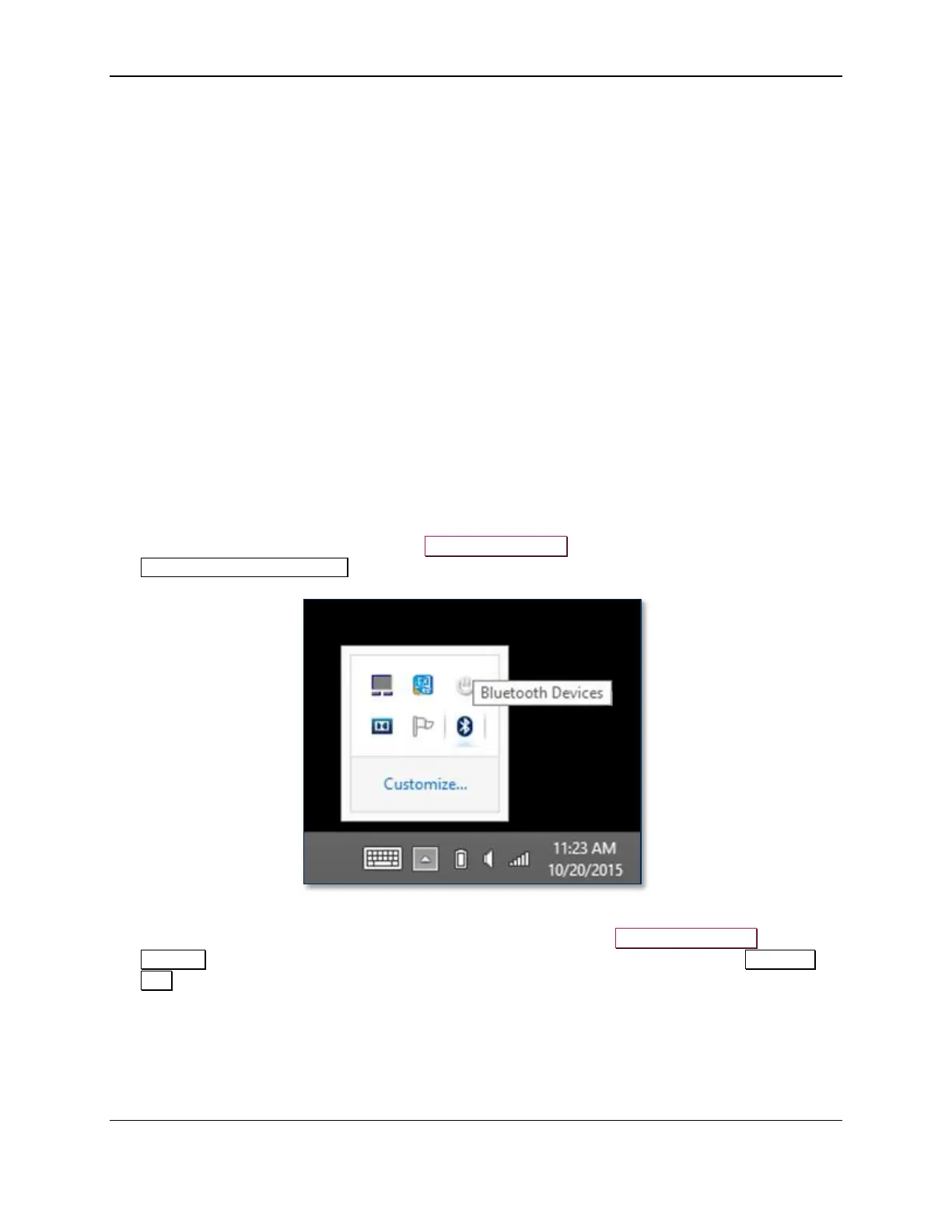
7) Enter desktop mode and double click the Bluetooth Devices icon in the taskbar to launch the
Manage Bluetooth Devices window.
8) Locate the seven-digit serial number on the label on the bottom of the device.
9) Read through the list of pairable devices and locate the device called eDynamo-xxxxxxx, where
xxxxxxx is the device’s serial number. Below the device name you should see the text Ready to
pair. If the device does not show in the list, make sure the battery is charged (see section 3.2 About
Power) and press the pushbutton once to make sure the device is not in Airplane Mode.


 To Next Page