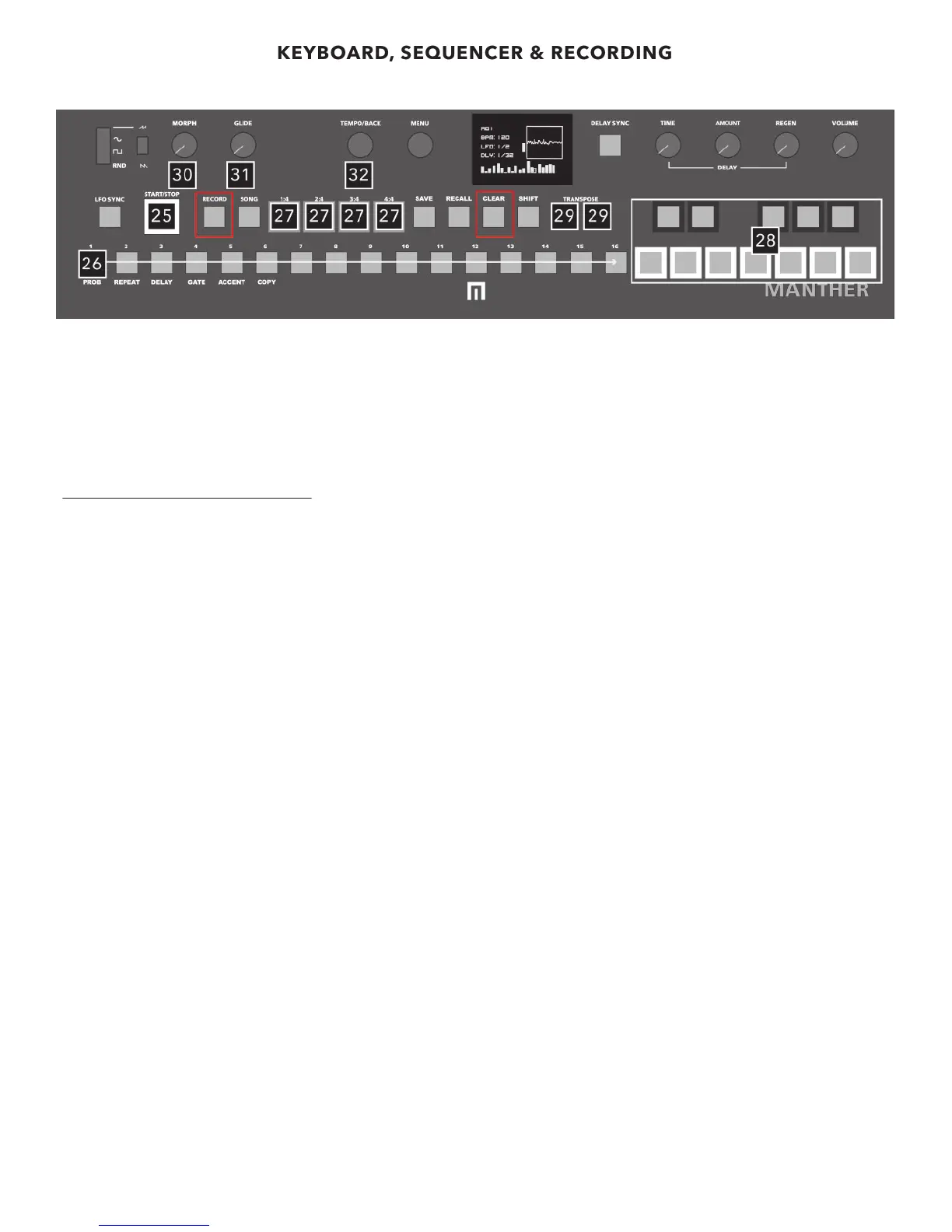
25 START/STOP
Starts and stops sequencer.
26 STEP AND PRESET BUTTONS
Each step can include notes and various automated information. Step buttons also act as preset slots. For more information on
saving presets see pg. 10.
RECORDING NOTES IN A SEQUENCE
You can record notes played on the keyboard by pressing the RECORD button once (so it is lit). Now you can press the START/STOP
button on the sequencer and when notes are played on the keyboard, they are recorded to sequencer steps 1 thru 16.
To EXIT record mode press RECORD again.
You can also record notes while the sequencer is stopped. Hold a step while selecting a note on the keyboard. That note will now
be recorded on that step.
If you want to clear a recorded step, press that step off (step will no longer be lit).
27 SEQUENCE ACCESS (1:4,2:4,3:4,4:4) AND PRESET BANK ACCESS
Expand your sequence from 16 steps to 64 steps total. To create a 32 step sequence, hold 2:4 and then press step 16. You now have
a 32 step long sequence. Steps 1-16 are automatically copied to steps 17-32 as a starting point. You can create any lenth of
sequence this way (up to 64 steps), by holding a SEQUENCE ACCESS button and selecting any step button. For instance, if you
want to create a shorter length sequence, say 8 steps, hold 1:4 and step 8.
These buttons are also used to access BANKS of presets. See pg. 10 for more information on banks of presets.
During playback, the audible section button/indicator will be lit solid blue. The section currently selected for editing will flash blue.
28 KEYBOARD
Play notes, record notes into sequences, and edit notes in sequences. Lit buttons indicate the note playing per step.
29 TRANSPOSE OCTAVE
Select these buttons to change the keyboard octave up or down. They will flash faster as you reach the lowest or highest available
octaves.
30 MORPH CONTROL
Control over global skew. Use this to slowly morph through recorded automation.
NOTE: IF YOU FEEL LIKE YOUR MANTHER IS NOT RESPONDING AS QUICKLY AS IT SHOULD TO VARIOUS CONTROLS, YOU
PROBABLY HAVE THE MORPH KNOB TURNED UP. TURN IT DOWN! It is best to adjust the MORPH feature after you have
recorded automation.
31 GLIDE CONTROL
Glide adds smooth pitch transition. “Global” GLIDE can be applied or each step can be programmed with an individual GLIDE
amount by holding a step button while adjusting the GLIDE control.
32 TEMPO/BACK
Turn to change tempo/BPM. Also pressing this encoder while in MENU mode will EXIT MENU.
KEYBOARD, SEQUENCER & RECORDING
8


 To Next Page