KEYBOARD, SEQUENCER & RECORDING CONTINUED
Additional SEQUENCE parameters in the MENU:
LENGTH: Changes the length of a sequence from 1 step to 64 steps total.
DIRECTION: Changes direction of sequence playback to FORWARD, REVERSE,
PENDULUM or RANDOM.
DIVIDE: Divides the sequence down to 8.
MULTIPLY: Multiply the sequence up to 8.
AUTOMATION RECORDING
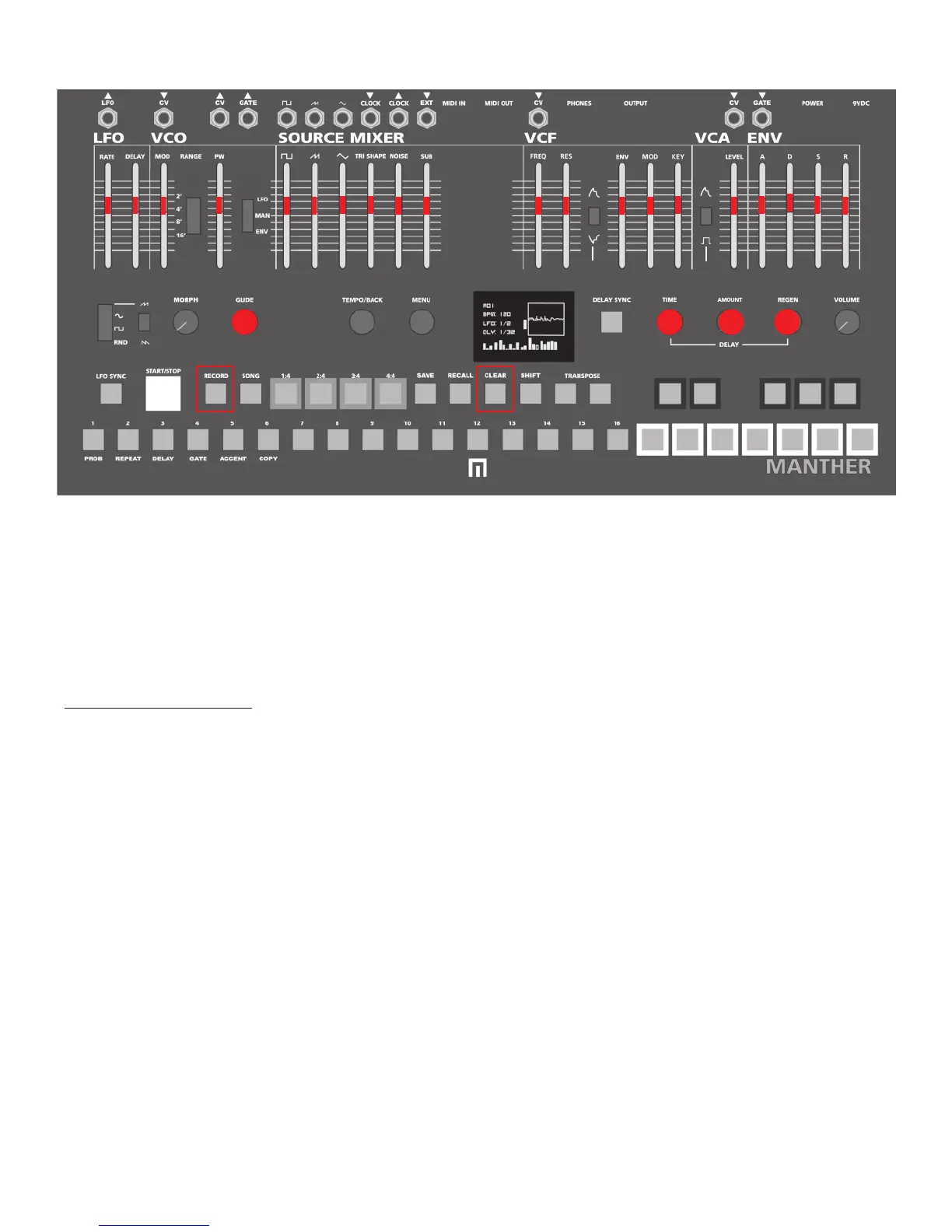
You can record animated changes to all of the Manther features marked in red. By default, automation records on all steps. Under
MENU > RECORD > UPDATE > ALL you can change ALL to NOTE specifically. This will switch automation recording from every step
to just steps with active notes.
Hold the RECORD button while moving the controls for the features you wish to automate. Each step will then retain those automated
control movements. Once you record automation to a control, release the RECORD button and those controls with red LEDs will now
be lit red (knobs have no LED indicators but automation can be recorded for these controls with the exception of MORPH, VOLUME
and MENU controls). Now your control changes will play back automatically as the sequencer plays.
If you want to CLEAR AUTOMATION for a given paramater, hold the CLEAR button while selecting the control. The LED will no longer
be red indicating that automation has now been cleared for those controls that have LEDs. If you want to clear all recorded automa-
tion press CLEAR + RECORD.
NOTE: IF YOU DON’T WANT TO LOSE WHAT YOU HAVE JUST RECORDED, SAVE IT TO A PRESET BY HOLDING SAVE AND ONE
OF THE SEQUENCER/PRESET BUTTONS 1-16. MORE PRESET INFO ON PAGE 10.
length: 36
direction: FWD
divide: 2
multiply: 3
9


 To Next Page