You cannot program the buttons in the Device Overview page
directly. You have to program them using “Learn device action”
function. (see page 30)
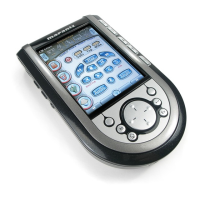
The RC9500 also offers empty (non-command programmed)
control buttons which you can program and label as existing but-
tons. They are visible in USE mode as grayed-out.
Programming Touch Screen Buttons
1 Tap and hold the MODE icon in the LOWER TOOL BAR
more than 3 seconds. Mode Menu page appears.
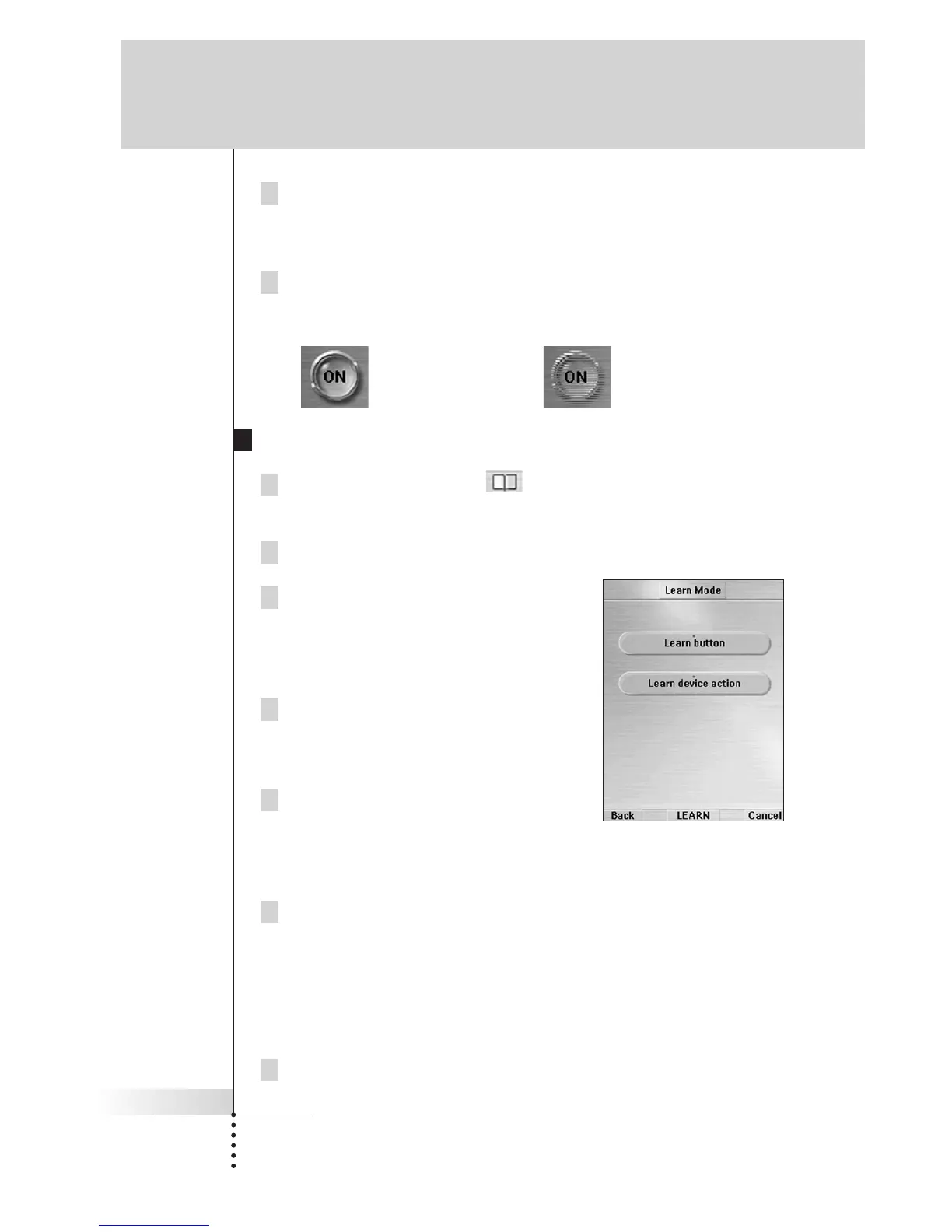
2 Tap the “LEARN” button to switch to the LEARN mode.
3 Select the “Learn button” button
and then navigate to the device page
which contains the button you want to
program.
4 Point the device’s original remote
control to the RC9500’s learning eye
as shown on page 28.
5 Tap the button you want to program
on the RC9500.
“Learning” will be displayed on the DEVICE OVERVIEW button
and the button’s color is reversed.
6 Press and hold the corresponding button on your device’s origi-
nal remote control.
If the RC9500 has learned the command successfully, “OK”
appears on the Device Overview button. You can release the
button you’re holding. If the RC9500 has not learned successful-
ly, you hear a short buzz and “Failed” appears.
7 Program all other buttons you want and relabel them if neces-
sary. (see page 32)
User Guide
29
Reference
Normal Button
(Command programmed)
Grayed-out Button
(Non-command programmed)


 To Next Page