49
4. Go back to the main menu and press the mode selection button to exit.
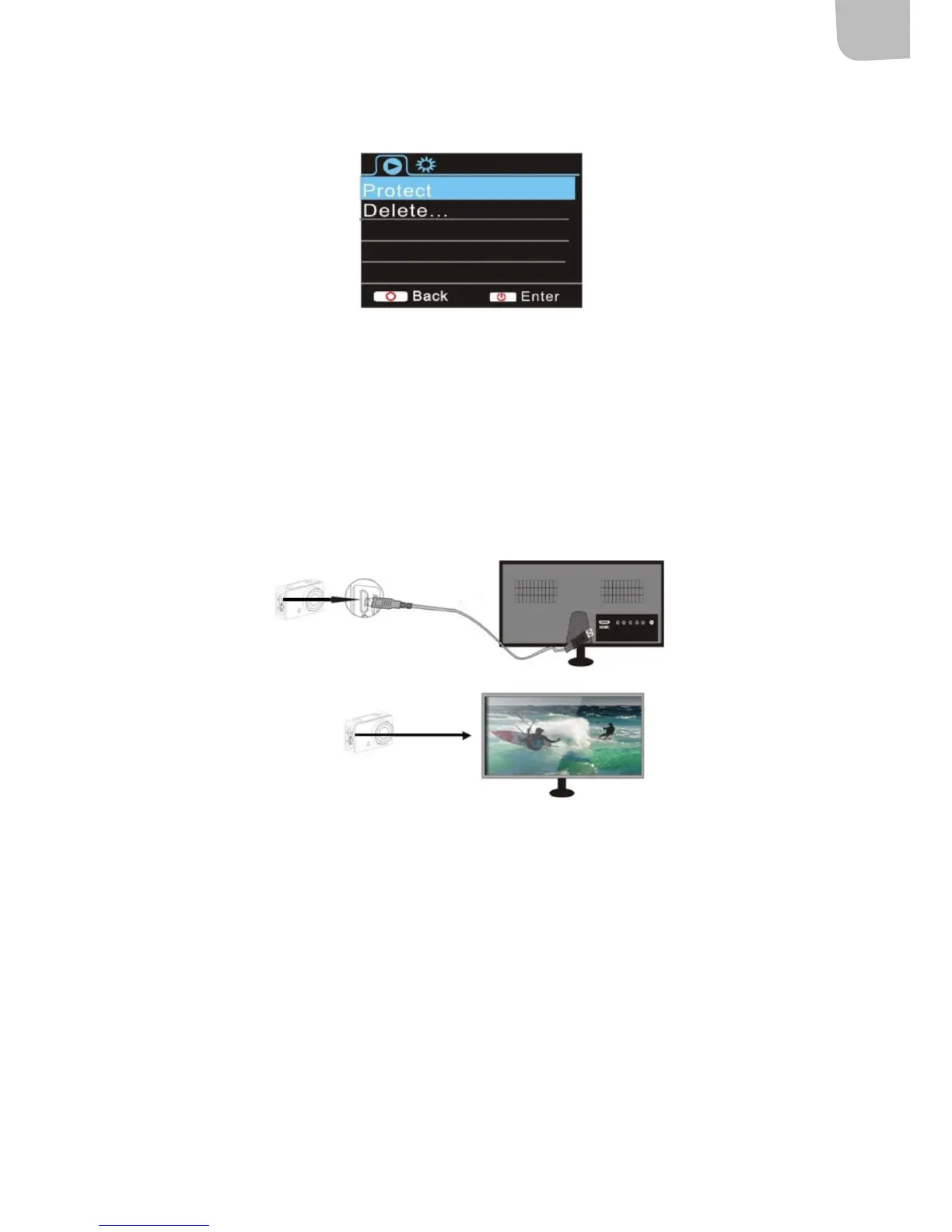
Connection to HDTV
NOTE: Stop recording and disconnect WiFi before connecting or disconnecting the HDMI cable.
1. Connect the camera to HDTV with a HDMI cable (sold separately).
2. To transfer images and audio to a HDTV for playback, connect the COM end of the HDMI
cable to the camera and the other end to the HD input on the HDTV as shown below.
3. When the camera has been correctly connected to the HDTV the same image shown on the
camera display will be shown on the HDTV.
CONNECTING TO A COMPUTER
Transfer les
NOTE: Do not disconnect the USB cable when a transfer is in progress and do not remove the
memory card when the USB cable is connected – risk of loss of data.
1. When the camera is connected to a computer it is shown as an external unit in My computer.
Photo and video les can be found in the folder DCIM\CAR, JPG, VIDEO on the external unit.
2. Open the folder to copy les to the computer’s hard disk.
Webcam mode
NOTE: No drive routine is needed for webcam mode (PC-CAM mode) in Windows XP (SP3) and higher.


 To Next Page