TROUBLE SHOOTING
EN / MasterBus - USB interface / September 2008 11
6 TROUBLE SHOOTING
Contact your local Mastervolt Service Centre if you cannot correct a problem with the aid of the malfunction table
below. See www.mastervolt.com for an extended list of Mastervolt Service Centres.
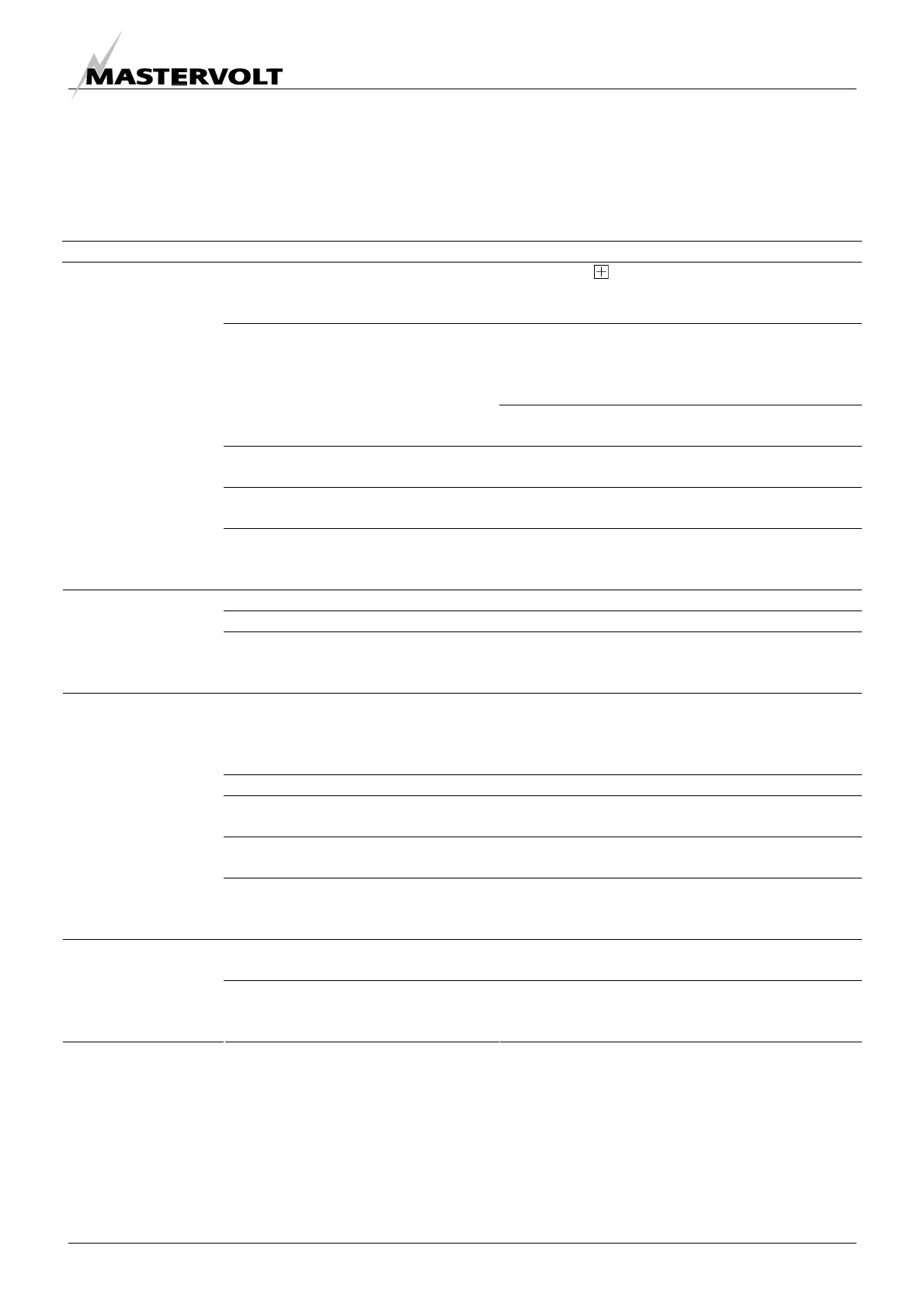
Failure Possible cause What to do
If only “My Computer” is shown, the
left hand tree view of the
MasterAdjust software is collapsed.
Click on the sign in front of “My computer” to
open the tree view.
If green LED on interface is not illuminated or
blinking: check USB connection cable between
the MasterBus – USB interface and the USB-port
of the PC or notebook.
Error in the wiring.
Check the UTP patch cables of the MasterBus
Network.
No terminating device placed at the
ends of the network.
Check if terminating devices are installed on both
ends of the MasterBus network (see figure 2).
MasterBus network is configured as
a ring network.
Ring networks are not allowed (see figure 4).
Check the connections of the network.
No devices can be
found.
T-connections in the MasterBus
network.
Check if there are no T-connections in the
network. T-connections are not allowed (see
figure 5).
Connected device is switched off.
Switch on connected device.
Error in the wiring. Check the UTP patch cables.
One of the
connected devices
can not be found.
Device not suitable for MasterBus. Check whether the device is suitable for
MasterBus. Maybe the UTP patch cable is
connected to a non-MasterBus connector.
If a setting of a connected device is
changed, communication between
the PC and the connected device.
may take a few seconds.
Wait a few seconds.
Error in the wiring. Check the UTP patch cables.
No terminating device placed at the
ends of the network.
Check if terminating devices are installed on both
ends of the MasterBus network (see figure 2).
MasterBus network is configured as
a ring network.
Ring networks are not allowed (see figure 4).
Check the connections of the network.
Slow or no
communication.
T-connections in the MasterBus
network.
Check if there are no T-connections in the
network. T-connections are not allowed (see
figure 5).
Wrong setting of the language at the
MasterAdjust software.
Click on the “Language” menu and select the
desired language.
Wrong language is
displayed.
Wrong setting of the language at one
of the connected devices.
Each separate connected device can have its own
language setting. See user’s manual of the
connected device.


 To Next Page
 Loading...