INSTALLATION
EN / MasterBus - USB interface / September 2008 5
3 INSTALLATION
3.1 CONNECTION
What you need:
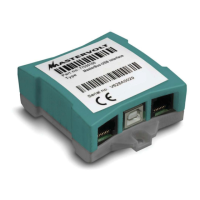
; MasterBus-USB interface (included)
; USB connection cable (included)
; MasterBus connection cables (UTP patch
cables) (included, 6m)
A PC or notebook with Internet connection and a
free USB 2.0 port
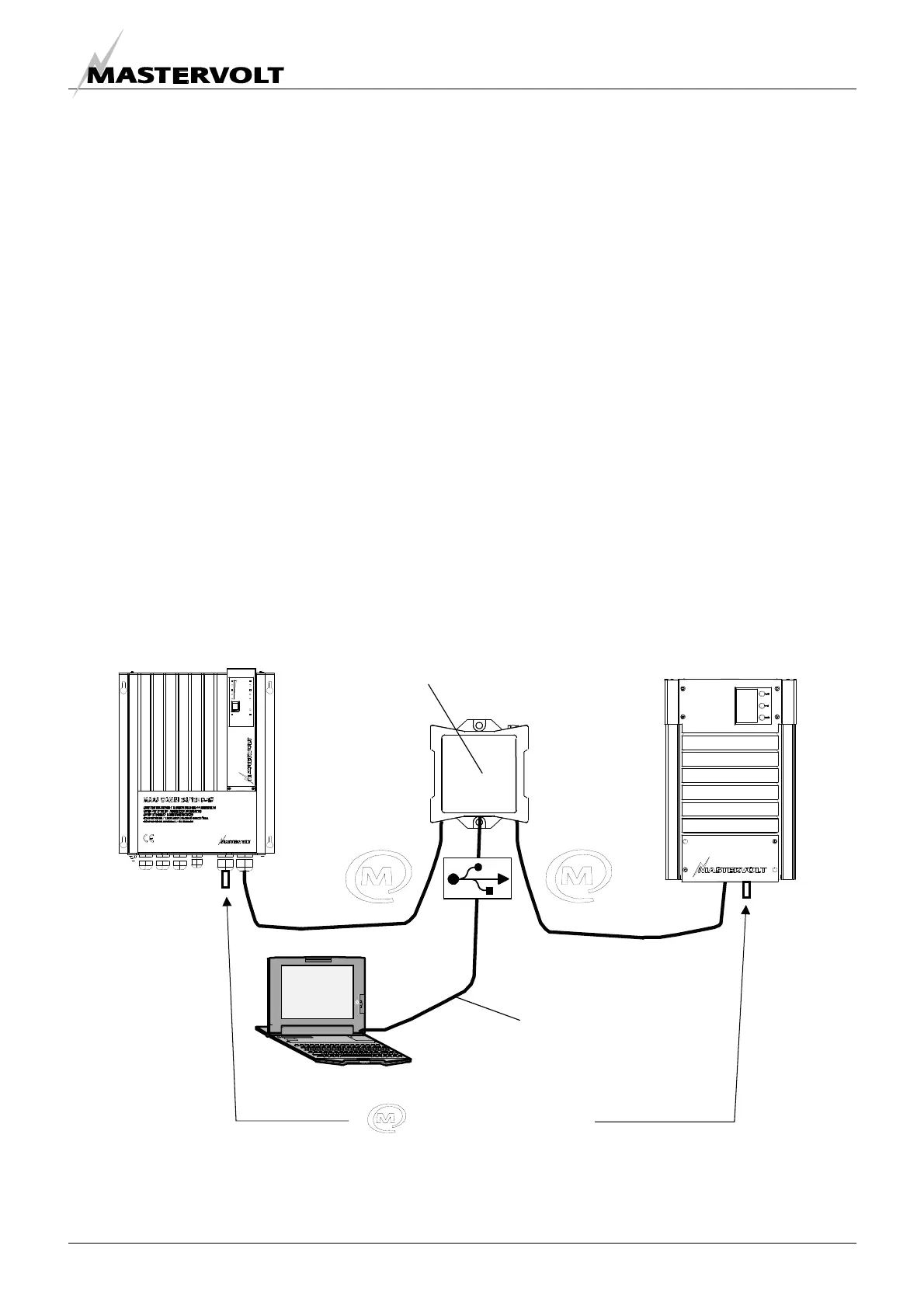
See figure 6
• Insert the MasterBus connection cables into the
MasterBus data ports of the MasterBus – USB
interface.
• Connect the USB connection cable between the
MasterBus – USB interface and the USB-port of
the PC or notebook.
3.2 MASTERADJUST SOFTWARE
1 Mastervolt MasterAjust software is available as
free to download software on the Mastervolt
website (www.mastervolt.com) Install the
software on the desktop of your PC or notebook.
2 Start the program by double clicking the
MasterAdjust.exe icon on your desktop
3 Immediately the USB-MasterBus interface is
detected. This results in a “USB: MasterBus”-
entry in the left tree-view of the MasterAdjust
software
4 Now the MasterAdjust software scans the
MasterBus network for connected devices. This
might take a few minutes.
See chapter 4 for details about monitoring and
control functions of the MasterAdjust software
If no devices are displayed, refer to chapter 6 for
trouble shooting.
Figure 6: Connection of the MasterBus-USB interface
MasterBus – USB interface
USB connection cable
PC or
notebook
Terminating devices at
each end of the


 To Next Page