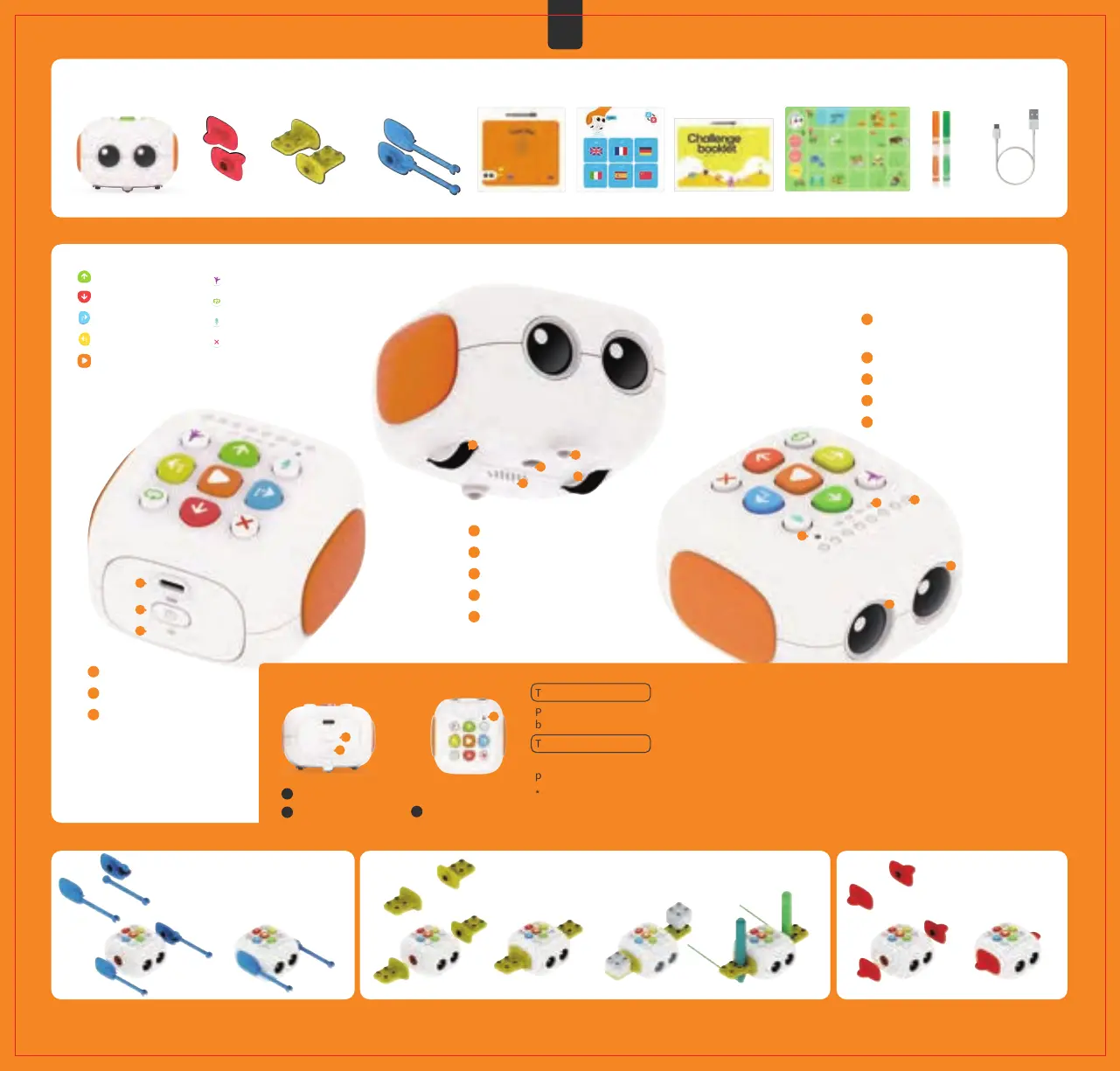
Forward button
Backward button
Right Turn button
Left Turn button
Play button
Power indicator
Power button
USB-C charging port
Left wheel
Omni-directional wheel
Speaker
OID sensor
Right wheel
Microphone hole
Repeat indicators(4 LEDs)
Coding indicators(8 LEDs)
Right eye indicator
Left eye indicator
(When recording, the sound source should
be as close as possible to this hole)
3
3
5
5
2
2
1
1
2
3
1
4
4
1
2
3
4
5
1
2
3
1
2
3
4
5
Tale-Bot Pro can be turned into various shapes by replacing the parts on its both sides.
To turn Tale-Bot Pro on
Press and hold the Power button for 1 second, until the startup music rings, the power indicator turns into solid
blue, the left & right eye indicators turn into solid orange and the coding indicator flashes startup lights.
To turn Tale-Bot Pro off
When Tale-Bot Pro is on, press and hold the Power button for 1 second, until the shutdown music rings, both the
power indicator and the left & right eye indicators go out and the coding indicator flashes shutdown lights.
*Tale-Bot Pro will turn off automatically when its battery level is less than 5% or if not used after 1 hour.
Coding indicators
Power button
Power indicator
1
3
2
1
2
3
04
Turning on and off
Random Dance button
Repeat button
Record button
Clear button
01
02
Parts list
Product overview
03 Different shapes of Tale-Bot Pro
Tale-Bot Pro x1
Arm assembly x2 User guide x1 Configuration
Card x1
Drawing & building
blocks bracket x2
Wing x2
USB-C cable x1Washable
Markers x2
EN
Challenge Booklet x1 Double-sided Map x1
(Blank map & Interactive Map)
07



 To Next Page