05
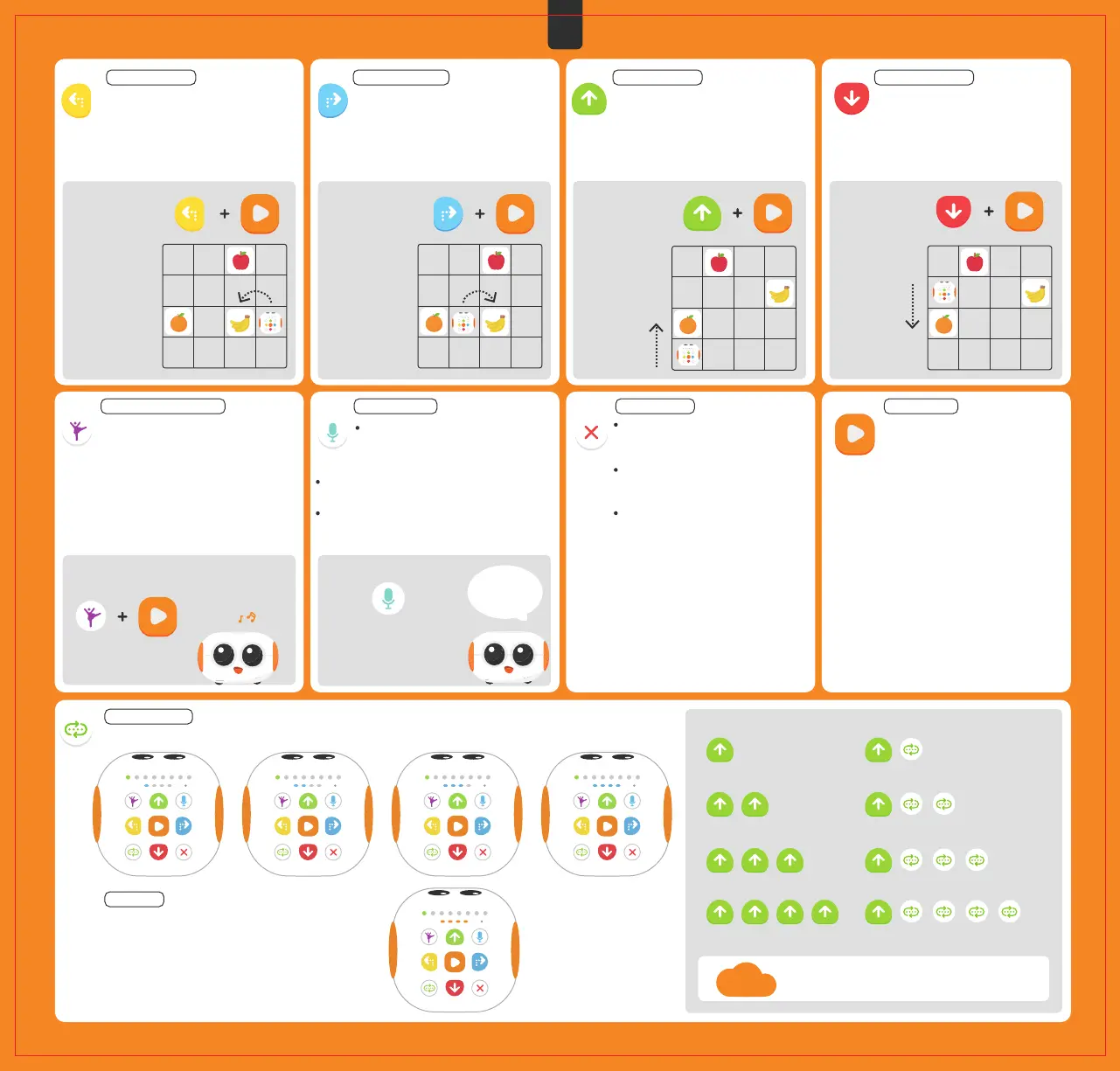
Function buttons
Play button
After the Play button is pressed,
Tale-Bot Pro will execute the entered
command.
*After a command is finished, press
the Play button, Tale-Bot Pro will
execute the command again.
If the Play button is pressed in the
process of executing a command,
Tale-Bot Pro will stop executing the
command. Press the Play button
again, Tale-Bot Pro will re-execute
the entered command until it is
finished.
Random Dance button
Press the Random Dance button once
to enter a Dance command. There are
6 sets of dance moves in total to be
performed randomly. After a Dance
command is entered, the Play button
has to be pressed to execute it.
Forward button
Press the Forward button once to
enter a One Step Forward command.
The robot moves 10cm forward in one
step. After a Forward command is
entered, the Play button has to be
pressed to execute it.
Have a try and see what would happen to
Tale-Bot Pro.
Have a try and
see what would
happen to
Tale-Bot Pro.
Have a try and
see what would
happen to
Tale-Bot Pro.
Have a try and
see what would
happen to
Tale-Bot Pro.
Backward button
Press the Backward button once to
enter a One Step Backward command.
The robot moves 10cm backward in
one step. After a Backward command
is entered, the Play button has to be
pressed to execute it.
Left Turn button
Press the Left Turn button once to
input a Turn 90° Left command. After
a Left Turn command is entered, the
Play button has to be pressed to
execute it.
Have a try and
see what would
happen to
Tale-Bot Pro.
Try to record a voice now~
Press
Right Turn button
Press the Right Turn button once to
enter a Turn 90° Right command. After a
Right Turn command is entered, the Play
button has to be pressed to execute it.
Record button
Press and hold the Record button [for >1
second] to record an audio file. One audio
file recorded cannot exceed 30 seconds. Up
to 256 audio files can be recorded.
Press the Record button [for <1 second] to copy the
previous audio file.
Every time the robot is turned off, the audio files
recorded will be automatically cleared, while those
which come with it will resume.
Clear button
Press and hold the Clear button [for >1
second] to delete all commands
entered
Press the Clear button [for <1 second]
to delete the previous (last) command
entered.
Once all entered commands are
deleted, all coding command
indicators will go out.
Hello!
I’m Tale-Bot ~
How to use the Record
button to make the robot
say: Hello! I’m Tale-Bot ~
Reflection:
Repeat button To set how many times the execution of inputted commands is repeated.
Example Repeat the Forward command infinitely:
As shown in the picture below, after the Repeat
button is pressed 5 times in a row, the Repeat
indicators change from blue to orange. Press
the Play button, the robot will repeatedly
execute the Forward command infinitely.
Conclusion:
Observe how the robot moves when it is started in the following four situations respectively.
Reflection
=
+
=
+ + +
=
+ + + + +
=
+ + + + + + +
Execute Forward command once
Execute Forward command twice
Execute Forward command 3 times
Execute Forward command 4 times
Is it possible to repeatedly execute the commands an
unlimited number of times?
EN
08



 To Next Page