11
Exporting to Matrox MAX H.264 files using Adobe Media Encoder
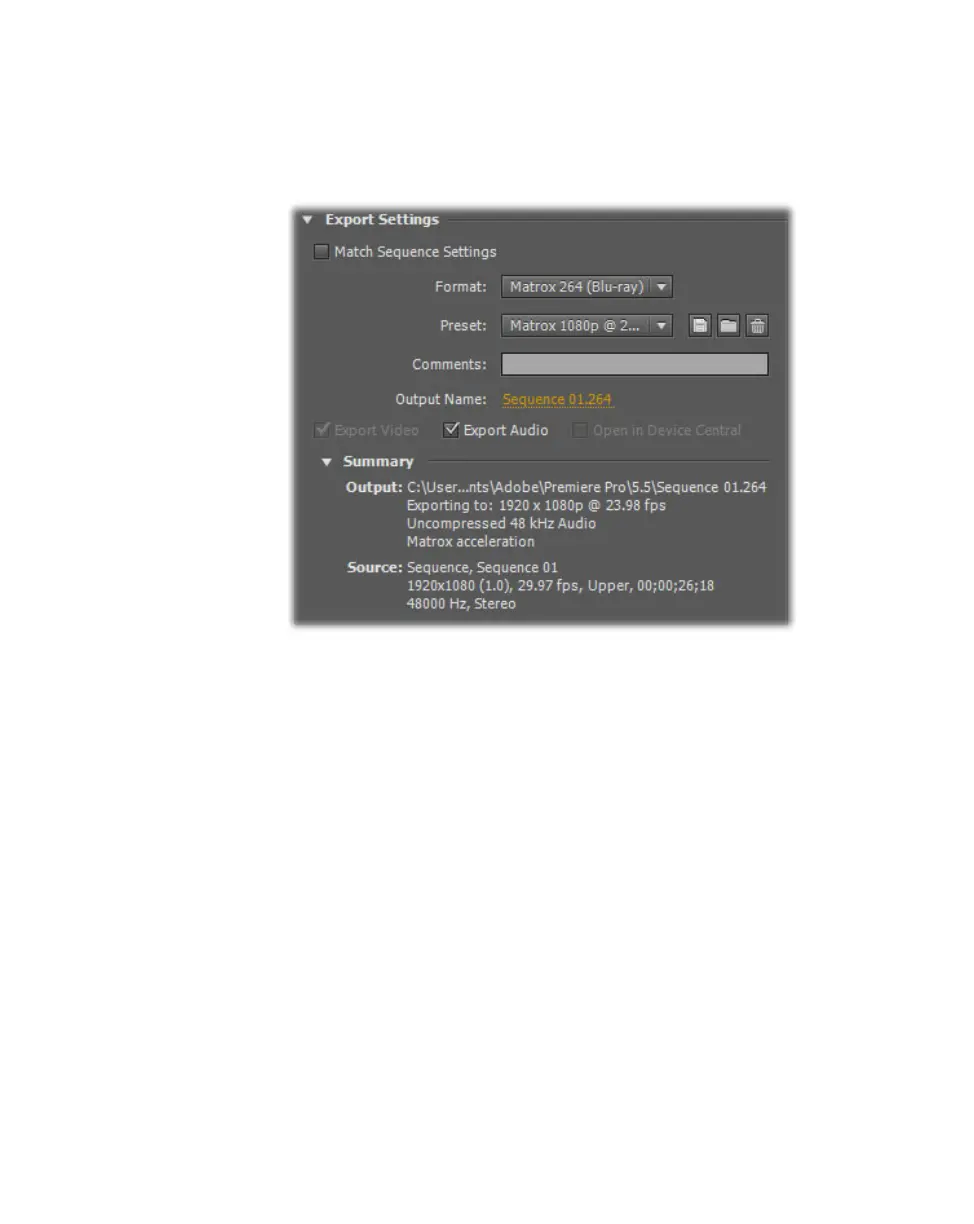
°To export material to a Matrox MAX H.264 file:
1 Start Adobe Media Encoder and add the clip, sequence, or composition that
you want to export as explained in your Adobe documentation, then click
Settings to display the Export Settings dialog box.
¦NoteWhen using an Adobe program that employs Media Encoder for
exporting material, the
Export Settings dialog box will be displayed when
you choose to perform the export, such as when you choose
File > Export >
Media
to export a sequence using Adobe Premiere Pro.
2 From the Format list, select one of the following Matrox formats:
$ Matrox 264 (Blu-ray) Creates a .264 elementary stream file, which is
supported for Blu-ray Disc authoring. Audio is exported as separate mono
or stereo .wav files (PCM audio).
$ Matrox MP4 Creates an .mp4 file with embedded stereo AAC audio,
which is suitable for the web and mobile devices.
3 From the Preset list, select the preset that matches the video format you
want for your exported file. Appropriate video and audio settings are
automatically set based on your selected preset.
¦NoteIf you’re exporting to a Matrox .mp4 file, two types of presets will be
available—Fast Encode and High Quality. Select a Fast Encode preset for fast
encoding that leverages your system’s resources with the hardware. Select a
High Quality preset for high-quality encoding that is performed entirely by
the CompressHD hardware, which frees your system’s resources for other
tasks.











 To Next Page