12
Chapter 3, Using the Matrox MAX H.264 Codec with Adobe Software
4 Select Export Video and Export Audio if you want to export both video
and audio.
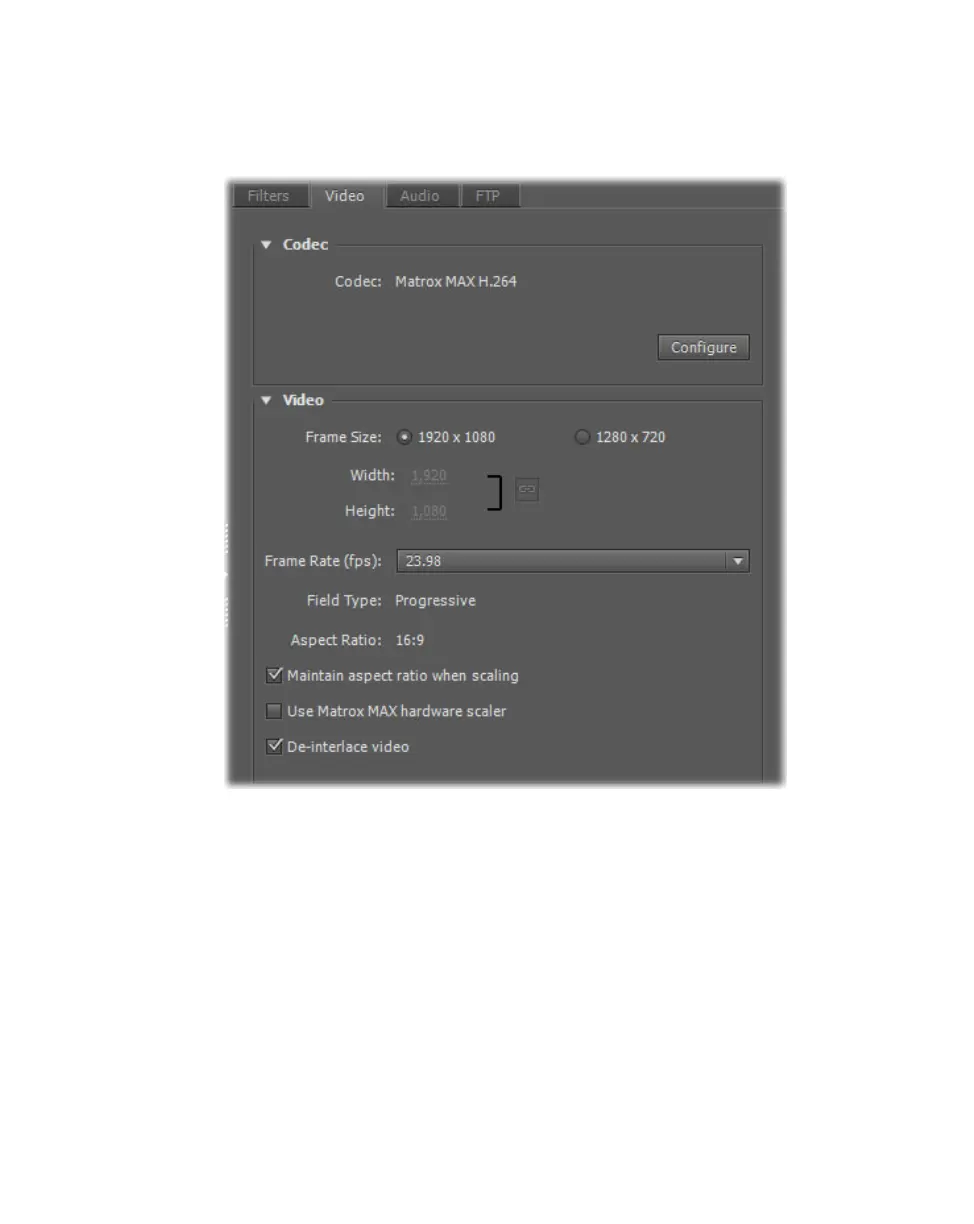
5 Click the Video tab to display the settings for your exported video.
6 Under Codec, click Configure to select your Matrox MAX H.264 codec
settings as explained in “Specifying your Matrox MAX H.264 settings” on
page 18.
7 Under Video, you can customize the settings that you want for your
exported video:
$ Frame Size Sets the width and height for your exported video. When
exporting to a Matrox .264 file, the available frame sizes are
1920 x 1080
and
1280 x 720. When exporting to a Matrox .mp4 file, you can select a
frame size, or select
Custom (Square Pixels) if you want to enter a
custom size. If you enter an unsupported frame size, the closest supported
frame size will be used.
$ Frame Rate Sets the frame rate for your exported video.











 To Next Page