16
Chapter 3, Using the Matrox MAX H.264 Codec with Adobe Software
¦NoteOnly Matrox presets that are compatible with your project’s settings
will be available.
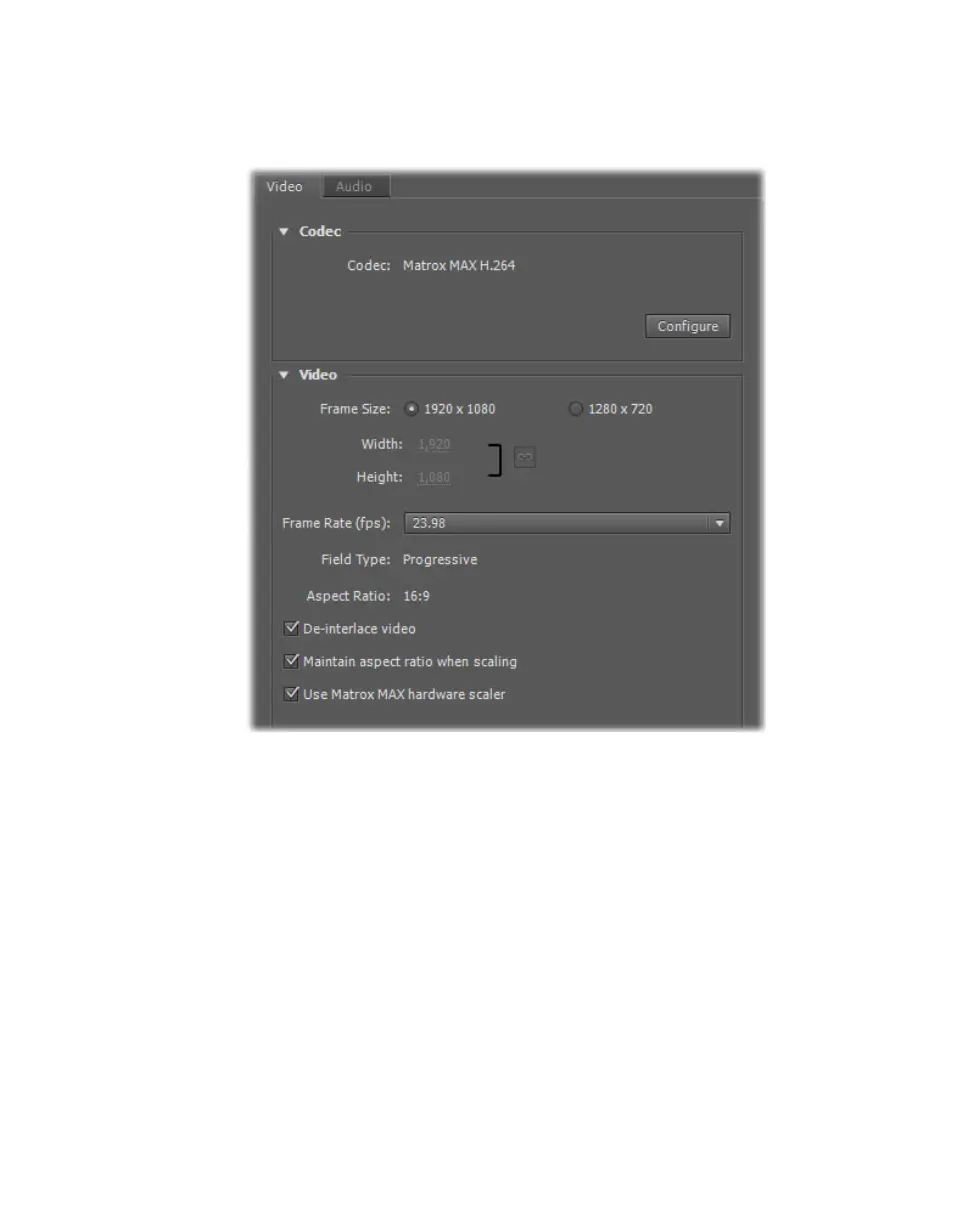
4 Click the Video tab to display the settings for your transcoded video.
5 Under Codec, click Configure to select your Matrox MAX H.264 codec
settings as explained in “Specifying your Matrox MAX H.264 settings” on
page 18.
6 Under Video, you can customize the settings that you want for your
transcoded video:
$ Frame Size Sets the width and height for your transcoded video.
$ Frame Rate Sets the frame rate for your transcoded video.
$ Field Type Indicates the order in which the video fields are displayed,
such as
Upper First for interlaced HD video, or Progressive for all
progressive video formats.
$ Aspect Ratio This is set to 16:9.
$ De-interlace video If you’re transcoding interlaced video to a
progressive format (such as 1080i to 720p), select this option to
de-interlace the video for display on a monitor that displays lines











 To Next Page