10 Matrox D-Series – User Guide
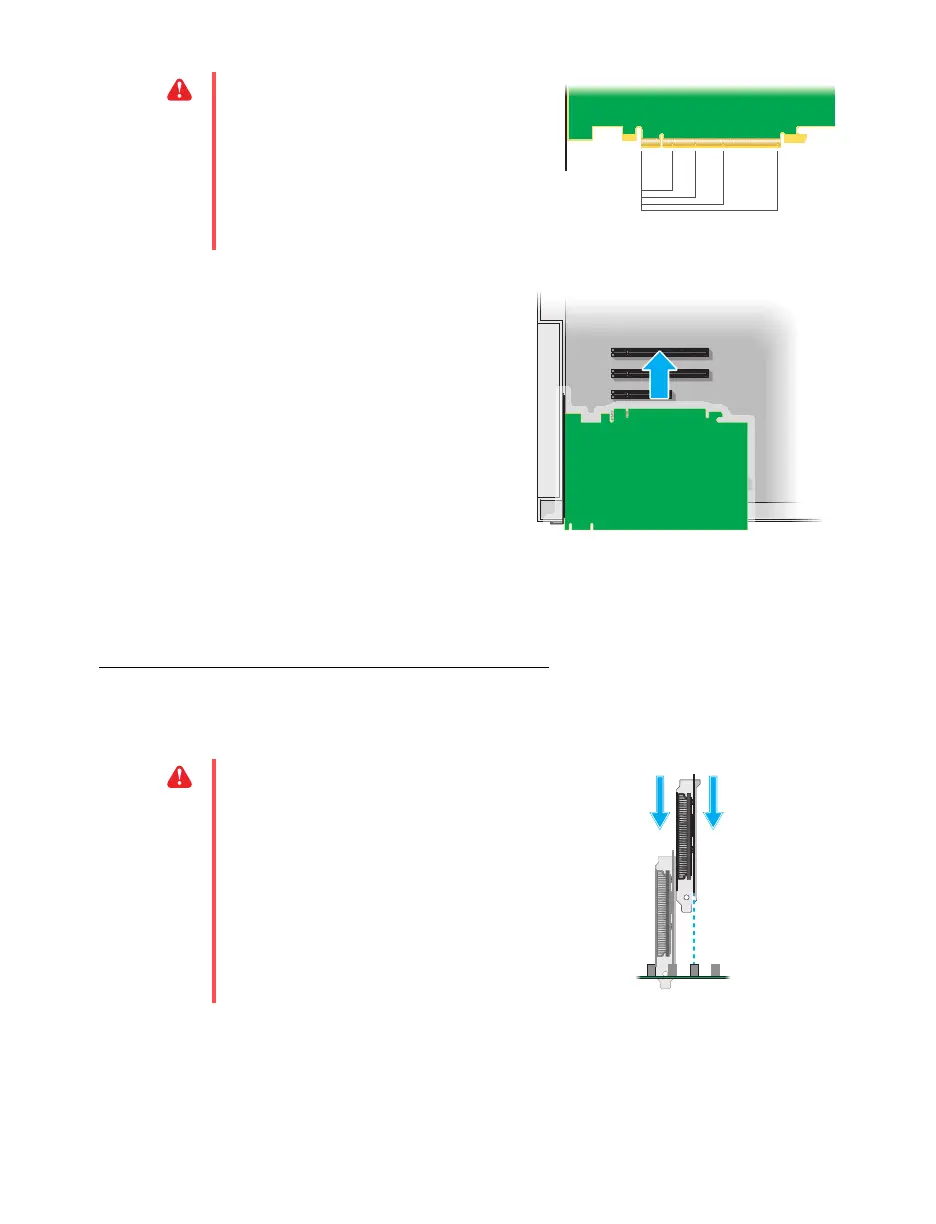
3 Insert your Matrox card
a
Position your Matrox card over the
expansion slot you’ve chosen.
b
Push the card in firmly and evenly until
it’s fully seated in the slot.
c
Secure the bracket of your Matrox card
to the computer frame.
Your Matrox card is now installed.
Before restarting your computer
, connect your monitor or
monitors (see “Connecting your monitors”, page 14).
After connecting
, restart your computer and
install your Matrox software (see “Installing your Matrox software”, page 17).
Installing multiple graphics cards
You can install up to four (4) Matrox D-Series graphics cards in your system.
WARNING:
Inserting your Matrox card
into the wrong type of slot could damage
your card, your computer, or both.
PCI Express card
×16
×1
×4
×8
WARNING:
To avoid damaging your
cards, always insert your card as straight as
possible into the slot. Don’t rock the card
from side to side. If you meet resistance,
don’t force the card into the slot.











 To Next Page