Matrox Extio Series – User Guide 5
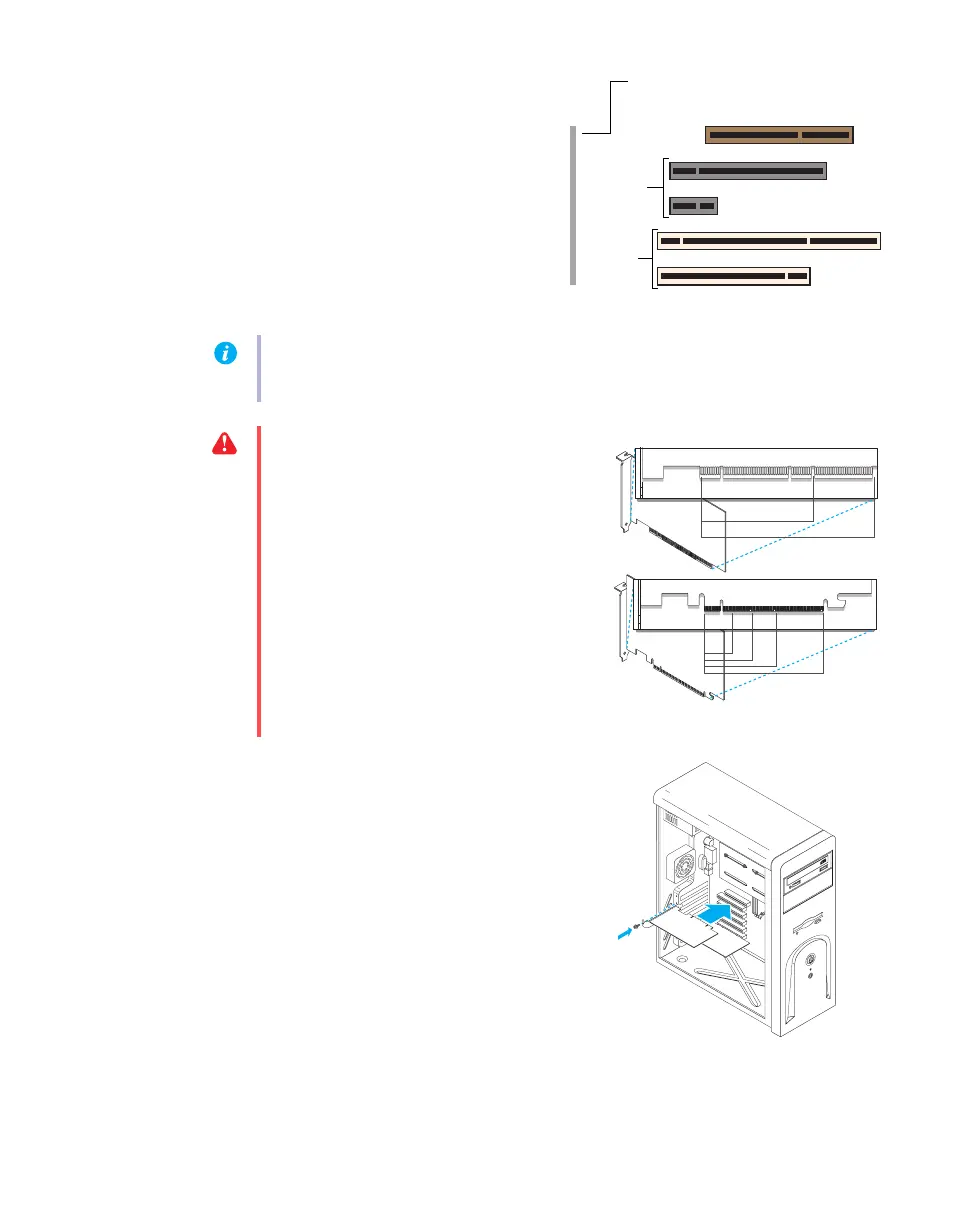
2 Choose an expansion slot for
your interface card
Most computers have different types of
expansion slots. Choose a PCI or PCI
Express (PCIe) ×1 slot, depending on the
type of Matrox card you have. If you have a
PCI card, your card supports both 64-bit
and 32-bit PCI slots. Your system manual
should identify the location of each type of
expansion slot in your computer.
3 Insert your Matrox interface
card
a
Position your Matrox card over the
expansion slot you’ve chosen.
b
Push the card in firmly and evenly until
it’s fully seated in the slot.
c
Secure the bracket of your Matrox card
to the computer frame.
(64-bit)
(Back of computer)
(32-bit)
PCI
Express
slots
AGP slot
(×16)
(×1)
PCI
slots
Note:
If you’re using a PCI card in a 64-bit PCI slot, your choice of PCI slot may affect your
card or system performance. For more information, see your computer manual.
WA R N I N G :
Inserting your Matrox card
into the wrong type of slot could damage
your card, your computer, or both.
If you’re using a PCI interface card in a
64-bit PCI expansion slot, your card uses
only the part of your expansion slot closest
to the back of the computer.
PCI card
32-bit
64-bit
PCI Express card
×16
×1
×4
×8



 To Next Page