2
Installing your Matrox MXO2 hardware
Installing and removing your PCIe host
ExpressCard/34 adapter (for laptops)
¡ Important For Mac OS systems, you can install the Matrox PCIe host
ExpressCard/34 adapter when your laptop is on or off. For Windows systems, you
must shut down your laptop before installing the Matrox PCIe host ExpressCard/34
adapter.
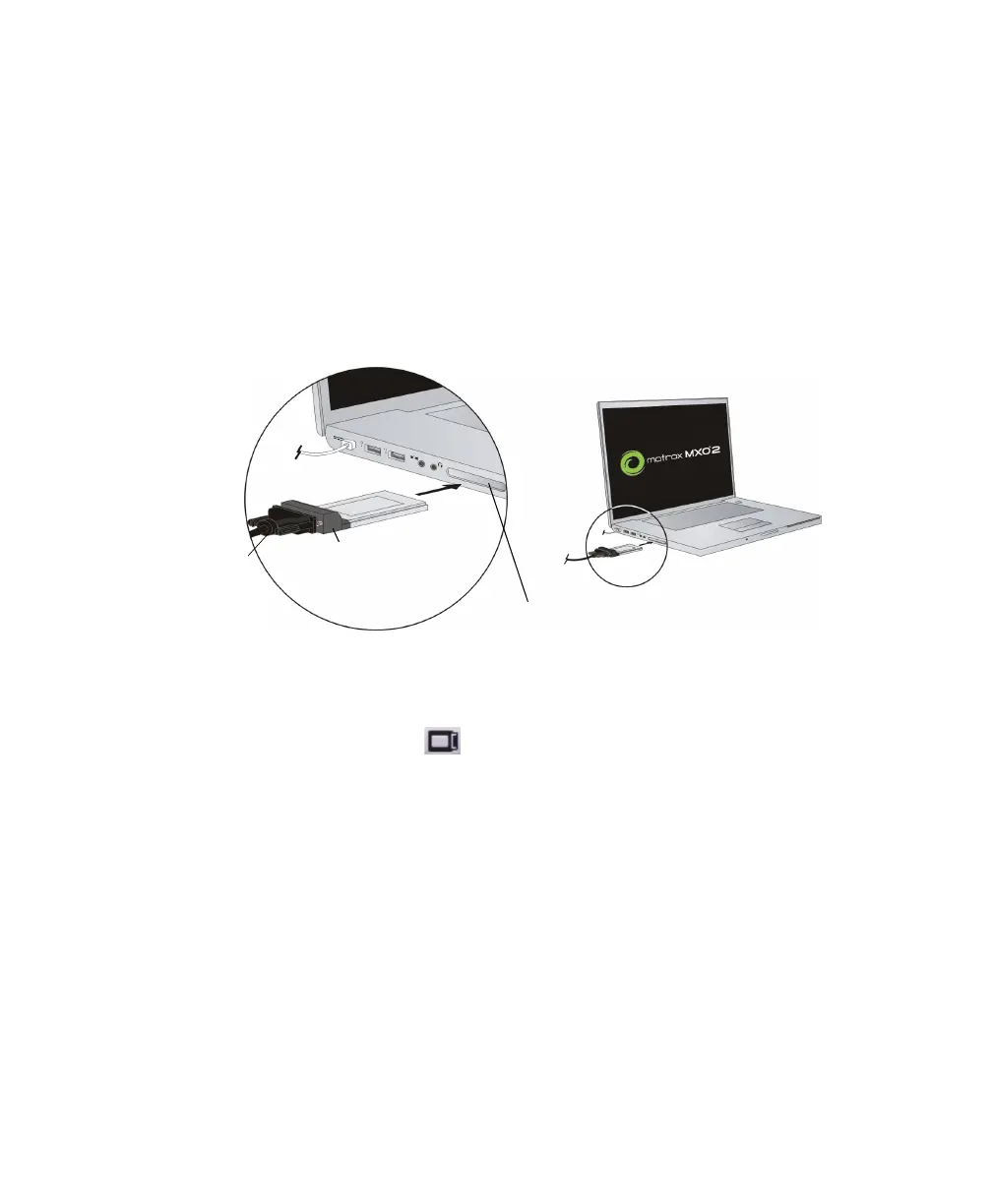
The Matrox PCIe host ExpressCard/34 adapter is designed to operate in your laptop’s
ExpressCard/34 slot. Connect the Matrox PCIe cable to the host ExpressCard/34
adapter, and then insert the host adapter in your laptop’s ExpressCard/34 slot until the
adapter clicks into place.
For Windows systems, you must shut down your laptop before removing the Matrox
PCIe host ExpressCard/34 adapter. For Mac OS systems, you don’t have to shut down
your laptop, but you must power off the card before removing it from your laptop by
clicking the ExpressCard icon ( ) from the menu bar, and then clicking
Power off
Card
.
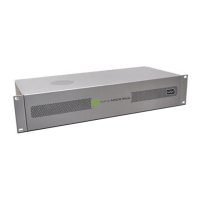
Rack mounting your MXO2 Rack
Use the supplied rackmount brackets to mount your Matrox MXO2 Rack to a
standard 19-inch rack. The rackmount brackets can be used to either front or rear
mount your MXO2 Rack. You can also mount MXO2 Rack so that it’s recessed to
allow more space for cables. MXO2 Rack takes up two vertical rack unit spaces.
1 Unpack the two rackmount brackets and their eight mounting screws.
²Caution Use only the screws supplied with your MXO2 Rack to attach the
rackmount brackets to your MXO2 Rack. If you use screws that are larger or longer
than the ones supplied, you can damage your equipment.
2 Depending if you want to front or rear mount your MXO2 Rack, position the
rackmount brackets so that the bracket face is either towards the front (connector
side) or the back of your MXO2 Rack.
A
A
ExpressCard/34 slot
Matrox PCIe
ExpressCard/34
adapter
PCIe
cable



 To Next Page