1
Skipping channels
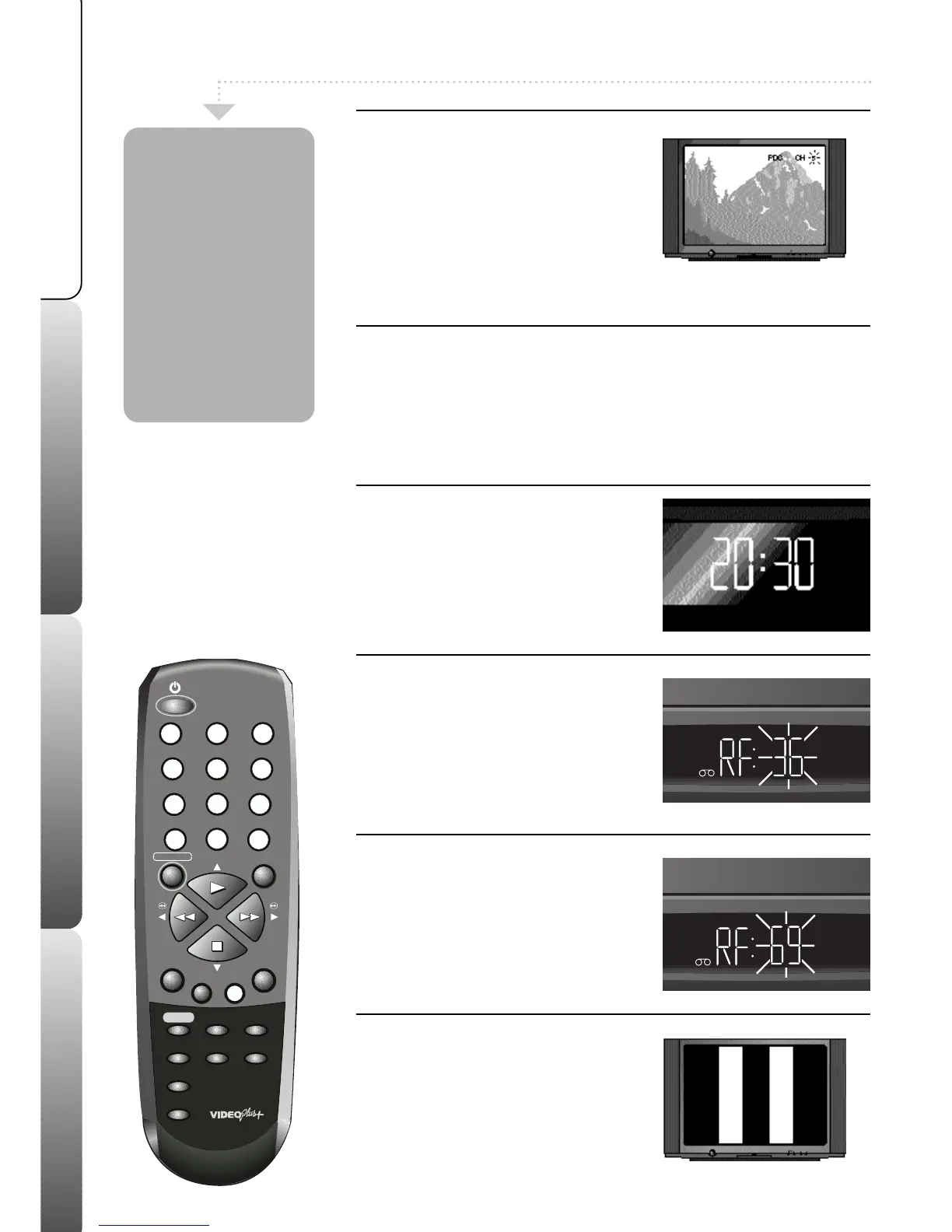
Select the channel you want to skip. Press
the CANCEL button. The channel number
will then flash in the top right of the TV
screen and in the VCR display. When a
channel is skipped you will not be able to
select it with the -CH/TR+ buttons.
Press the relevent NUMBERED buttons and
then press CANCEL to unskip a channel.
Only follow these instructions if you notice interference on your TV screen when
watching TV stations on your VCR.
If you have connected your VCR to your TV using a scart lead you can ignore
this stage.
1
VCR in standby
Make sure your TV is switched on and your
VCR is in standby.
2
Select the VCR’s test pattern
Press and HOLD the ON button on the front
of your VCR until ‘RF 36’ appears in the
display.
If ‘CH 1’ stays in the display, press the ON
button once, then press and hold the ON
button until ‘RF 36’ appears.
3
Try changing output number
Press the -CH/TR+ buttons on the front of
your VCR to change the number. Now tune
your VCR channel on your TV again until
the black and white test pattern appears.
4
Store your selection
If the pattern is now clear, press the ON
button to remove the black and white test
pattern. If the pattern is still not clear, try
changing the number again (see stage 3)
and re-tune your TV until the pattern is
clear.
Sometimes during
SET-UP you may
store more than
one copy of the
same channel or
leave a channel
with a poor
picture. Using the
SKIP feature you
can disable these
unwanted
channels.
Advanced features Help & specificationRecordingBasic VCR features
Removing Interference
2


 To Next Page