Internet connection can be setup via Wireless network (WiFi).
Your radio requires a broadband Internet connection.
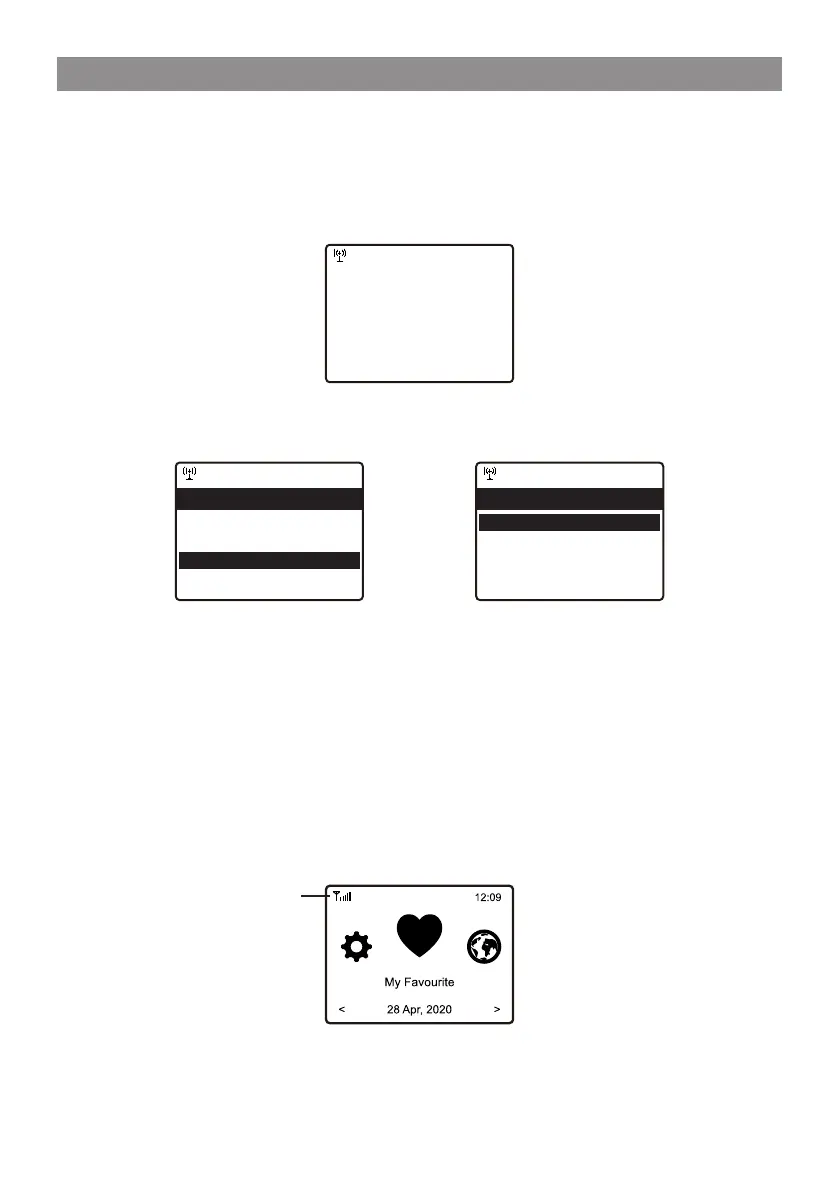
• If this is first time use, the Configure Network wizard will be displayed. Choose Yes
to start configuring network. Press the [ ◄ ] button to highlight Yes and press
[Scroll/Select] to confirm.
• Select Add/Remove AP from the list, use the [Scroll/Select] knob to scroll and
press it to confirm, then choose Add AP (Scan):
• It will start scanning the Wi-Fi networks available. Scroll to your network and press
[Scroll/Select] to confirm. If your wifi network has a password protected, it will ask
you to enter the passphrase/password. Please refer to the above section 'How to
input password for your wireless network' on P.7.
Note: The password is case sensitive. Please consult with the one who setup your
network if you don't know the password.
• When the Wi-Fi connection is successful, the Association Complete will be shown
briefly. The wifi signal bar will appear on the top left corner of the display:
2. Network Setup
Wi-Fi signal bar
12:01am
Configure Network?
Yes No
←to previous →to next SelectOK whendone
12:01am
Network Options >
Wi-Fi Channels >
< Add/Remove Ap >
AP:[] >
Network 3/7
12:01am
Add/Remove AP 1/4
< Add AP(Scan) >
Add AP(WPS button) >
Add AP(SmartConfig) >
Remove AP >


 To Next Page