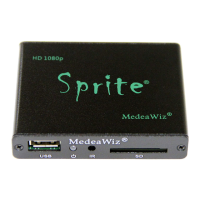
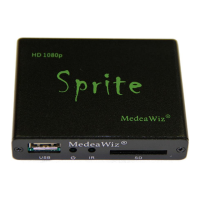
MedeaWiz® Sprite®
.
4 | P a g e
Sprite® Quick Start Guide
The MedeaWiz® Sprite® ships with the Video Output set to HDMI at 720p and the Control Mode
set to “Trigger Low No Interrupt” to use a pushbutton trigger.
Most users can simply connect their HDMI monitor and install their SD memory card, with files
named in the same way as the earlier model MedeaWiz players.
Example 1: You have one file that you need to run in a loop when power is turned on:
Name the file 000.xxx (where xxx is the proper file extension such as mpg, wmv, mp4, mt2s or
etc.)
Example 2: You have a looping file and also want to use the Trigger with a push button:
Name the looping file 000.xxx as above. Then name the trigger file 001.xxx
Example 3: You have a looping file and also want to use the Serial Port control:
Name the looping file 000.xxx as above. Then name the other files 001.xxx, 002.xxx, 003.xxx and
etc. in order.
Using the IR remote control, enter the on-screen menu by pressing the Setup key, and set the
Control Mode to Serial Control, and set the Baud Rate to match your external controller.
Always have a looping file named 000 if using any trigger input or serial control:
The 000 looping file can be a black video file if no video is wanted until a trigger or command.
We suggest the looping file be at least 30 seconds long.
Make sure you are using ZEROS and not the letter O in the file name. Do not put the files in a
folder. Only put media files on the SD card or USB drive.
You can download HD test files at http://www.highdefforum.com/high-definition-movies-
video-clips/6537-official-hd-video-clip-list.html



 To Next Page
 Loading...