CONNECTING TO PAIRED DEVICES
Once the Air-Fi Rumble is turned on, it will automatically connect with the last
paired Bluetooth device that is on and within range. If the Air-Fi Rumble is not
connected automatically, tap the Multifunction ( ) button once to initiate
connection with last paired device. If the headset still does not connect,
open the Bluetooth menu on your device and select “Air-Fi Rumble” from the
Bluetooth device list.
Note: On some computers, Bluetooth audio must be enabled manually every
time you connect.
CONTROLS
The Air-Fi Rumble can control media and phone calls from a smartphone or
tablet.
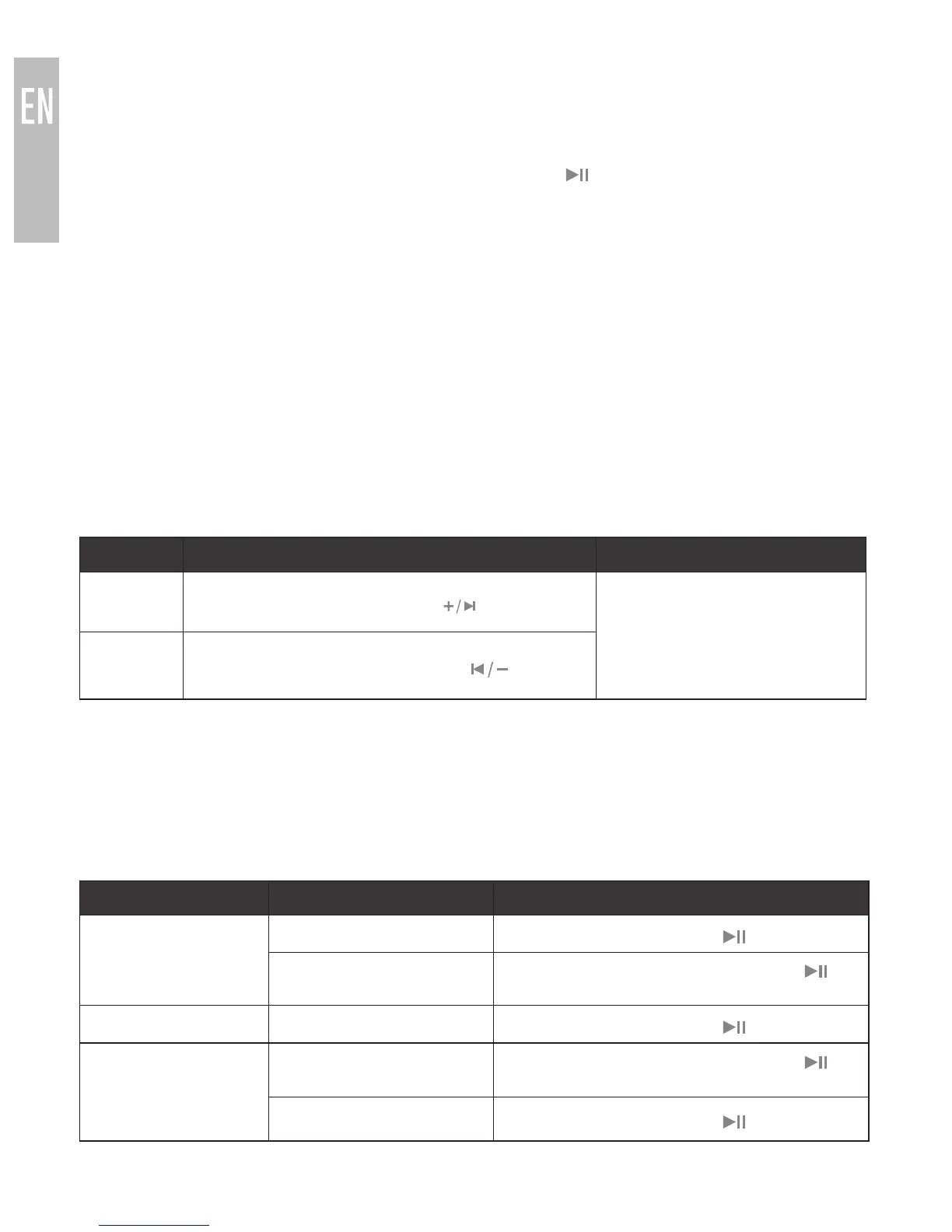
Adjusting Volume
Function Operation Notes
Increase
volume
Short press the Volume up ( ) button
Headset will produce a
short tone when the volume
is adjusted and a long
tone when it reaches the
minimum or maximum level.
Decrease
volume
Short press the Volume down ( ) button
Note: volume adjustments made while playing media will change the volume of the
headset independently of the connected device. Raise or lower device volume as
needed to further increase or decrease the overall volume. Some newer devices use
AVRCP 1.3 Bluetooth Profile, which will allow the Air-Fi Rumble to control the device
volume directly at all times.
Controlling Phone Calls
Status Function Operation
Incoming call
Answer call Press the
Multifunction ( ) button
Reject call
Press and hold the Multifunction
( )
button for 2 seconds
Call in progress End call Press the
Multifunction ( ) button
Call in progress,
phone handset
active*
Transfer call to headset
Press and hold the Multifunction
( )
button for 2 seconds
End call Press the
Multifunction ( ) button
continue to next page
5



 To Next Page