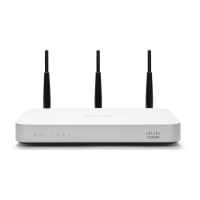
2 Pre-Deployment Setup
2.1 Dashboard Settings
2.1.1 Setting Up a New Dashboard Account
Step 1: Create an account.
To manage Meraki networks through the Dashboard, you need to create
an account at http://dashboard.meraki.com.
Step 2: Add an MX60 to your account.
After logging into your account, click on “Configure” and then “Add
router.” Enter the order number or the serial number of the MX60,
choose a name for the router, and provide the router’s physical location
(in order to accurately place it on the integrated Google map or floor
plan). Click the “Add routers” button on the bottom of the page.
2.1.2 Using an Existing Dashboard Account
If you have an existing Dashboard account (organization) that you use
for Meraki wireless networks, you need to create a separate network in
the Dashboard for each MX60 that you plan to deploy.
You can use the “Network” pull-down option to create a new network
and add the MX60 serial number to the newly created network
2.2 Firewall Settings
If your MX60 will be placed behind a firewall, you will need to allow
outgoing connections on particular ports to particular IP addresses. The
most current list of outbound ports and IP addresses can be found here:
http://tinyurl.com/y79une3
2.3 Local Management Console
If you need to assign static IP to the MX60, you need to use the local
management console. The local console provides additional
connectivity status information, such as whether an upgrade is in
progress or the device is connected to the Internet.
To access the local management console, simply follow these
instructions:
1. Connect the router to a power supply.
2. Using a client machine (e.g., a laptop), connect to the MX60
through any of the LAN ports (by plugging one end of an
Ethernet cable into the client machine, and the other end of the
Ethernet cable into the one of the router’s LAN ports).
3. Using a web browser on the client machine, access the
router’s built-in web server by browsing to
http://setup.meraki.com.


 To Next Page