Copyright © 2009-2016 Micca. All rights reserved. Page | 8
• In the General tab, rename the device to “Micca OriGen+” so it’s easier to view later.
• In the Supported Formats tab, uncheck DTS, Dolby Digital, and Microsoft WMA Pro
Audio. Check 44.1kHz, 48.0kHz, 88.2kHz, 96kHz, 176.4kHz, and 192.0kHz.
• In the Levels tab, make sure it is set to maximum of 100. Use the volume knob on the
OriGen+ to set playback volume.
• In the Advanced tab, select any Default Format desired, such as 24 bit 192000 Hz.
3.3.2 VIA USB Device Deck
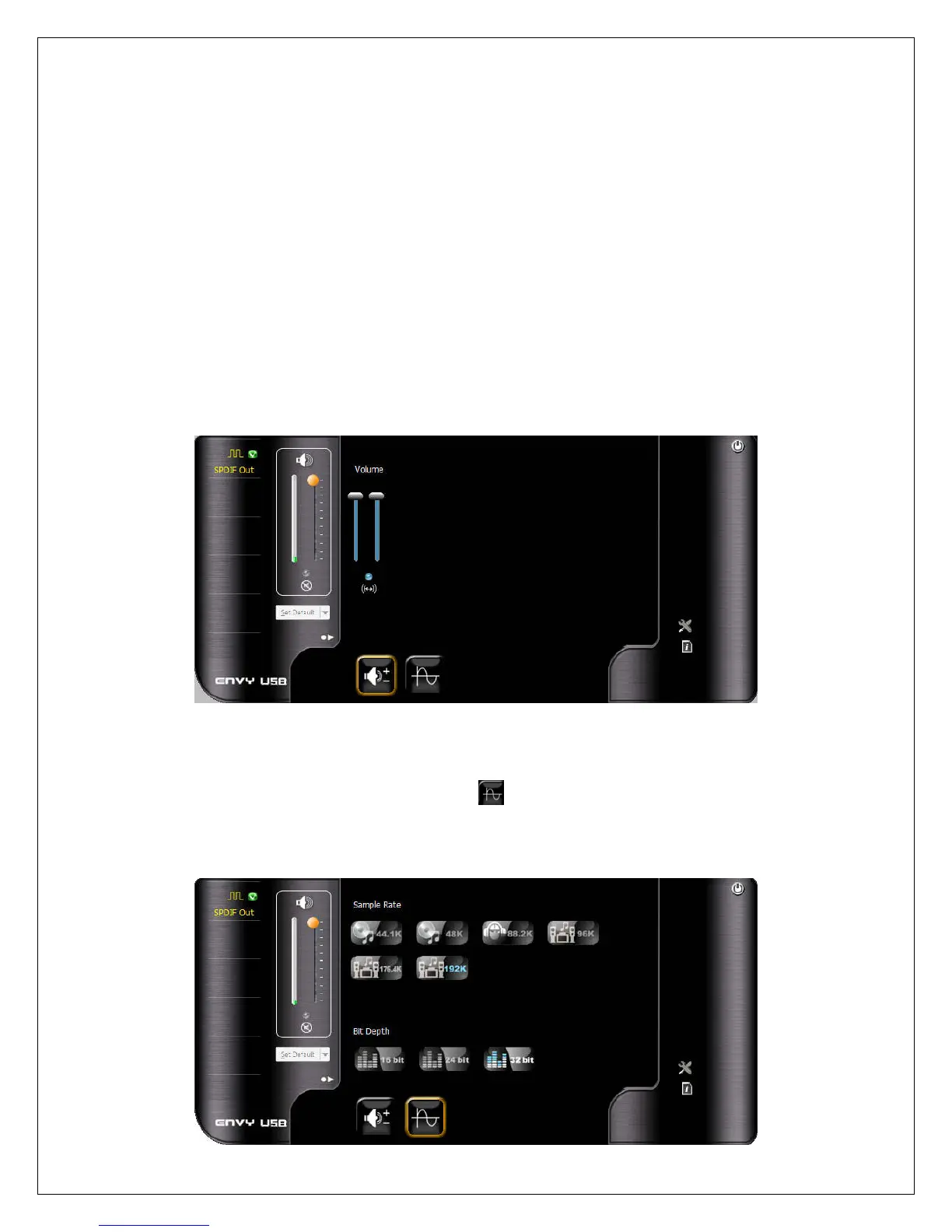
The VIA USB Device Deck software is installed as part of the OriGen+ installation. Once
installed, it can be accessed from the Control Panel or from the Icon Tray.
The main screen of the VIA USB Device Deck allows basic volume adjustments. To access
additional configuration settings, click on the
icon to expand the window:
The first control panel allows independent adjustment of left and right channels. By default he
left and right channels are synchronized.
To access the second control panel, click on the icon. The second control panel offers the
ability to independently set the sample rate and bit depth. Even though 32 bit is available as a
setting in this control panel, this bit depth is not officially supported by Windows XP/Vista/7.



 To Next Page