DetailedInstruconsforUse
Poweron/o
The Miccus® Home RTX 2.0 supports micro USB power. Connect the
micro end of the included USB power cable to the Home RTX 2.0’s micro
USB jack; connect the other end to the compable USB power supply
unit (5V/500mA), computer, or television USB port. Any USB charger that
is rated at an output of 5V@500mA or higher is compable and may be
used with the Miccus® Home RTX 2.0.
ConnecngCables
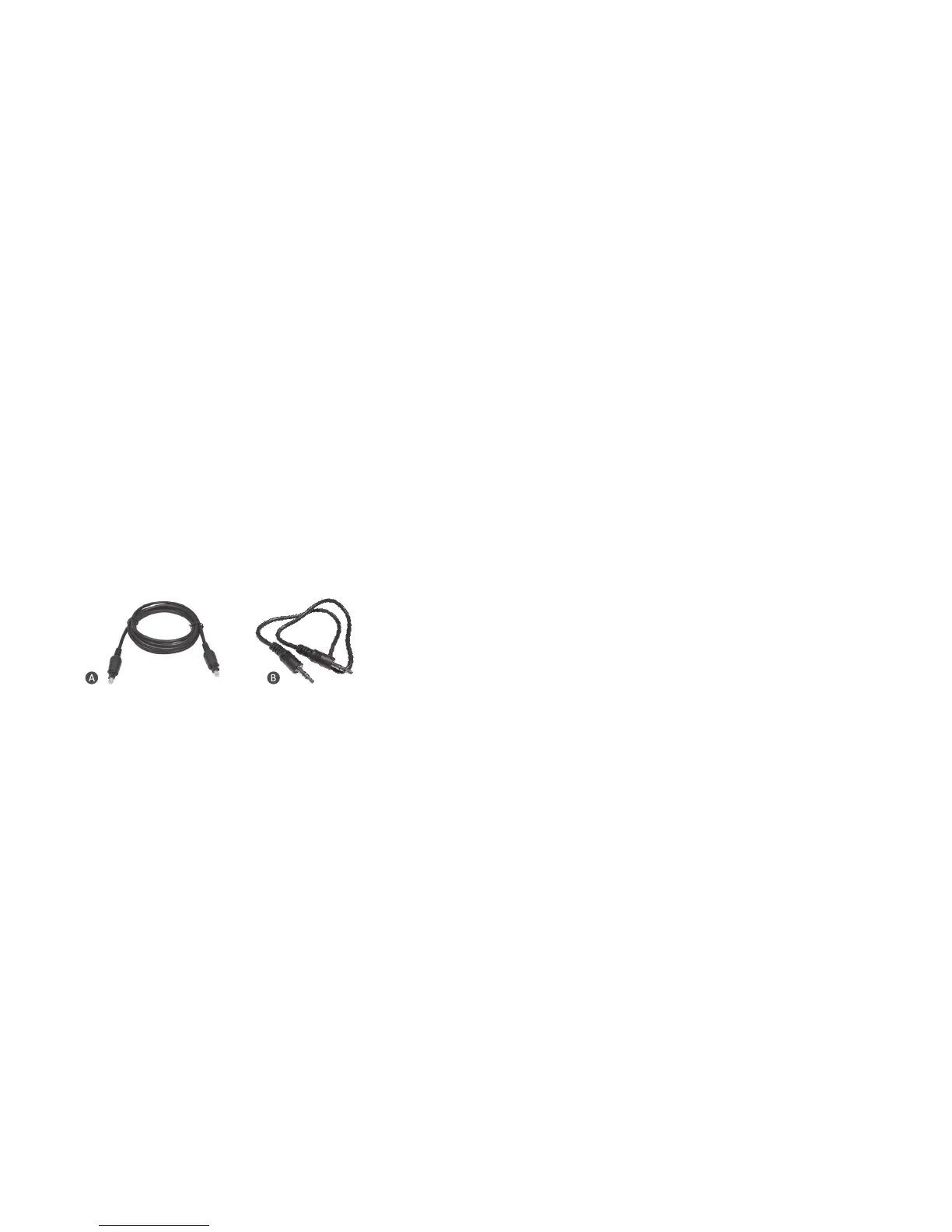
The Miccus® Home RTX 2.0 ships with the following audio cables:
a) TOSLINK digital opcal cable
b) 3.5mm (mini-plug) male to 3.5mm (mini-plug) male cable
Note: If your television or stereo system requires a dierent cable,
please contact Miccus Customer Support and we may be able to
help you: support@miccus.com, 616-604-4449.
• In TX (transmit) mode, the Miccus® Home RTX 2.0 requires an
audio input source like a computer, tablet, smartphone, television
or stereo system, etc. that can oer the Home RTX 2.0 an audio
signal/music to transmit. The cable being used must be connected
to the appropriate input: either TOSLINK / opcal to the “Opcal
In” or 3.5mm to the “3.5mm In.”
5
• To receive a wireless stream in RX (receive) mode, the Miccus®
Home RTX 2.0 must be connected to an auxiliary input on a
stereo or powered speaker system. The cable being used must
be connected to the appropriate output: either TOSLINK/opcal
to the “Opcal Out” or 3.5mm to the “3.5mm Out.”
Note: The included USB cable with ferrite core is for USB power only and
does not oer an audio or data type connecon. For opmal performance,
always use the provided USB cable with your Miccus® Home RTX 2.0. Since
the Miccus® Home RTX 2.0 is a long range Bluetooth® device it may be
suscepble to RF interference; the USB cable with ferrite core can help
reduce potenal interference during operaon.
Pairing
Note: The Miccus® Home RTX 2.0 and your Bluetooth® device should
be no more than one meter apart when pairing (the closer the beer
unl paired).
Transmit Mode (TX):
1. With the Home RTX 2.0 powered o, locate the RX/TX switch on
the back le of the Home RTX 2.0. Select TX mode by pressing and
latching the switch to the in posion. Note: when connected to
USB power, using this switch will power on the RTX 2.0.
2. TX mode requires a wired audio source connecon to either the
3.5mm audio input or the TOSLINK/opcal audio input. Connect
your audio source with the appropriate cable.
3. Power on your headphones, speaker or other compable A2DP
Bluetooth® prole device and engage pairing mode.
4. Power on the Home RTX 2.0. There are three ways to power on
the Home RTX 2.0: 1) connect the RTX 2.0 to USB power, 2) If
already connected to USB power and powered o, press and hold
the power buon for 5 seconds unl the indicator lights come on,
3) In the o posion, switch the RTX 2.0 between TX and RX mode.
5. Engage pairing mode on the RTX 2.0: press and hold the mul-
funcon/power buon for 3 seconds unl the CH light begins
fast ashing.
6


 To Next Page