Section 2: VPViewer and Origin Software
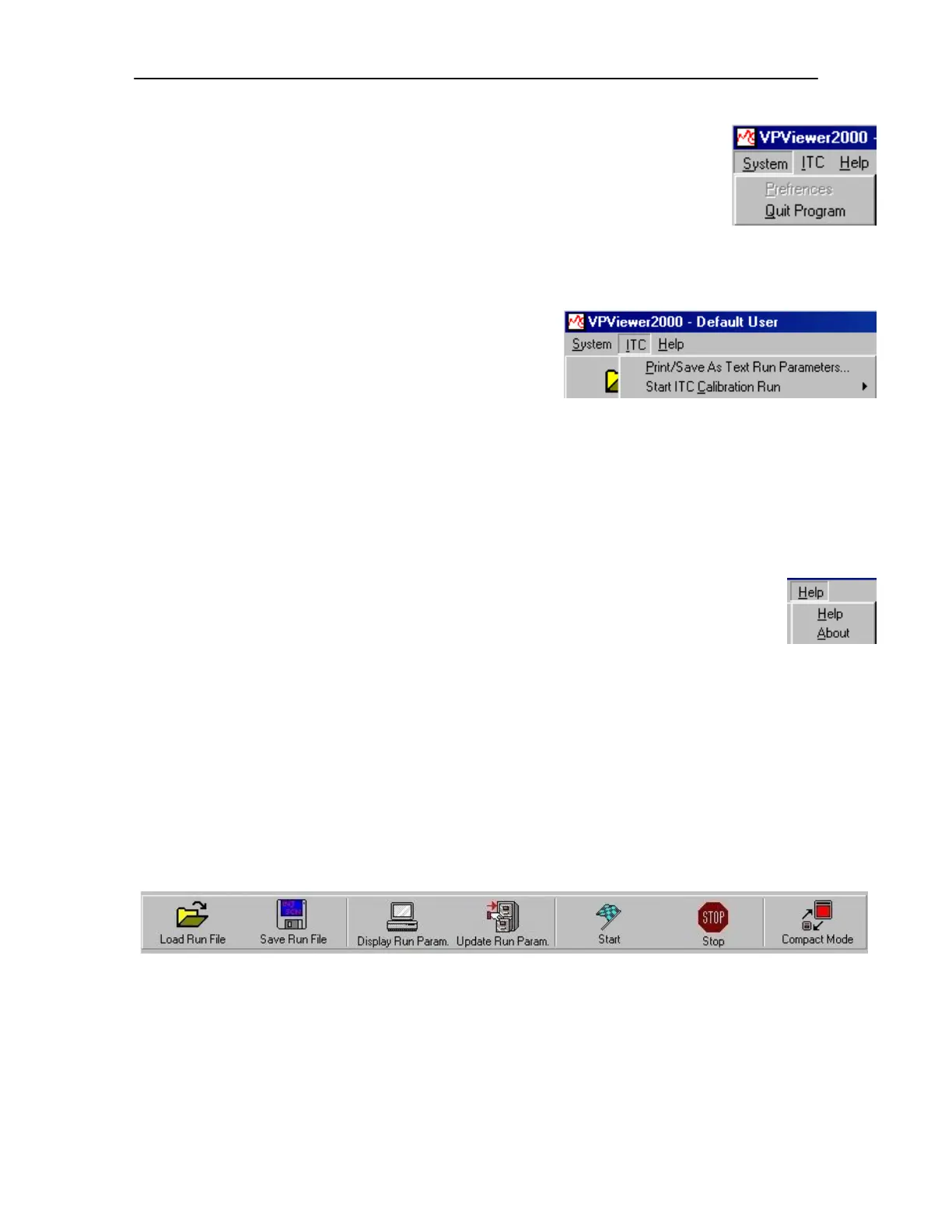
System: Quit Program. Selecting Quit Program prompts the user to see if they
want to terminate the VPViewer application. Responding with yes will
terminate the program and any run in progress. All ITC run, or partial
run data will be saved to disk. Approximately a minute or so after
program termination, the power to the VP-ITC will also be shut down.
Power to the VP-ITC will not be restored until the VPViewer
application is run again.
ITC: Print/Save As Text Run Parameters. This
function allows users to print or save to a file
the run parameters that are being used for an
ITC run. While run parameters are always
included as part of the ITC data file header, the
Print/Save As Text Run Parameters menu
option provides the user with a nicely formatted listing of run parameters, ideal for data
presentation or general record keeping.
Start ITC Calibration Run. This option is used to check the accuracy of the ITC y-
axis measurements (DP signal). Please refer to Section 5.3 Y-axis Calibration starting
on page 72 for details on y-axis calibration.
Help: Help. Allows access to the help menus. At the time of release of this User’s
Manual the on-line help was still under development.
About. Provides specific details about this version of software and contact
information for MicroCal, LLC.
VPViewer Main Window Buttons
The Main Window buttons allow access to VPViewer’s frequently used functions. The figure
below shows all the buttons available for use. Depending on the current state of the instrument,
some of the buttons would be grayed out and not available. (Specifically, the Start button is
only available when the ITC is in its idle state. The Stop, Update Run Param. and Display Run
Param. buttons are available when the VP-ITC is active, in a prerun, run or postrun state.)
Load Run File: Clicking on this button will display the file open dialog box to load previously
saved run parameters into the ITC Controls Window. Run parameters may be loaded from one
of two types of files; run parameters may be loaded from a previous experiment’s data file
(*.itc), (the run parameters being extracted from the data file header) or they may be loaded from
a setup file (*.inj) which was previously saved in the Save Run File option (as described below).
19


 To Next Page