Printer Modes Chapter 4
26 226/426 User’s Guide
4.4.1 Entering Diagnostic Mode
To enter the diagnostic mode, press and hold the print button in while turning on the printer.
Release the button after the status light indicator starts to blink and the printer will power up
into diagnostic mode.
4.1.2 Status Label
The printer will print the Status label after the printer performs a powered up and enters the
diagnostic mode. The status label prints out the reports that are generated by the ^D323),
^D326), ^D325), and ^D324) commands.
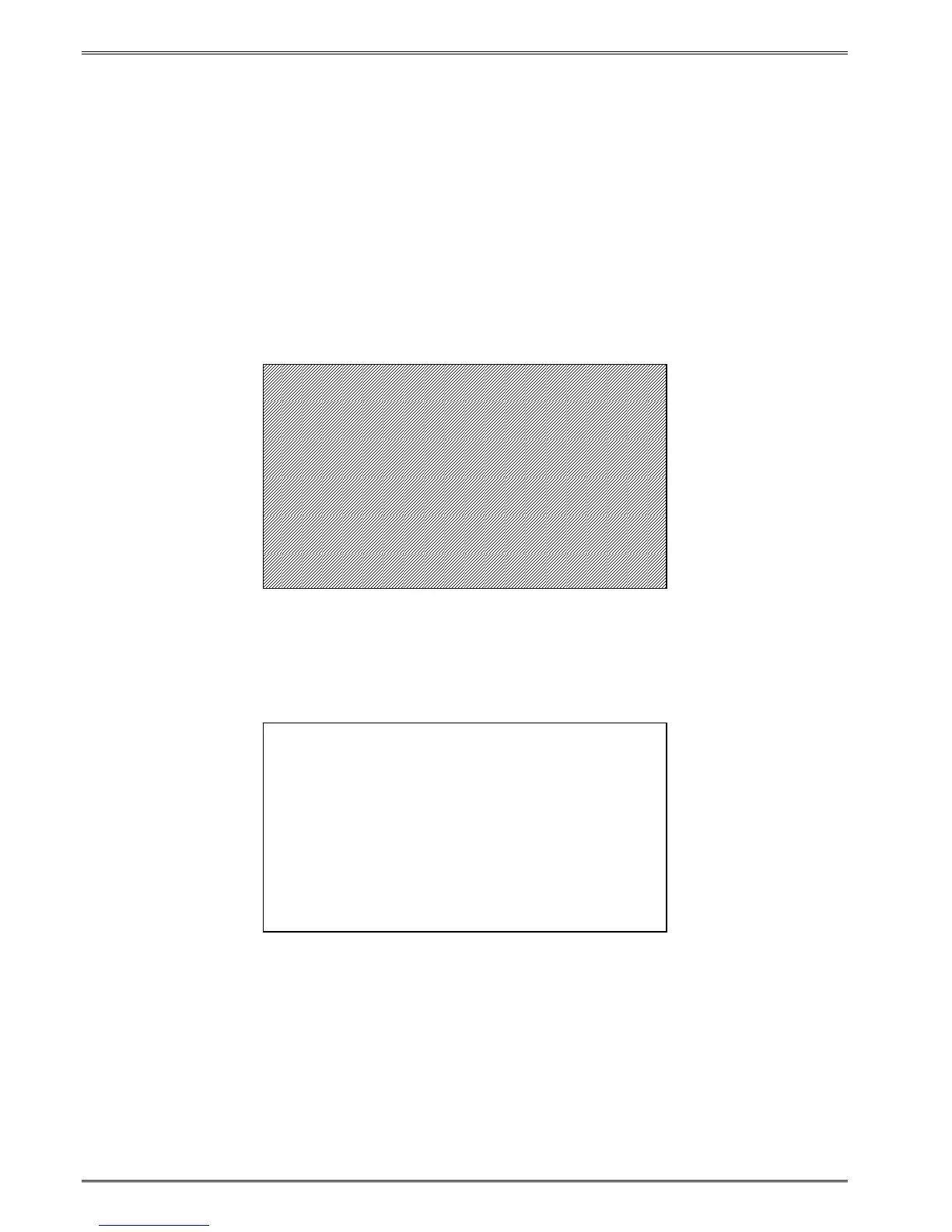
Figure 8 ^D960)1 or ^K Test Pattern
Figure 9 ^D323-List Enablements Example
Enablements (D323 or <Ctrl> Y)
User Interface
Software flow control: (D770) enabled
Hardware flow control: (D771) disabled
Format
Operational
Auto power-up label: (D720) disabled
Auto top-of-form alignment: (D722) disabled
Auto media sizing: (D723) disabled
Auto alignment after error: (D724) disabled
Cutter: (D740) disabled
PMH: (D741) disabled


 To Next Page