- 32 -
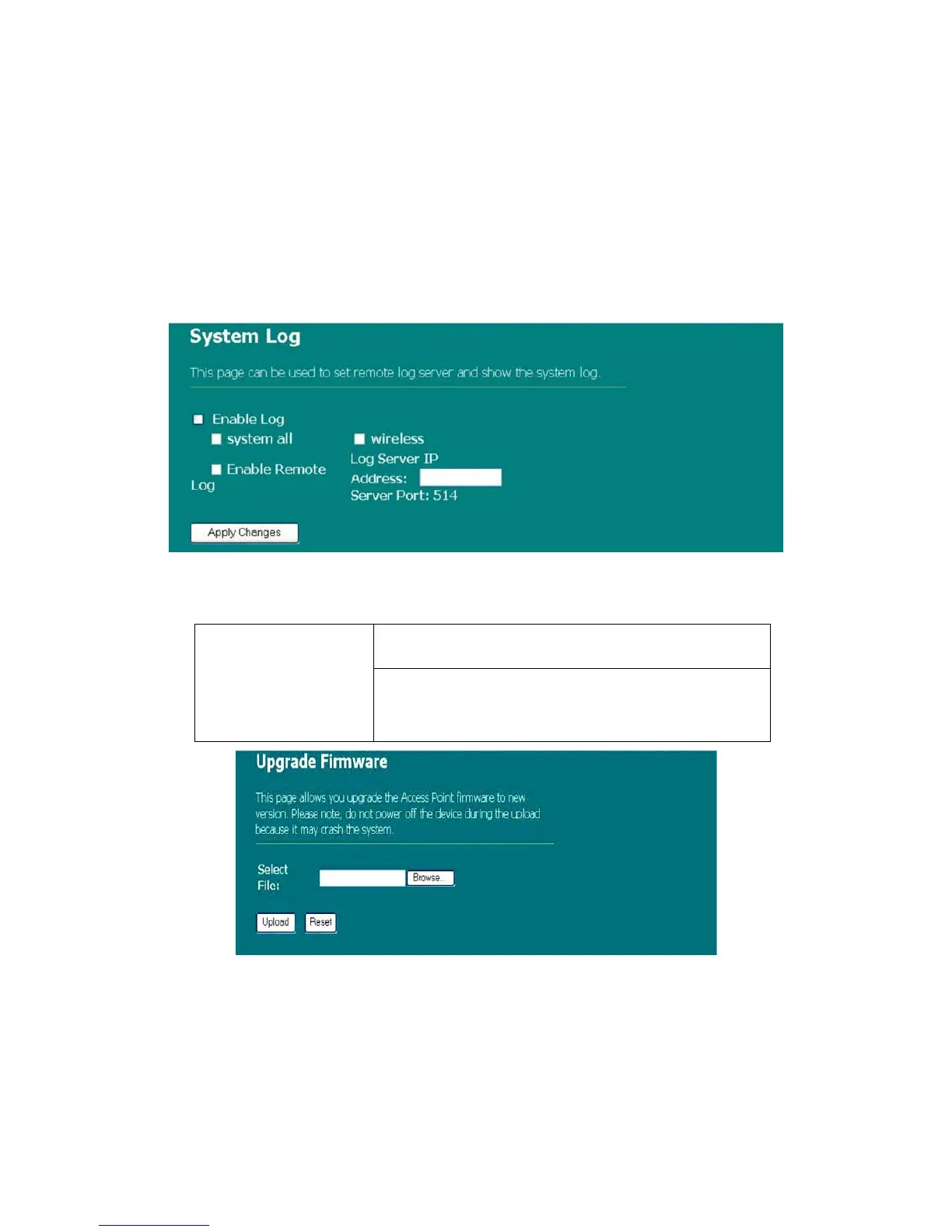
2. To see all information of the system, select the “system all” checkbox.
3. To see wireless information only, select the “wireless” checkbox.
4. To send the log information to a certain note, select the “Enable Remote
Log” checkbox and fill in the IP address in the “Log Server IP Address” box.
5. Click the “Apply Changes” button to activate
You could also click the “Refresh” button to refresh the log information or click the
“clear” button to clean the log table.
Upgrade Firmware
To Upgrade Firmware
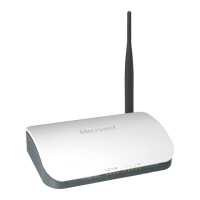
1. Click “browse…” button to select the firmware you
want to upgrade.
STEPS
2. Click Upload to start the upgrade process. Please
don’t close the WEB-browser and wait for process
to complete. When Upgrade is completed, you can
start to use the router.


 To Next Page