Surface Pro 4
© 2016 Microsoft Page 19
Connect monitors, accessories, and other
devices
You can connect monitors, accessories, and other devices directly to your Surface Pro 4 using the
USB port, Mini DisplayPort, or Bluetooth. Or, connect everything to a Surface Dock (sold separately).
With Surface Dock, you can switch between fully connected and fully mobile with a single
connector.
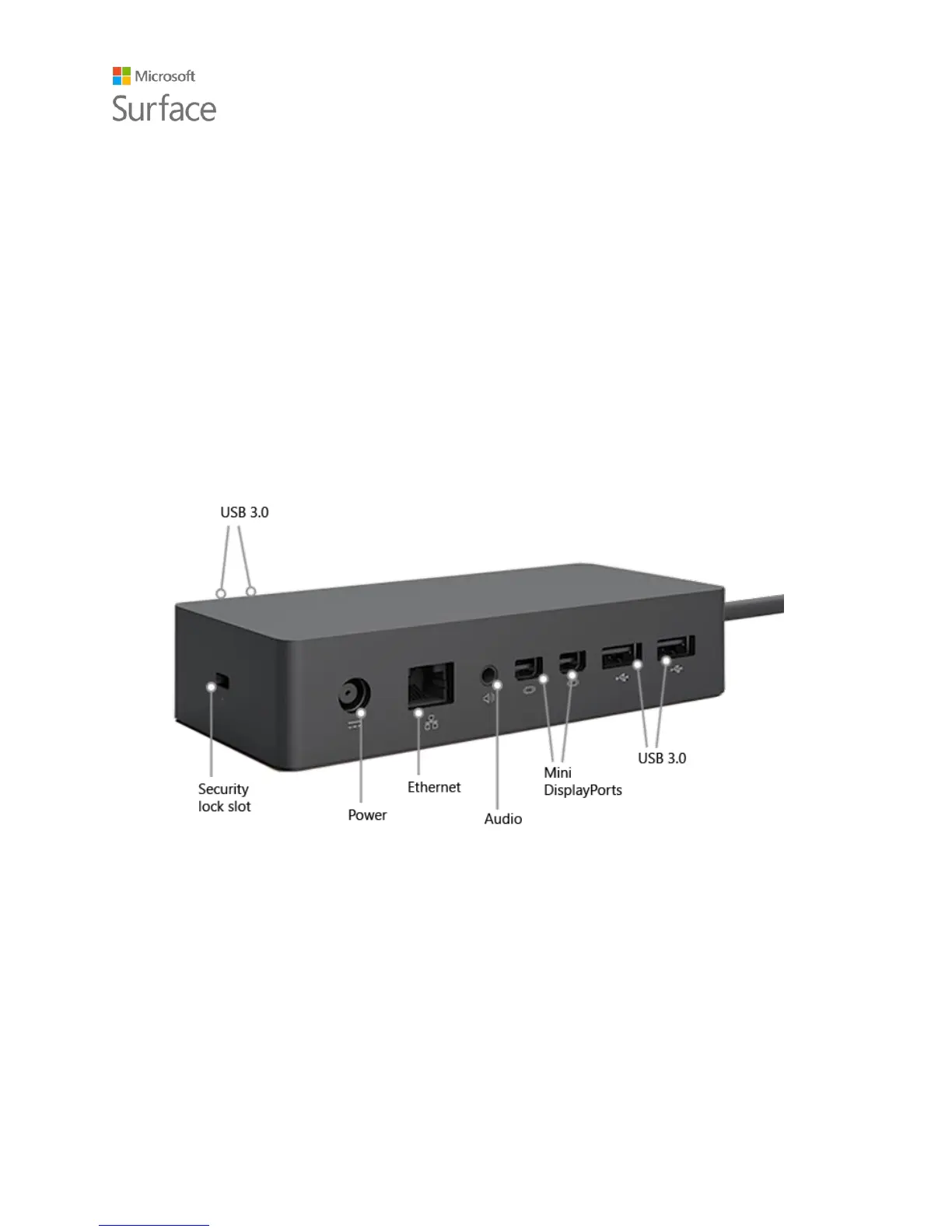
Set up your workspace with Surface Dock
Surface Dock supports high-speed transfer of video, audio, and data. Its compact design gives you
flexibility and keeps your desktop clutter-free.
Here's how to get your workspace set up with Surface Dock:
1. Plug the AC end of the Surface Dock power cord into an electrical outlet or power strip, and
plug the other end into the power port on Surface Dock.
2. If you want to use a wired network connection, connect a network cable to the Ethernet
port on Surface Dock.
3. Connect your computer peripherals to the USB ports on Surface Dock.
4. Connect a cable from your monitor to a Mini DisplayPort on Surface Dock.
If your monitor cable doesn’t have a Mini DisplayPort connector, you’ll need to buy another










 To Next Page