Chapter 1: Introducing Windows Vista 11
Understanding Windows Vista User Accounts and
Windows Security Permissions
Windows Vista has two primary types of local user accounts:
■ Standard user Standard user accounts can use most software and can change system
settings that do not affect other users or the security of the computer.
■ Administrator Administrator accounts have complete access to the computer and can
make any desired changes.
In Windows Vista, all applications run using either standard user or administrator permis-
sions. As discussed in Chapter 9 under “Introducing User Account Control,” this change has
far-reaching effects on the operating system as well as how you work with user accounts and
manage applications. Because of User Account Control, whether a user logs on as an admin-
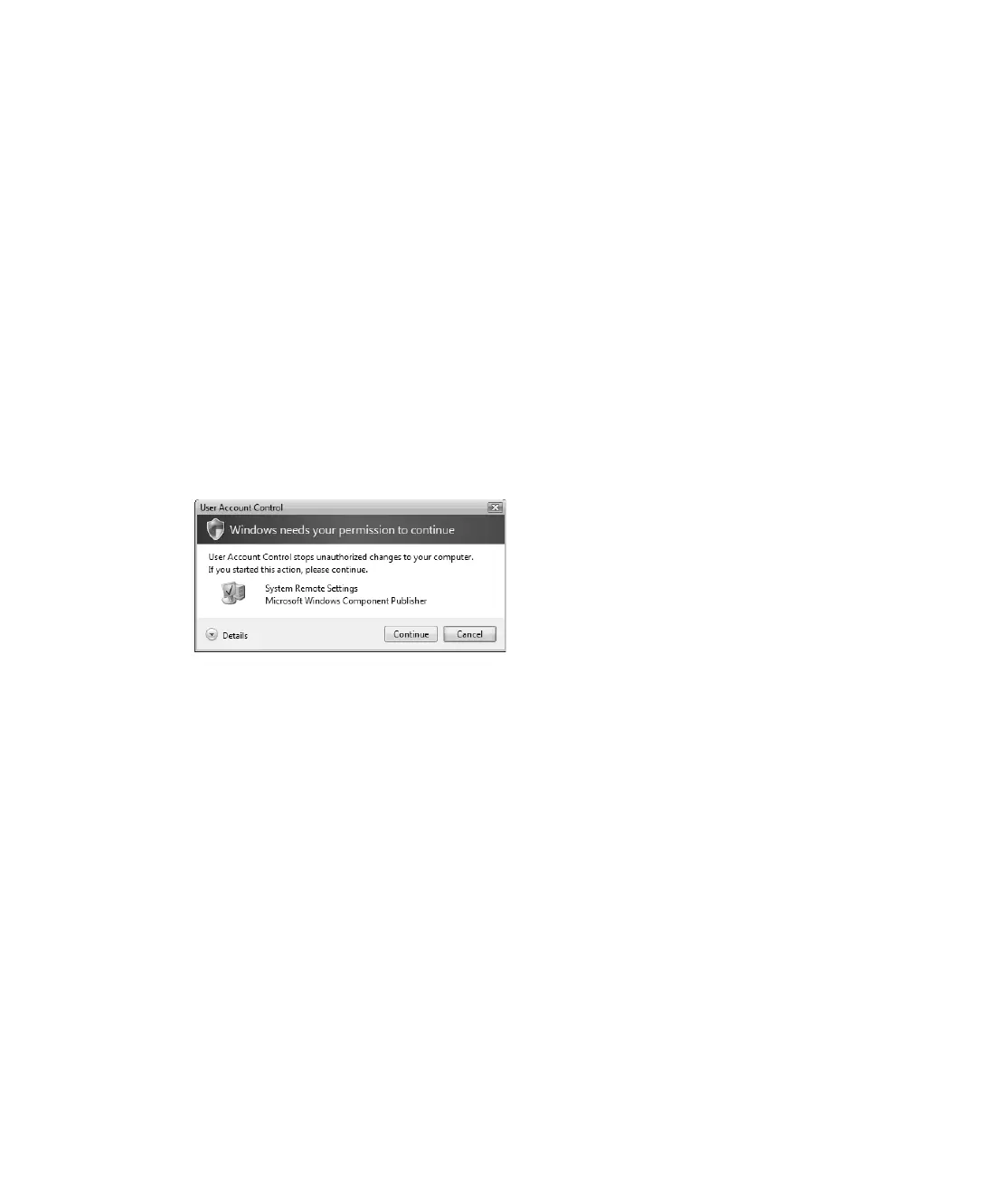
istrator or a standard user, the user sees a User Account Control dialog box containing a warn-
ing prompt stating, “Windows needs your permission to continue.” This dialog box is shown
in Figure 1-4.
Figure 1-4 The User Account Control dialog box
The way the prompt works depends on whether the user is logged on with an administrator
account or a standard user account. Users with administrator permissions are asked for confir-
mation. The user can click Allow to allow the task to be performed or Cancel to stop the task
from being performed. Clicking Details shows the full path to the program being executed.
Users with standard accounts are asked to provide a password for an administrator account.
In a workgroup configuration, each local computer administrator account is listed by name.
To allow the task to be performed, you must click an account, type the account’s password,
and then click Submit.
In a domain configuration, administrator accounts for users who have logged on to the
computer are listed. These accounts can be both domain administrator accounts and local
computer administrator accounts. You also have the option of choosing a different account.
To run the task using a different user’s permissions, click Use Another Account, type the user
account, and then type the account’s password. If the account is in the default domain,
you don’t have to specify the domain name. If the account is in another domain, you can
specify the domain and the account name using the format domain\username, such as
cpandl\williams.
C01622841.fm Page 11 Wednesday, May 17, 2006 8:24 AM



 To Next Page