18 Part II: Essential Features in Windows Vista
Note This book was written using the Windows Vista Beta to provide an early introduction
to the operating system. More so than any other area of Windows Vista, the security features
discussed in this book are subject to change. Some of the features might not be included in the
final product, and some of the features might be changed substantially.
Getting Around in the Windows Vista Taskbar
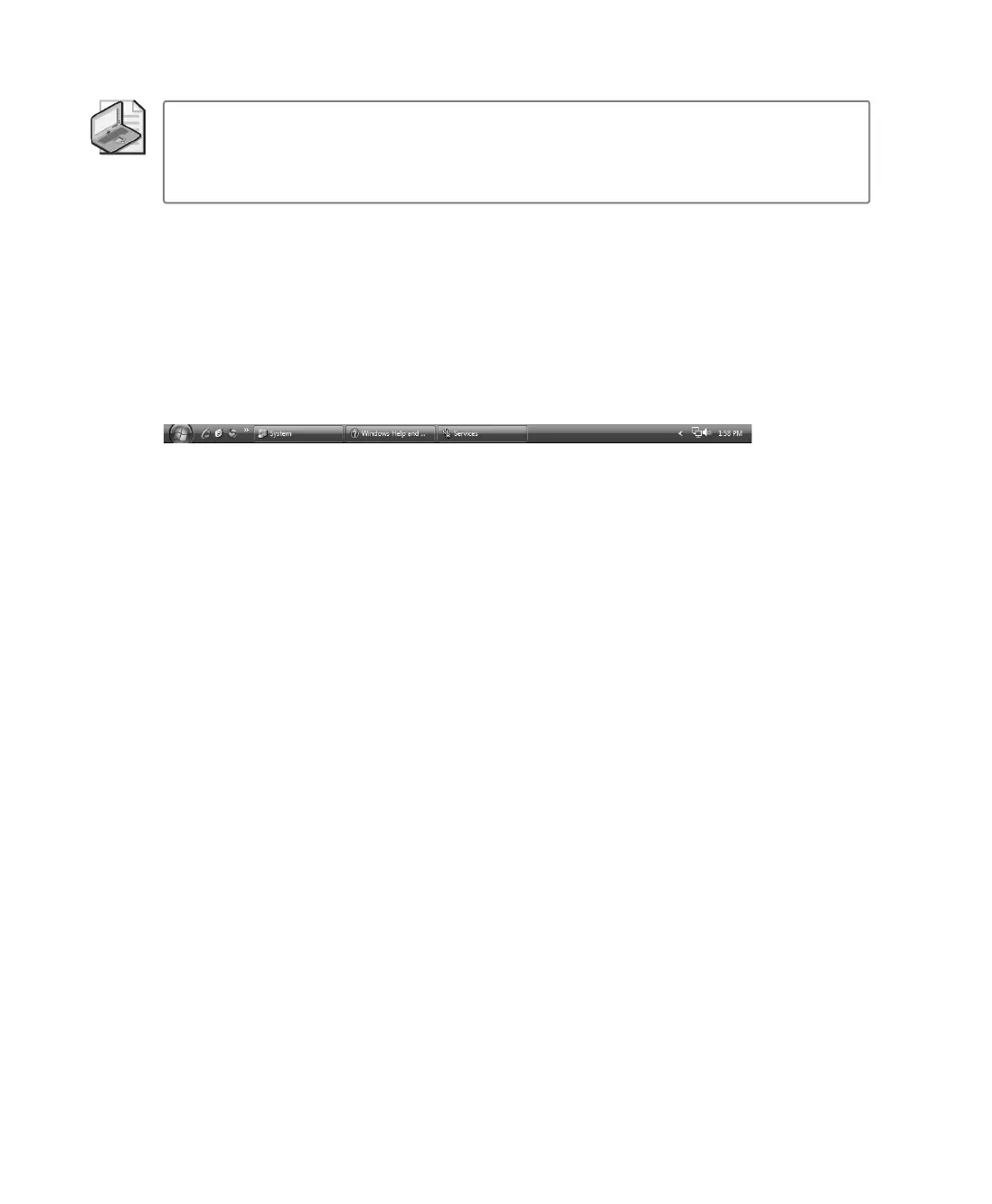
In Windows Vista, by default, the taskbar is locked so that it is always displayed, as shown in
Figure 2-1. The Start button, shown on the far left, is one of the key features on the taskbar.
Quick Launch items are displayed to the right of the Start button, followed by buttons for run-
ning programs, and then the notification area. Each of these areas has feature enhancements,
which are discussed in the sections that follow.
Figure 2-1 The taskbar in Windows Vista
Working with the Quick Launch Toolbar
By default, the Quick Launch toolbar displays a quick access button for the desktop. A new
feature in Windows Vista is the ability to add any program directly to the Quick Launch
toolbar from the Start menu. To do this, click the Start button, navigate to the program
on the Start menu that you want to be able to access quickly, and then right-click the
program name. Last, select Add To Quick Launch to add the program to the Quick Launch
toolbar.
The Quick Launch toolbar is displayed by default. If the Quick Launch toolbar isn’t displayed
and you want to display it, right-click the Start button, and then select Properties. In the Task-
bar And Start Menu Properties dialog box, click the Taskbar tab, and then select the Show
Quick Launch check box.
Using Taskbar Thumbnails, Windows Flip, and
Windows Flip 3D
In earlier versions of Windows, the taskbar displayed a button for each running program.
Clicking the button allowed you to display the program window in front of all other
windows. Windows XP included an enhancement that grouped similar taskbar buttons.
For example, if you opened eight folders in Windows Explorer, these items would be
grouped together under one taskbar button. Clicking the taskbar button would then
display a dialog box with an entry for each folder window, allowing you to select which
folder window to display.
C02622841.fm Page 18 Wednesday, May 17, 2006 8:40 AM


 To Next Page