Chapter 9: Protecting User Accounts and Using Parental Controls 141
Individual user settings:
■ Control allowed Web sites and allowed types of content.
■ Set time limits for when the computer can be used.
■ Determine the types of games that can be played according to rating, content, or title.
■ Block specific programs by name.
Selecting a Games Rating System
Games rating systems, such as those used by the Entertainment Software Ratings Board
(ESRB), are meant to help protect children and young adults from specific types of mature
content in computer games and on the Internet. You can learn more about the available rating
systems and configure a default rating system to use by following these steps:
1. Click Start, and then click Control Panel.
2. In Control Panel, click Set Up Parental Controls under the User Accounts And Family
Safety category heading.
3. In the left panel of the main Parental Controls page, click Select A Games Rating System.
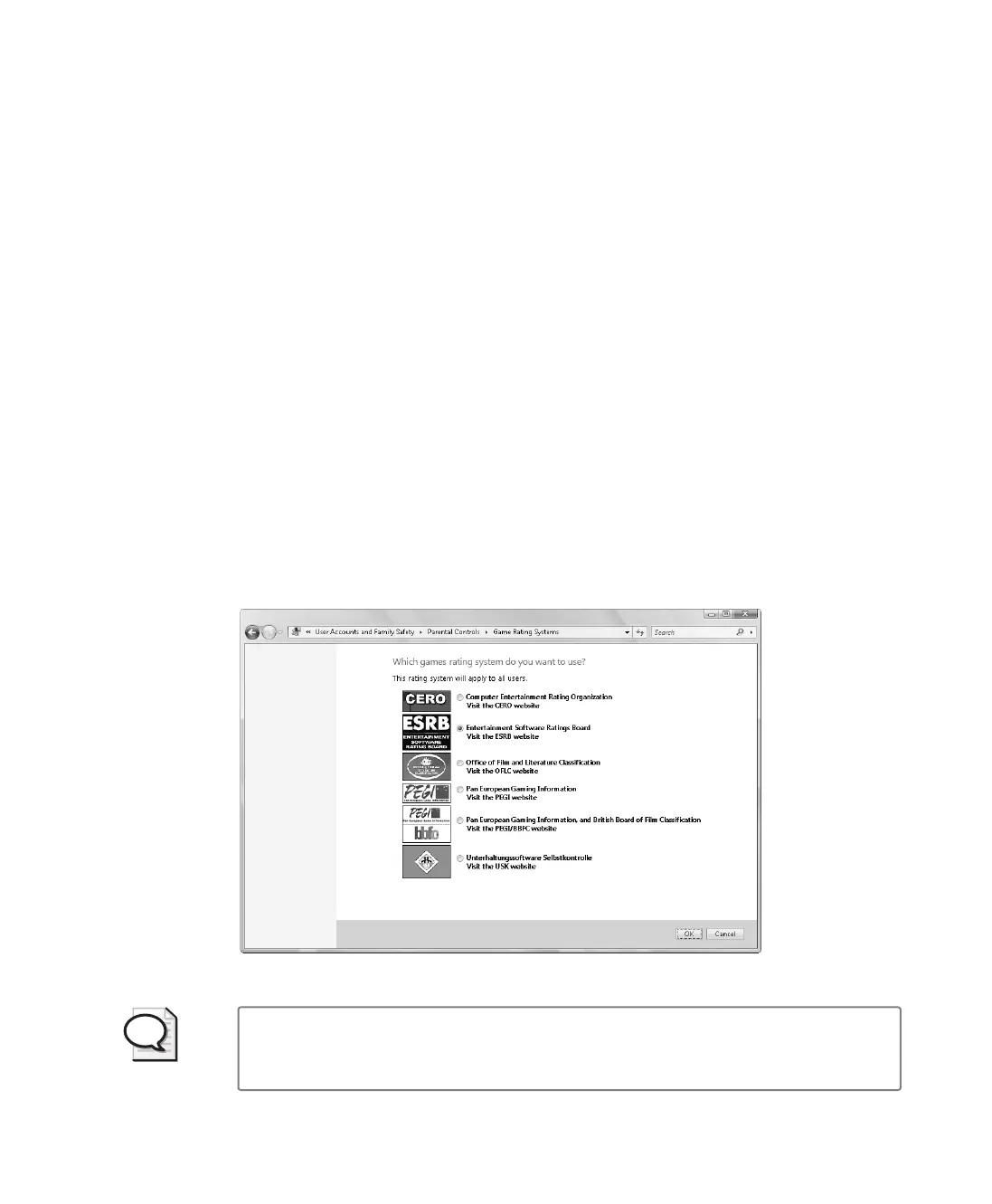
4. As Figure 9-5 shows, you can now review the games rating systems available. The default
rating system used might depend on the country or region settings for the computer.
Figure 9-5 Viewing and setting the games rating system to use
Tip When you click one of the links provided, the home page for the designated orga-
nization appears in Microsoft Internet Explorer. If you have questions about a rating
system, the organization’s Web site can answer them.
C09622841.fm Page 141 Wednesday, May 17, 2006 9:26 AM


 To Next Page