140 Part III: Securing Windows Vista
environments is what parental controls are all about. If you don’t want children and young
adults to play certain types of games or access certain types of materials on the Internet, you
can use parental controls to help control their access to the computer and to mature content.
You can set parental controls for standard user accounts on the local computer only. You can-
not set parental controls for administrators, and you cannot set parental controls for domain
user accounts. Any user designated as an administrator on the local computer can configure
parental controls and view activity reports for users subject to parental controls.
You can access parental controls by completing the following steps:
1. Click Start, and then click Control Panel.
2. In a workgroup setting, click Set Up Parental Controls under the User Accounts And
Family Safety heading. In a domain setting, click Set Up Parental Controls under
the User Accounts heading.
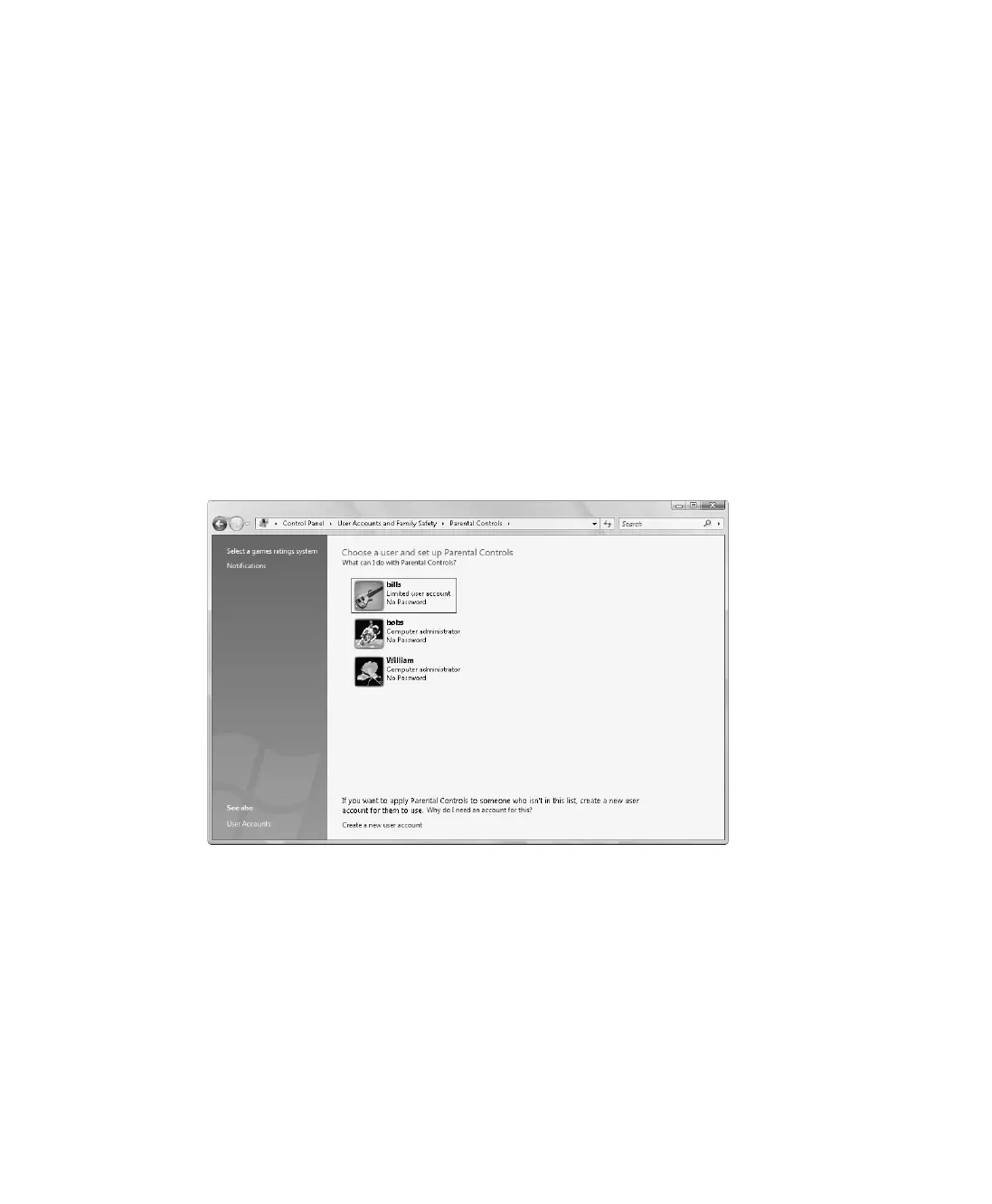
3. On the main Parental Controls page, shown in Figure 9-4, you can now set up parental
controls.
Figure 9-4 Accessing parental controls
Parental controls are configured using general settings for the computer as a whole as well as
specific settings for individual users. General computer settings:
■ Control whether activity reports are active for specific users and how often you are
reminded to read activity reports.
■ Determine whether an icon is displayed in the system tray when parental controls are
running.
■ Determine the games rating system to use on the computer.
C09622841.fm Page 140 Wednesday, May 17, 2006 9:26 AM



 To Next Page