136 Part III: Securing Windows Vista
With User Account Control and Admin Approval Mode, you are prompted for consent prior
to performing any task that requires elevated permission, and the Windows Security dialog
box allows you to run the application on a one-time basis using elevated credentials. In the
Windows Security dialog box, click Allow to start the application using an administrator
account, or click an account, type the account’s password, and then click Submit to start the
application using a standard account.
Another way to use elevation is to mark an application or process to always run using elevated
credentials without prompting the user for consent. To do this, follow these steps:
1. Log on to the computer as a member of the local Administrators group.
2. By using the Start menu, locate the program that you want to run always using elevated
credentials.
3. Right-click the application’s shortcut icon, and then click Properties.
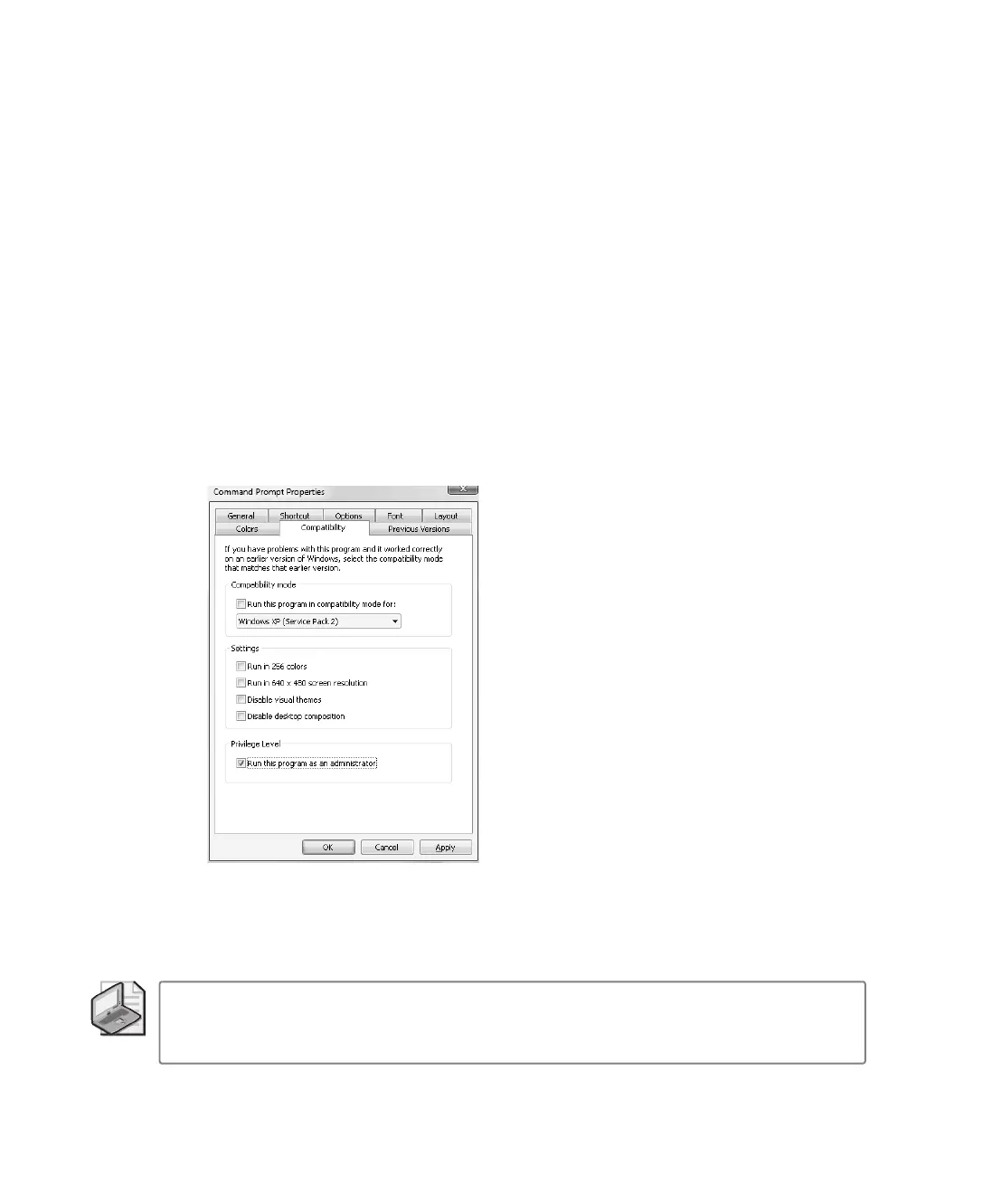
4. In the Properties dialog box, select the Compatibility tab, as shown in Figure 9-2.
Figure 9-2 Marking an application to always run elevated
5. Under Privilege Level, select the Run This Program As An Administrator check box.
6. Click OK.
Note
If the Run This Program As An Administrator option is unavailable, it means that the
application is blocked from always running elevated, the application does not require admin-
istrative credentials to run, or you are not logged on as an administrator.
C09622841.fm Page 136 Wednesday, May 17, 2006 9:26 AM



 To Next Page