194 Part III: Securing Windows Vista
or return to Network Center. In a workgroup, options on the Network view toolbar allow you
to connect to a network or return to Network Center. If you double-click a computer while
browsing, you’ll be able to see devices associated with the computer, such as printers.
In Network Center, you can create network connections by clicking Connect To in the left
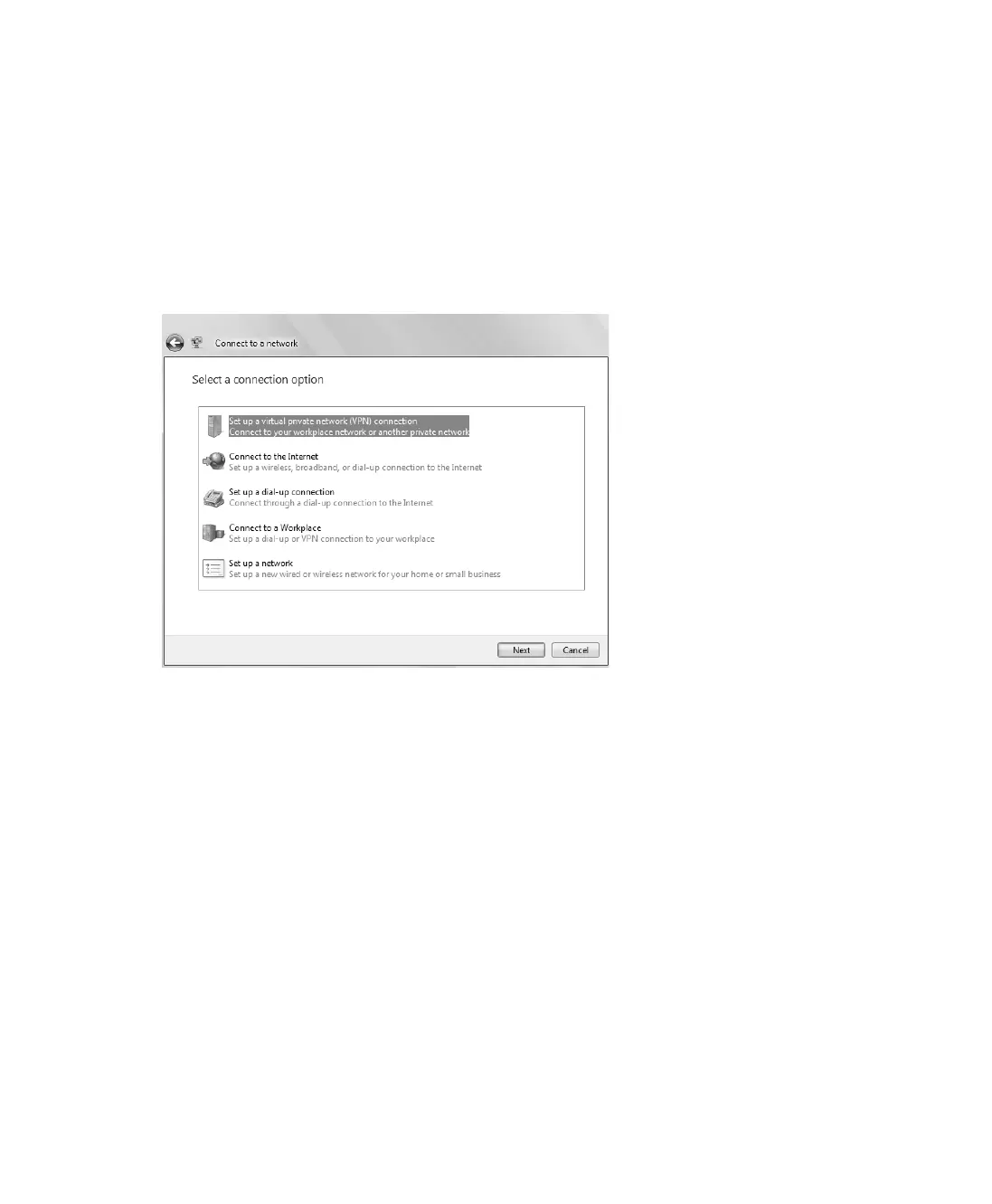
pane and then clicking Create A New Connection in the Connect To A Network dialog box.
This opens the Connect To A Network Wizard, shown in Figure 12-4. You can use this wizard
to add a network, create a virtual private network (VPN) connection or create a dial-up
connection.
Figure 12-4 Connecting to a new network
When you connect to a network in a new location, a network profile is created. Windows can
save settings in this location and automatically use these settings the next time you connect to
this network. Sometimes, you can connect to one network in multiple ways. For example, you
might be able to connect to a network by plugging in a cable, by using a wireless connection,
or both. Or your computer might have multiple network adapters and those adapters might
be connected to different networks or to the same network. You can determine the devices
and connections associated with the current network by following these steps:
1. Click Start, and then click Control Panel.
2. In Control Panel, under the Network And Internet heading, click View Network Status
And Tasks.
3. If you have a valid connection to the network, click Personalize under Network Details.
4. The Personalize Settings dialog box, shown in Figure 12-5, provides details about the
network to which you are currently connected.
C12622841.fm Page 194 Wednesday, May 17, 2006 1:55 PM


 To Next Page