196 Part III: Securing Windows Vista
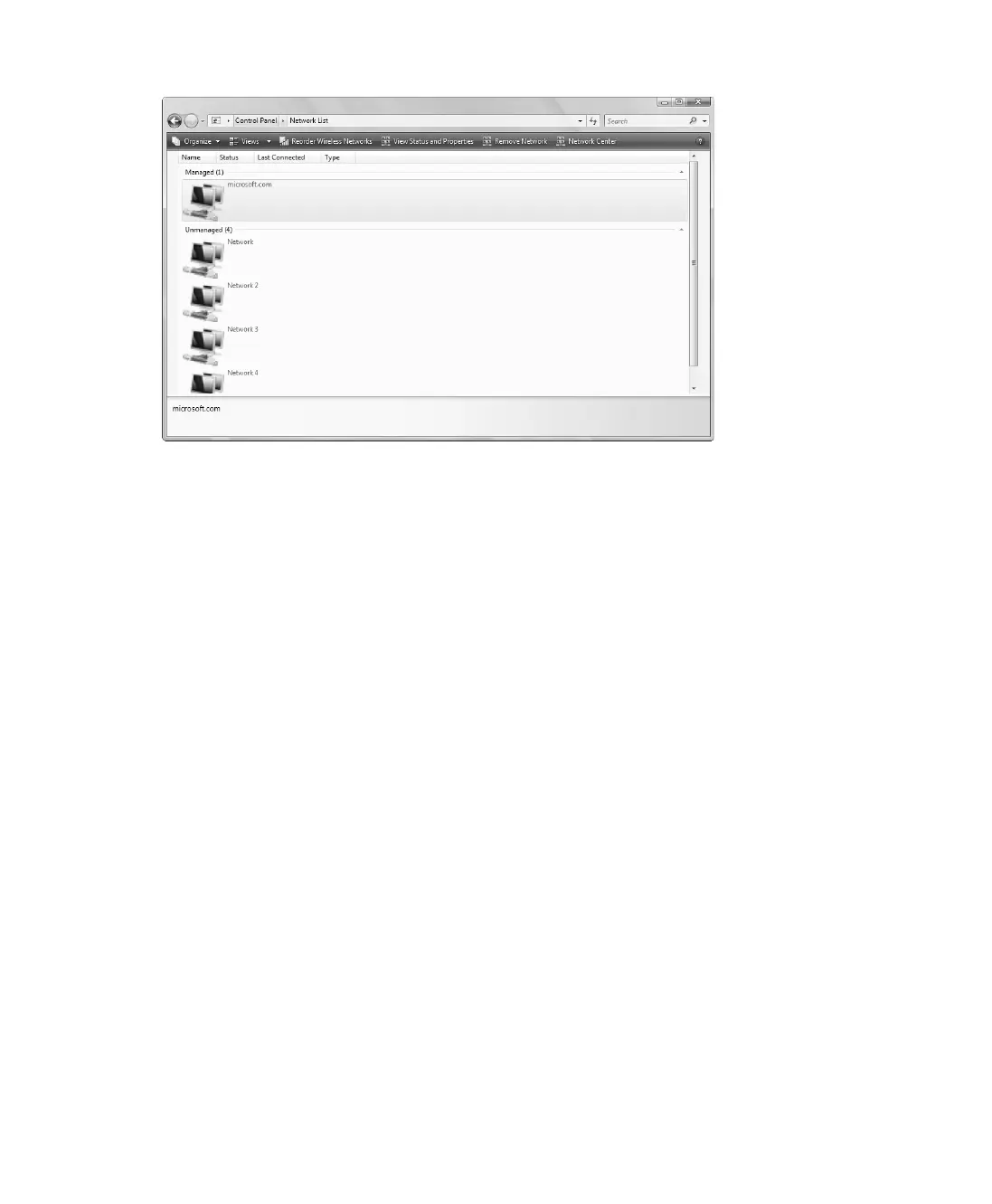
Figure 12-6 Using Network List
Network List has several different views. You can access these views by clicking the Views
button and then selecting the desired view. The view you’ll use most often is the Details view.
Using the Details view of the Network List, you can quickly determine the following information:
■ Name The name of the profile associated with the network.
■ Status The status of your connection to the network as either connected (and active) or
disconnected (and inactive).
■ Last Connected The data and time you last connected to the network.
■ Type The type of network, such as managed or unmanaged.
The Network List toolbar allows you to work with networks in several different ways. The
option buttons are used as follows:
■ Reorder Wireless Networks Click Reorder Wireless Networks to set the preference
order for using wireless networks. To change the order, drag a network entry up or
down the list. You can also add or remote network profiles.
■ View Status And Properties Click View Status And Properties to display a Status dialog
box for a selected network. As discussed in the “Viewing and Managing Your Networks”
section of this chapter, you can then manage the network’s profile name and connection
configuration.
■ Remove Network Click Remove Network to remove and delete the profile associated
with the network. When prompted, confirm that you want to delete this information by
clicking OK.
C12622841.fm Page 196 Wednesday, May 17, 2006 1:55 PM


 To Next Page